> ## Documentation Index
> Fetch the complete documentation index at: https://docs.smartsend.io/llms.txt
> Use this file to discover all available pages before exploring further.

# Connect agreement

> Connect Bring to your Smart Send account.

## Connect agreement

To connect your Smart Send account with Bring, you need an active Bring shipping agreement. When you receive your agreement, you also get access to Bring's platform, **MyBring**. This is the account you will use to connect Bring to Smart Send.

To connect Bring, start by logging into the <Link href="https://app.smartsend.io">Smart Send platform</Link> <Icon icon="arrow-up-right" size={12} />.

<Steps>
  <Step title="Navigate to Carrier Accounts">
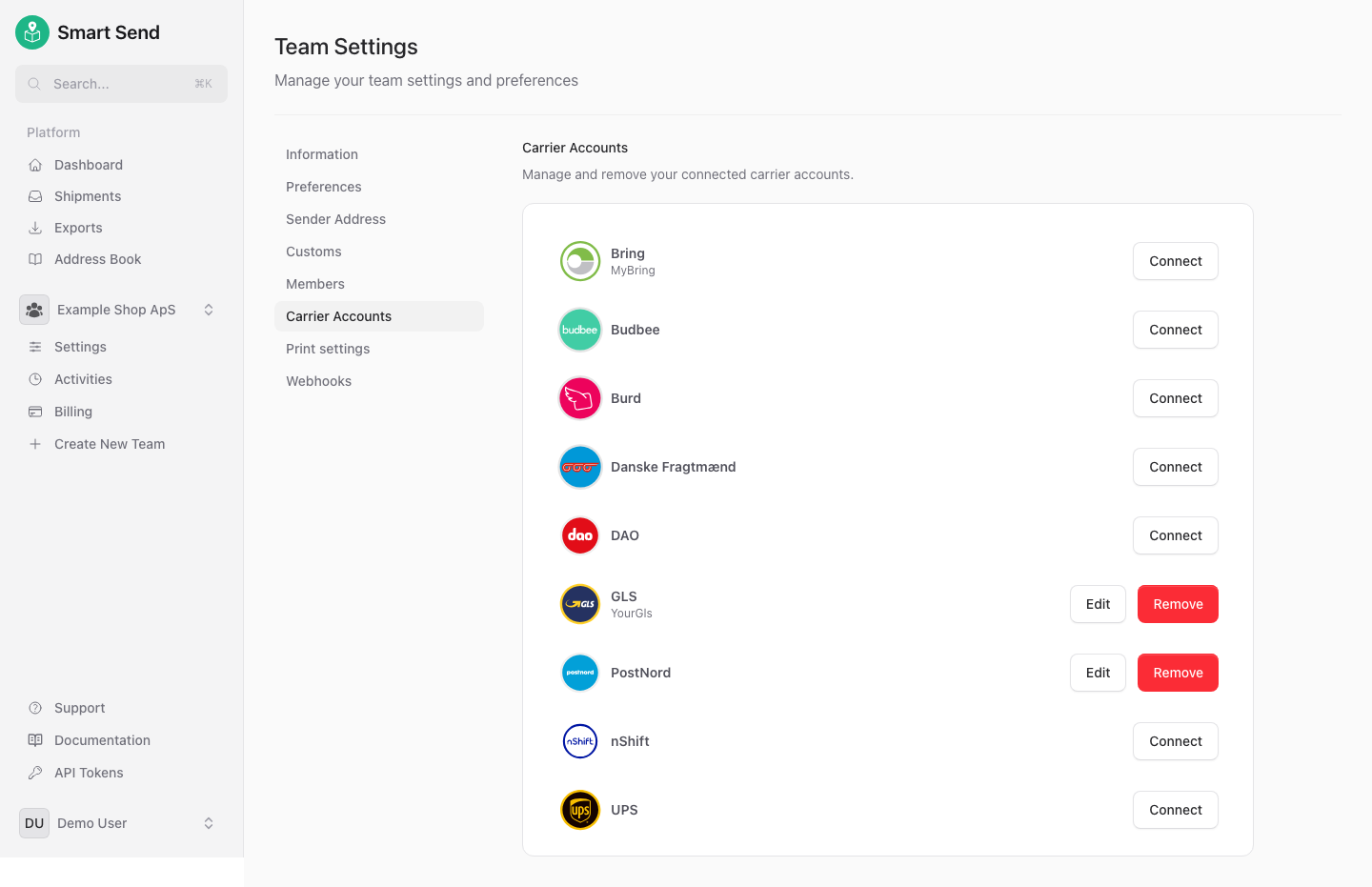
    Go to **<Link href="https://app.smartsend.io/team/settings/carriers">Carrier Accounts</Link>**
  </Step>

  <Step title="Connect Bring">
    Next to *Bring* click the **Connect** button

    <img src="https://mintcdn.com/smartsend/oG0vUhSrEWp3SfSv/images/carrier-connections/overview.png?fit=max&auto=format&n=oG0vUhSrEWp3SfSv&q=85&s=d7a7b8832e12b8834bfe80027b8c6e41" alt="Carrier accounts overview with Bring connect button" className="rounded-lg" width="1440" height="931" data-path="images/carrier-connections/overview.png" />
  </Step>

  <Step title="Enter MyBring details">
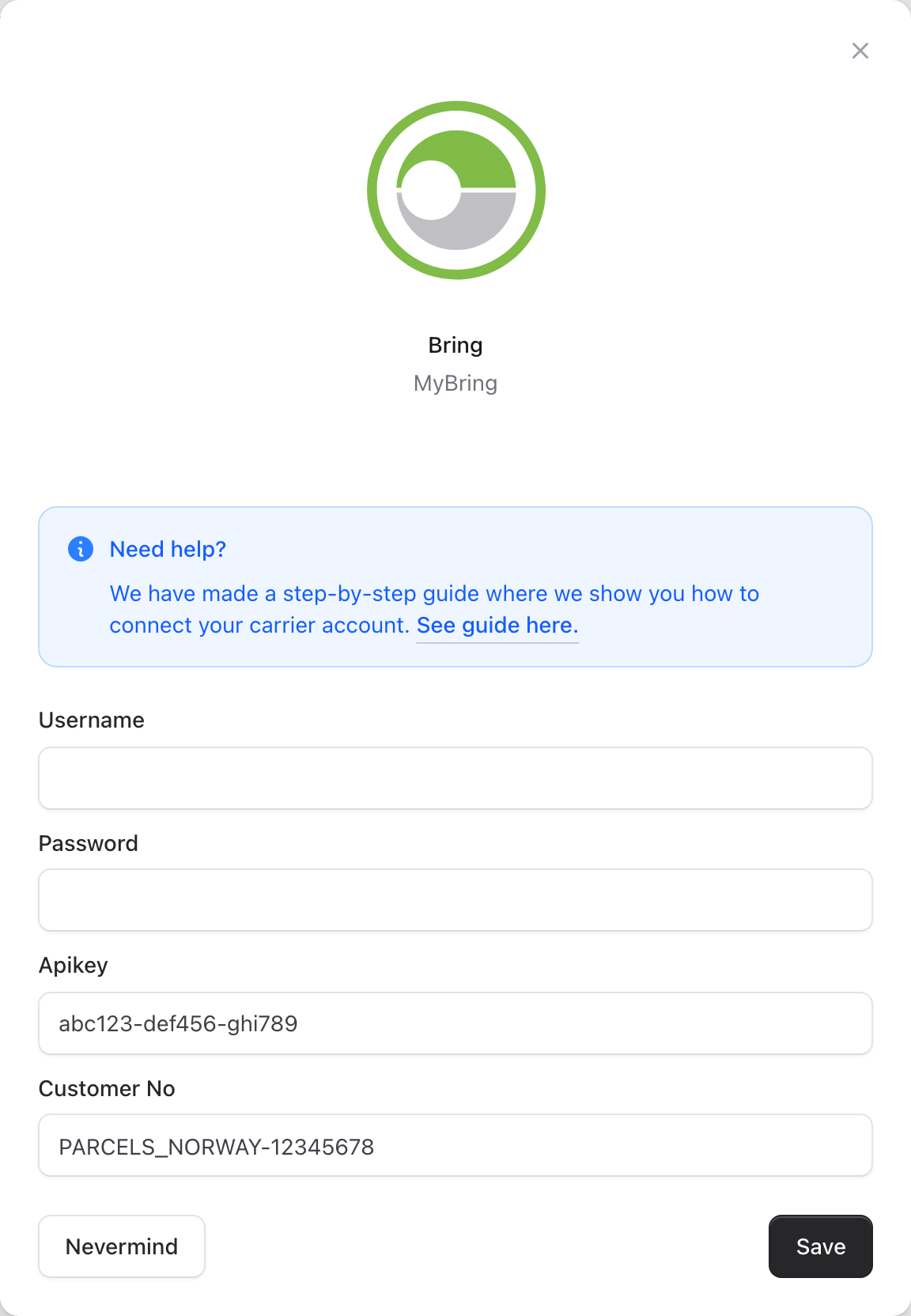
    Enter the following MyBring details:

    * **MyBring username**
    * **MyBring password**
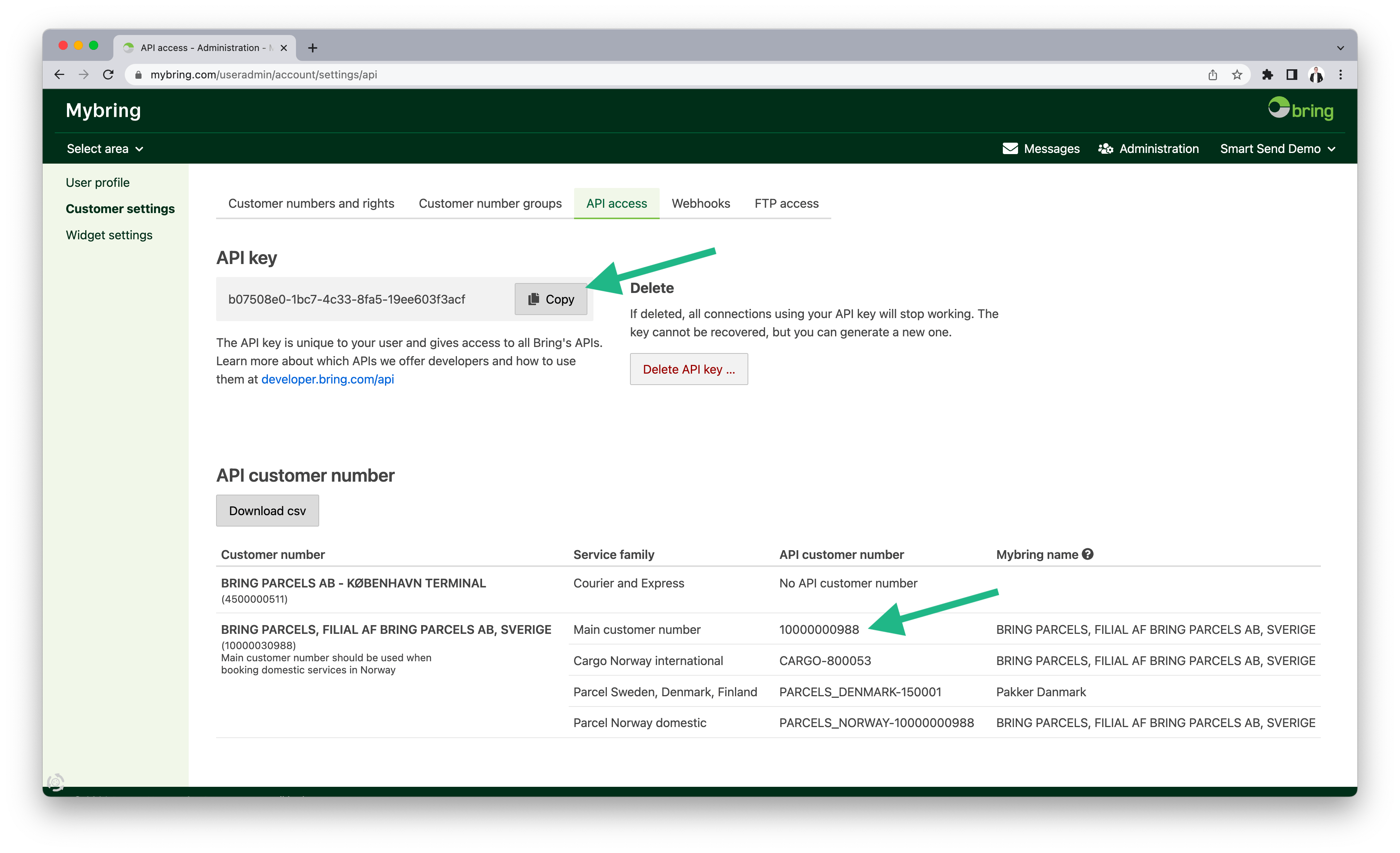
    * **MyBring API key** (see picture below where to find this)
    * **Bring customer number** (see picture below where to find this)

    <img src="https://mintcdn.com/smartsend/oG0vUhSrEWp3SfSv/images/carrier-connections/connect-bring-filled.png?fit=max&auto=format&n=oG0vUhSrEWp3SfSv&q=85&s=9ecec75cd8a64c815226e02839f2bdff" alt="Bring connection form with MyBring details filled in" className="rounded-lg" width="1152" height="1664" data-path="images/carrier-connections/connect-bring-filled.png" />
  </Step>

  <Step title="Save the settings">
    Save the settings
  </Step>
</Steps>

You can find all of the required information by logging in to <Link href="https://www.mybring.com/">MyBring</Link> <Icon icon="arrow-up-right" size={12} /> and navigating to the API section.

<img src="https://mintcdn.com/smartsend/Etg8PBiY9Ohcqt65/images/connect-mybring-api.png?fit=max&auto=format&n=Etg8PBiY9Ohcqt65&q=85&s=c34cdf99e67ad4d7c75153ef5c73971c" alt="MyBring account page showing API key and customer number" className="rounded-lg" width="3680" height="2242" data-path="images/connect-mybring-api.png" />

<Info>
  The connection is instant and you should be able to book Bring shipments imidiatly after saving the connection.
</Info>

## Get agreement

If you do not have an agreement with Bring yet, then contact then for prices and terms.

<Card title="Contact Bring" description="Request a shipping agreement directly from Bring." href="https://www.bring.dk/bliv-kunde" icon="paper-plane" horizontal>
  Contact Bring or signup online
</Card>