> ## Documentation Index
> Fetch the complete documentation index at: https://docs.smartsend.io/llms.txt
> Use this file to discover all available pages before exploring further.
# Address book
> Save and manage delivery addresses for faster shipment creation
The address book stores receiver addresses for reuse when creating shipments.
Addresses can be added manually or saved automatically when booking shipments — see [Settings](/fundamentals/settings) to configure automatic saving.
## View addresses
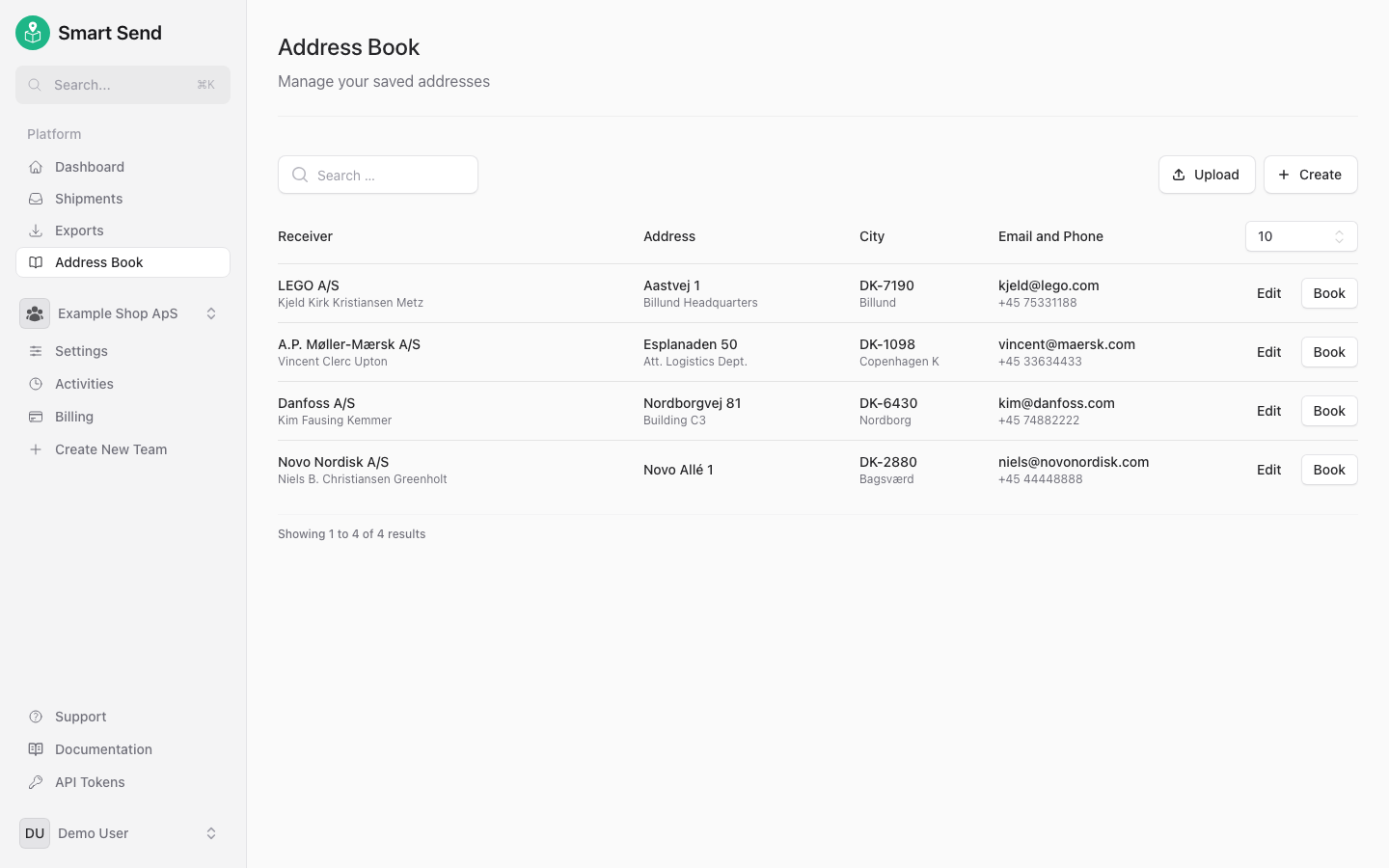
To view your saved addresses, go to **Address Book** in the Smart Send platform .
## Add an address
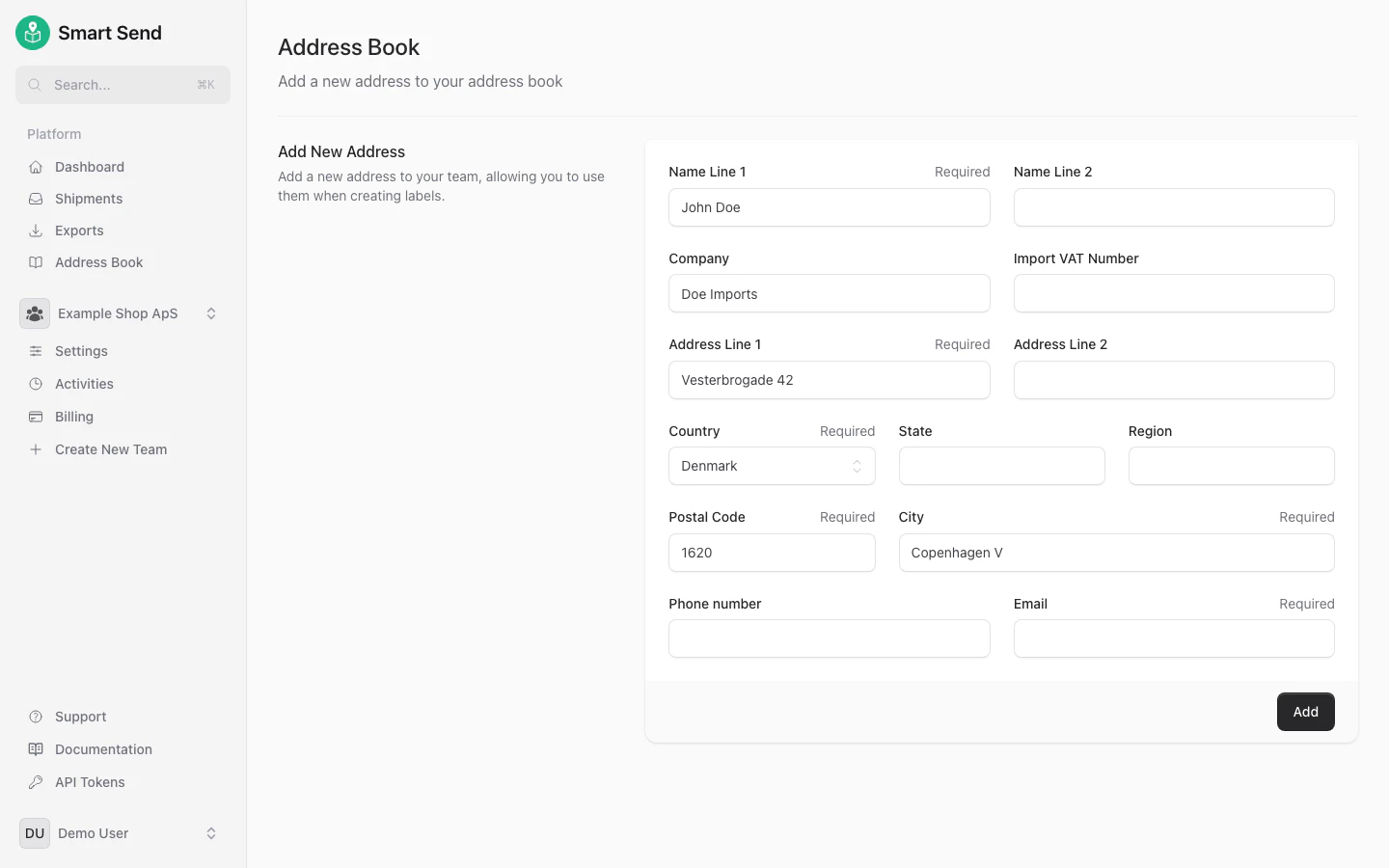
To add a new address manually, start by logging into the Smart Send platform .
Go to **Address Book** and click **Create**
Enter the receiver's required information and press **Save**
 ## Add an address
To add a new address manually, start by logging into the Smart Send platform
## Add an address
To add a new address manually, start by logging into the Smart Send platform