> ## Documentation Index
> Fetch the complete documentation index at: https://docs.smartsend.io/llms.txt
> Use this file to discover all available pages before exploring further.

# Creating shipments

> Create shipments manually or via bulk upload in Smart Send

Shipments can be created in Smart Send through several methods depending on your workflow.

## How to create shipments

<CardGroup cols={2}>
  <Card title="Manual creation" icon="pen-to-square" href="https://app.smartsend.io/team/shipments/create">
    Create individual shipments directly in the Smart Send platform using the shipment form.
  </Card>

  <Card title="Webshop integration" icon="cart-shopping" href="/integrations/overview">
    Import orders automatically from your connected webshop (Shopify, WooCommerce, etc.).
  </Card>

  <Card title="REST API" icon="terminal" href="/integrations/api">
    Create shipments programmatically using the Smart Send API.
  </Card>
</CardGroup>

To create a shipment manually, start by logging into the <Link href="https://app.smartsend.io">Smart Send platform</Link> <Icon icon="arrow-up-right" size={12} />.

<Steps>
  <Step title="Navigate to Shipments">
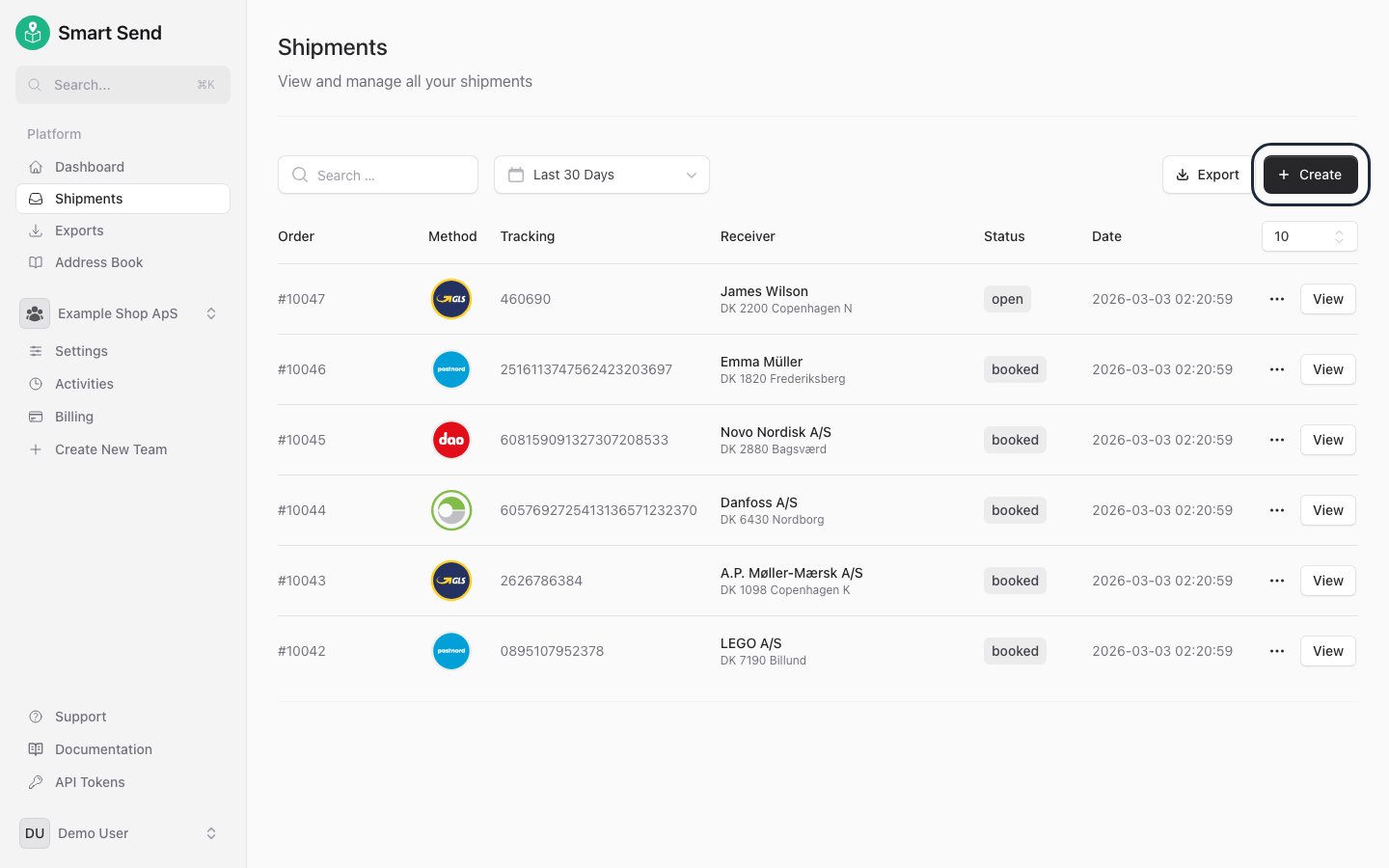
    Go to **<Link href="https://app.smartsend.io/team/shipments/create">Shipments</Link>** and click **Create**

    <img src="https://mintcdn.com/smartsend/nrzFBZazgvLEikrr/images/shipments/create-index-highlighted.png?fit=max&auto=format&n=nrzFBZazgvLEikrr&q=85&s=ba553e5b78ee1ffdcea41eb26f27df39" alt="Shipments page with Create button highlighted" className="rounded-lg" width="1440" height="900" data-path="images/shipments/create-index-highlighted.png" />
  </Step>

  <Step title="Fill in shipment details">
    Enter the receiver information, select a carrier and service, and provide package details
  </Step>

  <Step title="Book the shipment">
    Click **Book** to register the shipment with the carrier and generate a shipping label
  </Step>
</Steps>
