> ## Documentation Index
> Fetch the complete documentation index at: https://docs.smartsend.io/llms.txt
> Use this file to discover all available pages before exploring further.
# Shipment history
> Search, filter, and view historical shipments in Smart Send
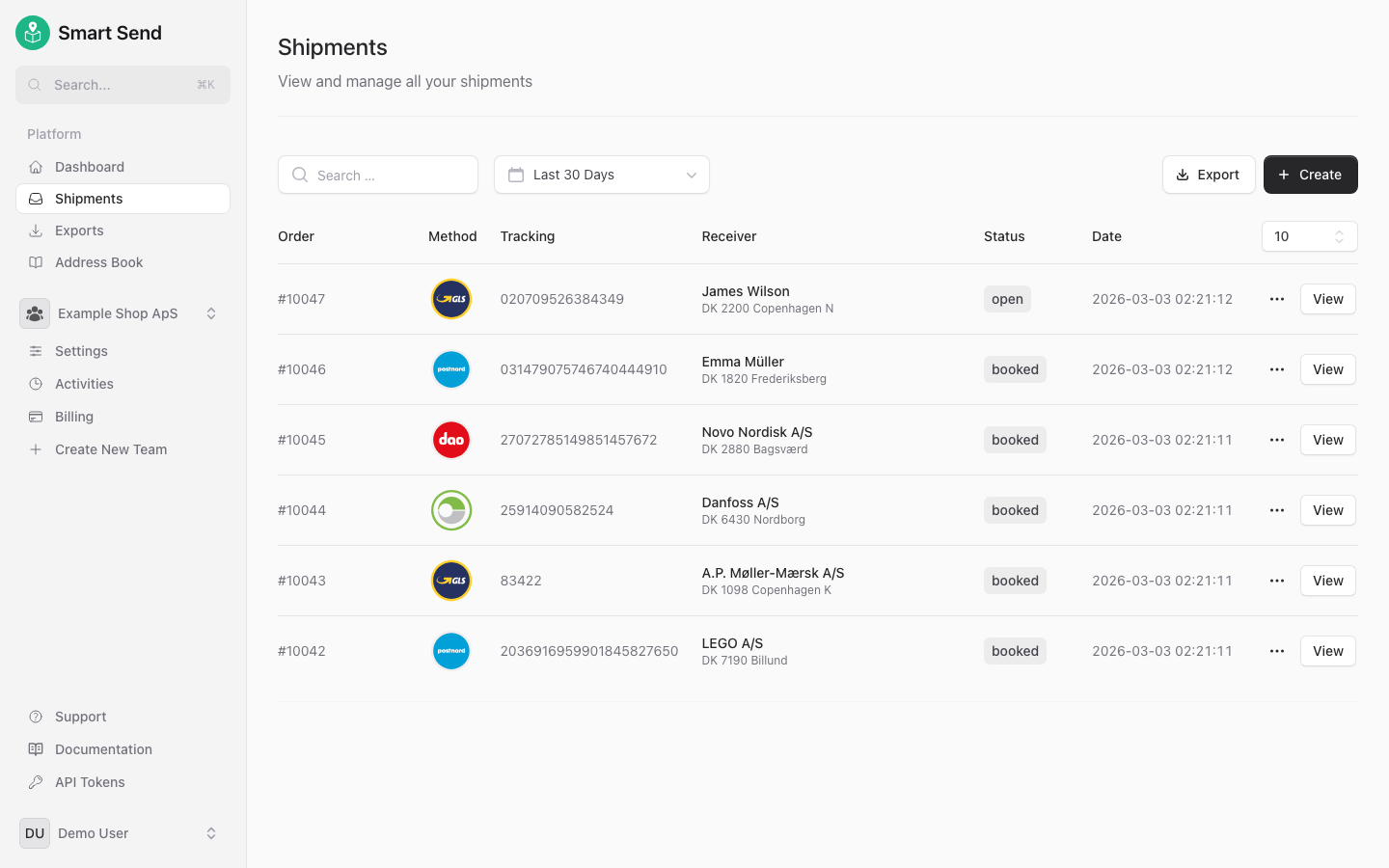
The shipment list is the central hub for viewing all booked shipments. You can search, filter by date, and review details for any shipment created through Smart Send.
## Search
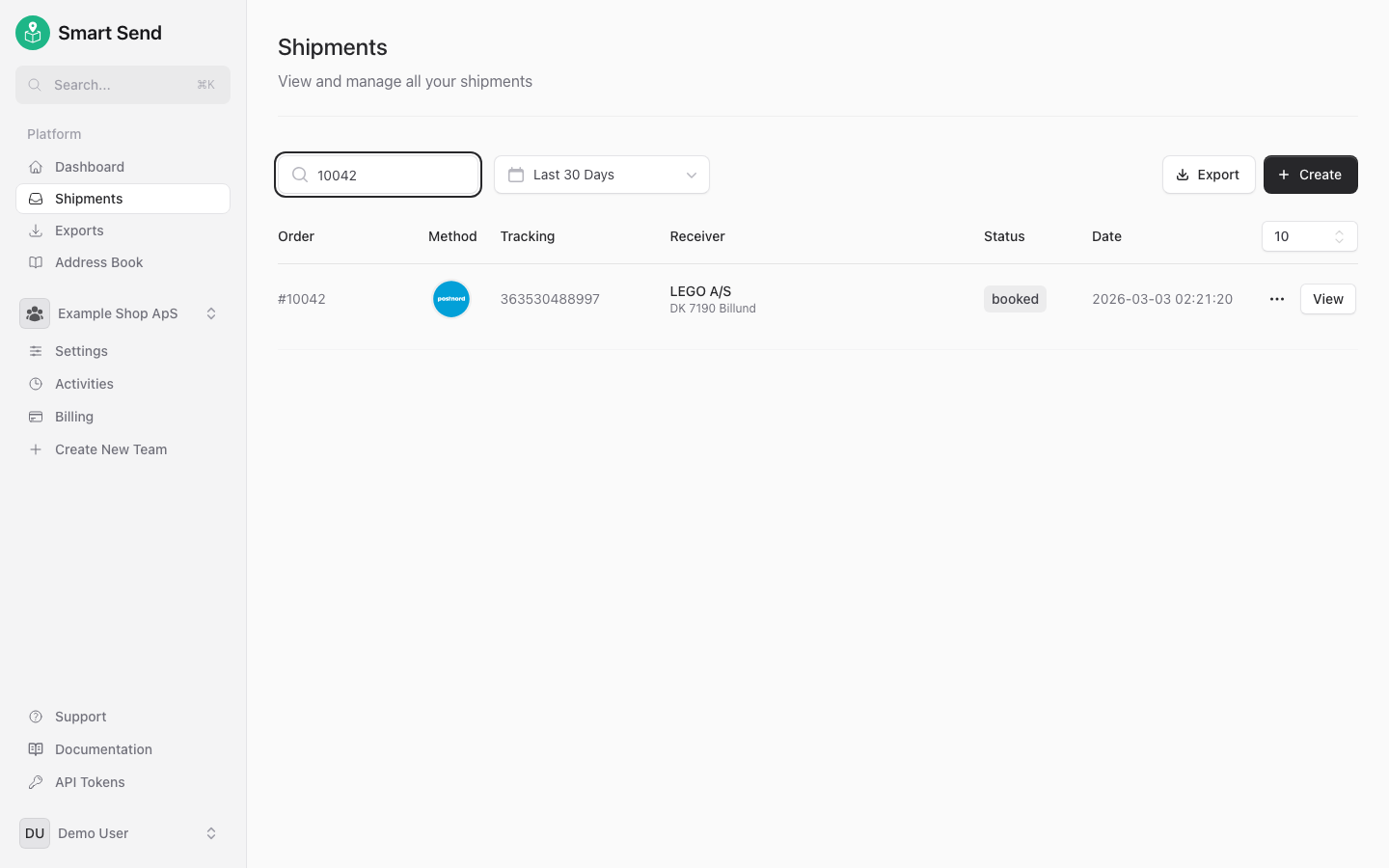
Use the search bar at the top of the shipment list to find specific shipments. You can search by tracking number, receiver name, or address.
## Filter
Besides searching then shipments can be filtered down to get a more precise overview.
### Date range
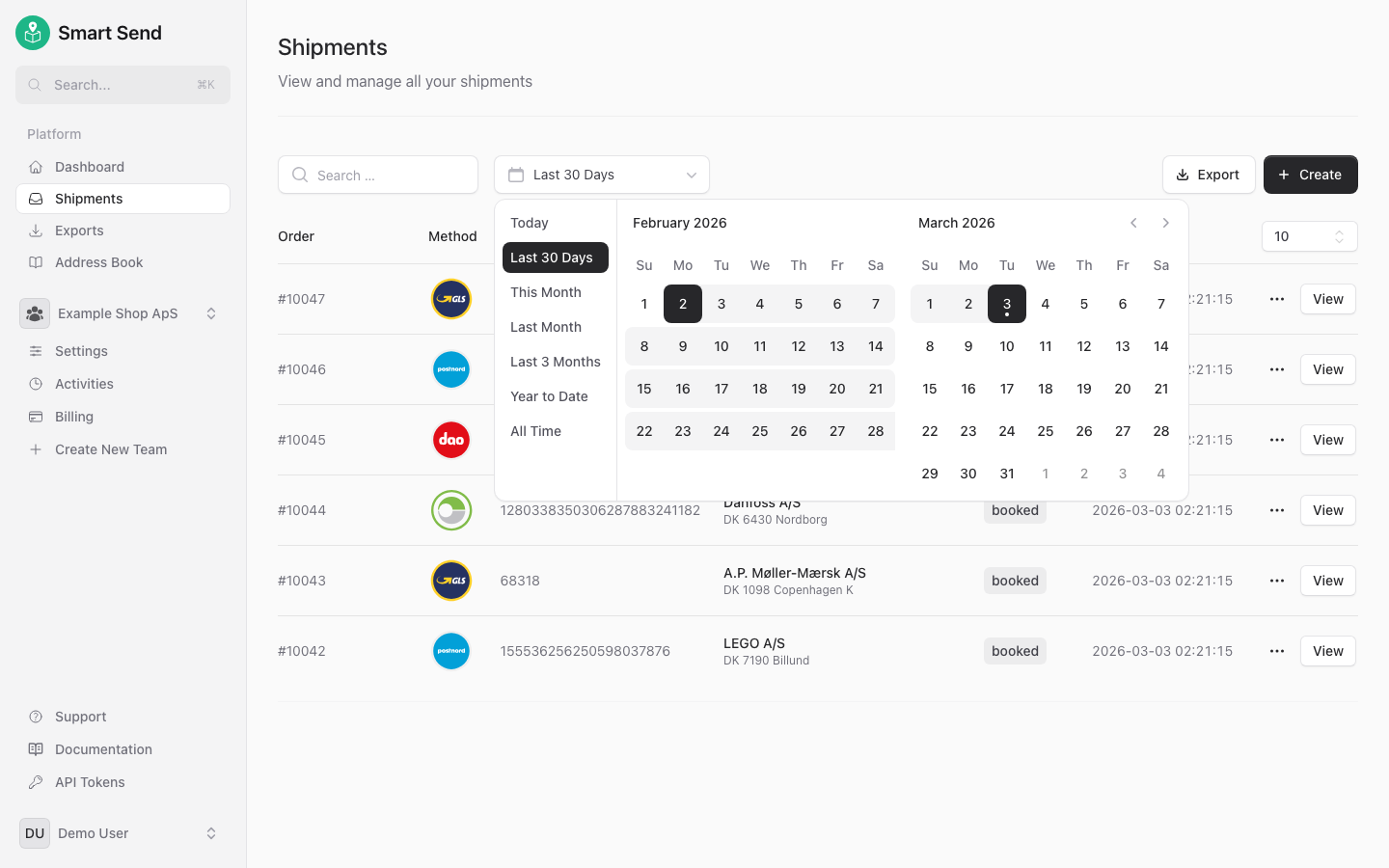
Use the date picker to narrow down the shipment list to a specific time period. This is useful for reviewing shipments from a particular day, week, or month.
## Export
Export your shipment data as XLSX or CSV files for reporting, accounting, or further analysis. The export includes all shipment details for the selected time period.
To export shipments, start by logging into the Smart Send platform .
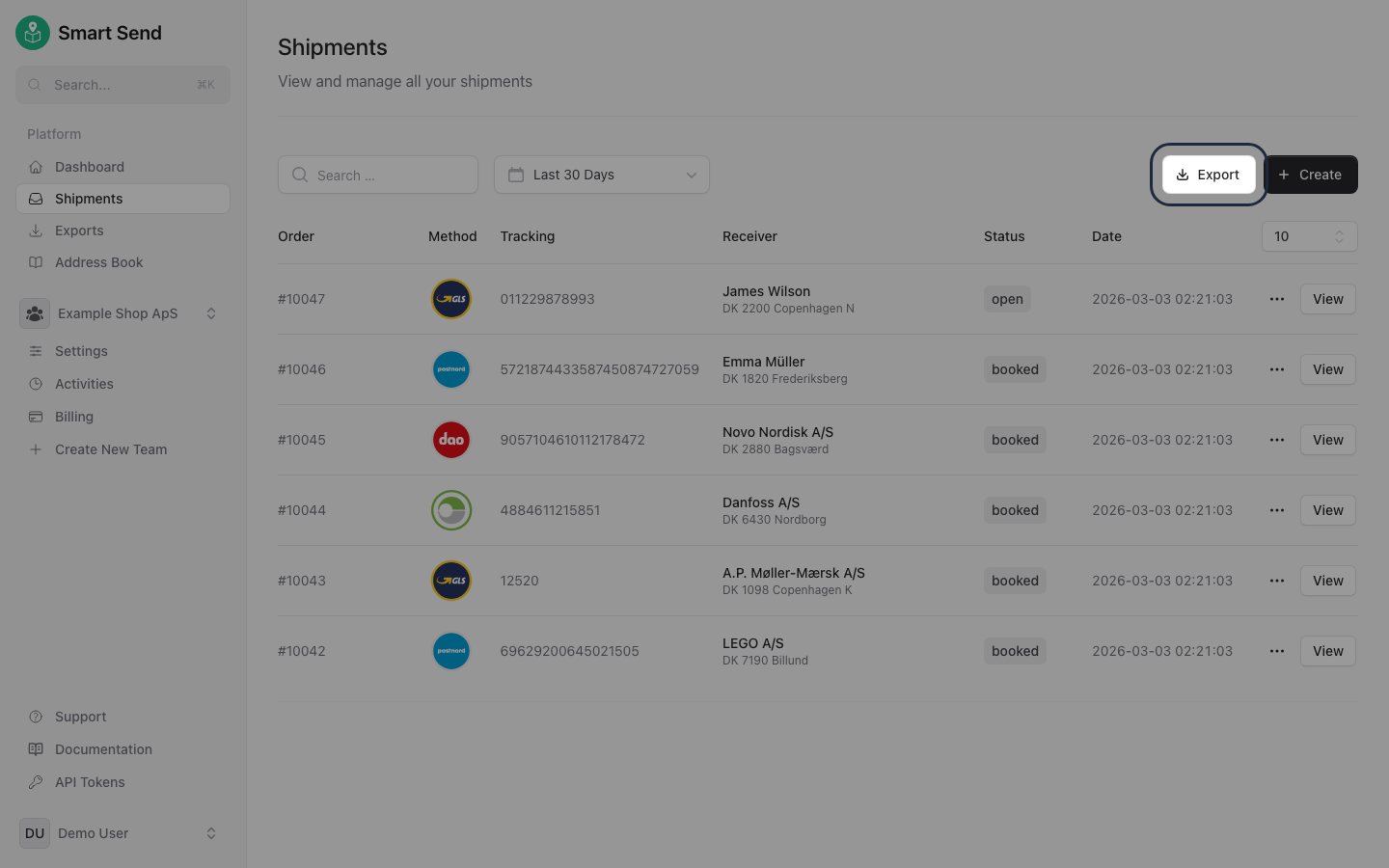
Go to **Shipments**
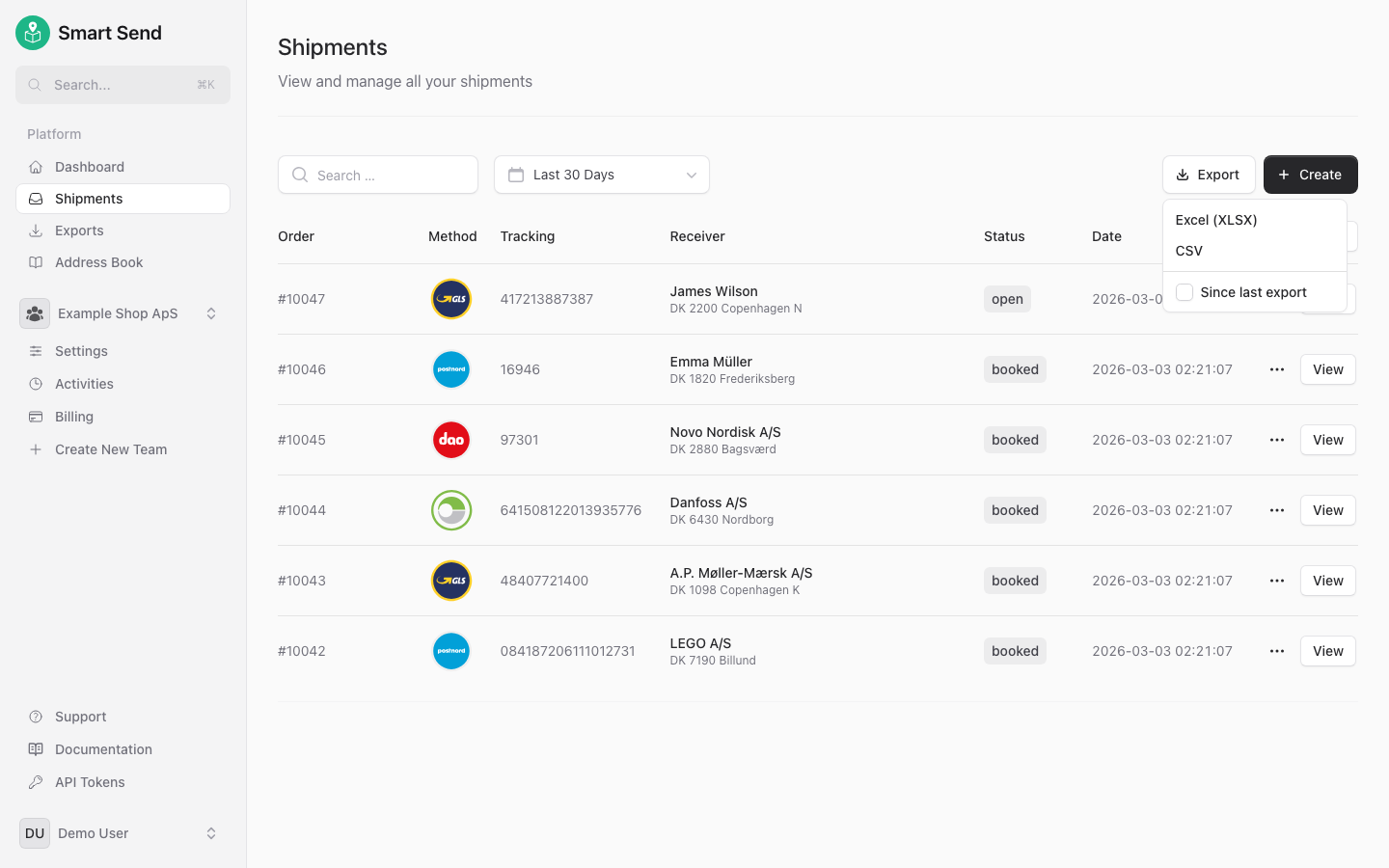
Click the **Export** button at the top of the shipment list
Select the preferred format and the export will be queued.
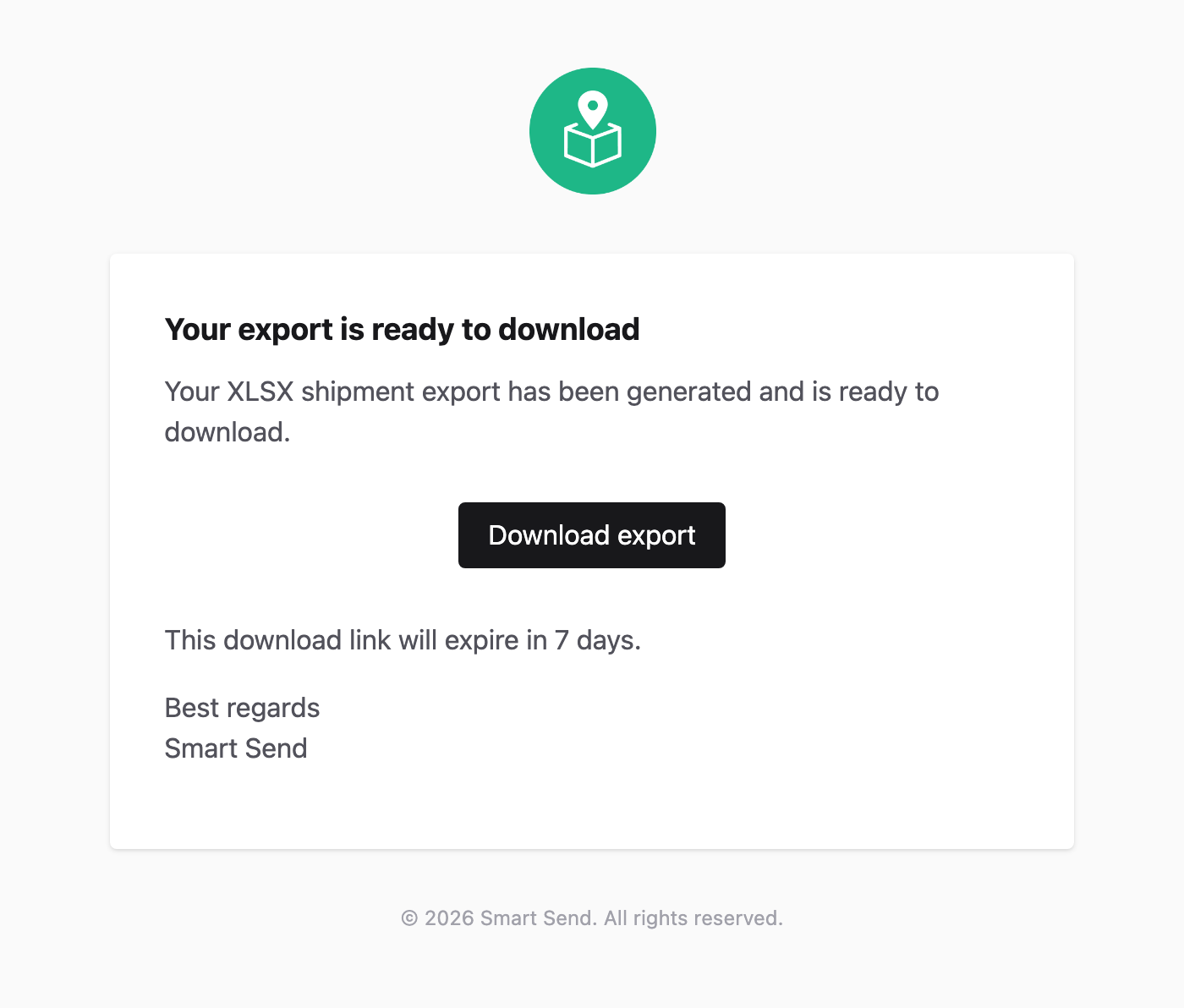
Once the export is done then it will be emailed to you.
 ## Search
Use the search bar at the top of the shipment list to find specific shipments. You can search by tracking number, receiver name, or address.
## Search
Use the search bar at the top of the shipment list to find specific shipments. You can search by tracking number, receiver name, or address.
 ## Filter
Besides searching then shipments can be filtered down to get a more precise overview.
### Date range
Use the date picker to narrow down the shipment list to a specific time period. This is useful for reviewing shipments from a particular day, week, or month.
## Filter
Besides searching then shipments can be filtered down to get a more precise overview.
### Date range
Use the date picker to narrow down the shipment list to a specific time period. This is useful for reviewing shipments from a particular day, week, or month.
 ## Export
Export your shipment data as XLSX or CSV files for reporting, accounting, or further analysis. The export includes all shipment details for the selected time period.
To export shipments, start by logging into the Smart Send platform
## Export
Export your shipment data as XLSX or CSV files for reporting, accounting, or further analysis. The export includes all shipment details for the selected time period.
To export shipments, start by logging into the Smart Send platform