> ## Documentation Index
> Fetch the complete documentation index at: https://docs.smartsend.io/llms.txt
> Use this file to discover all available pages before exploring further.

# Account

> Manage your personal profile, account details, and preferences in Smart Send.

## Update profile

To update your name or email address, start by logging into the <Link href="https://app.smartsend.io">Smart Send platform</Link> <Icon icon="arrow-up-right" size={12} />.

<Steps>
  <Step title="Navigate to Profile">
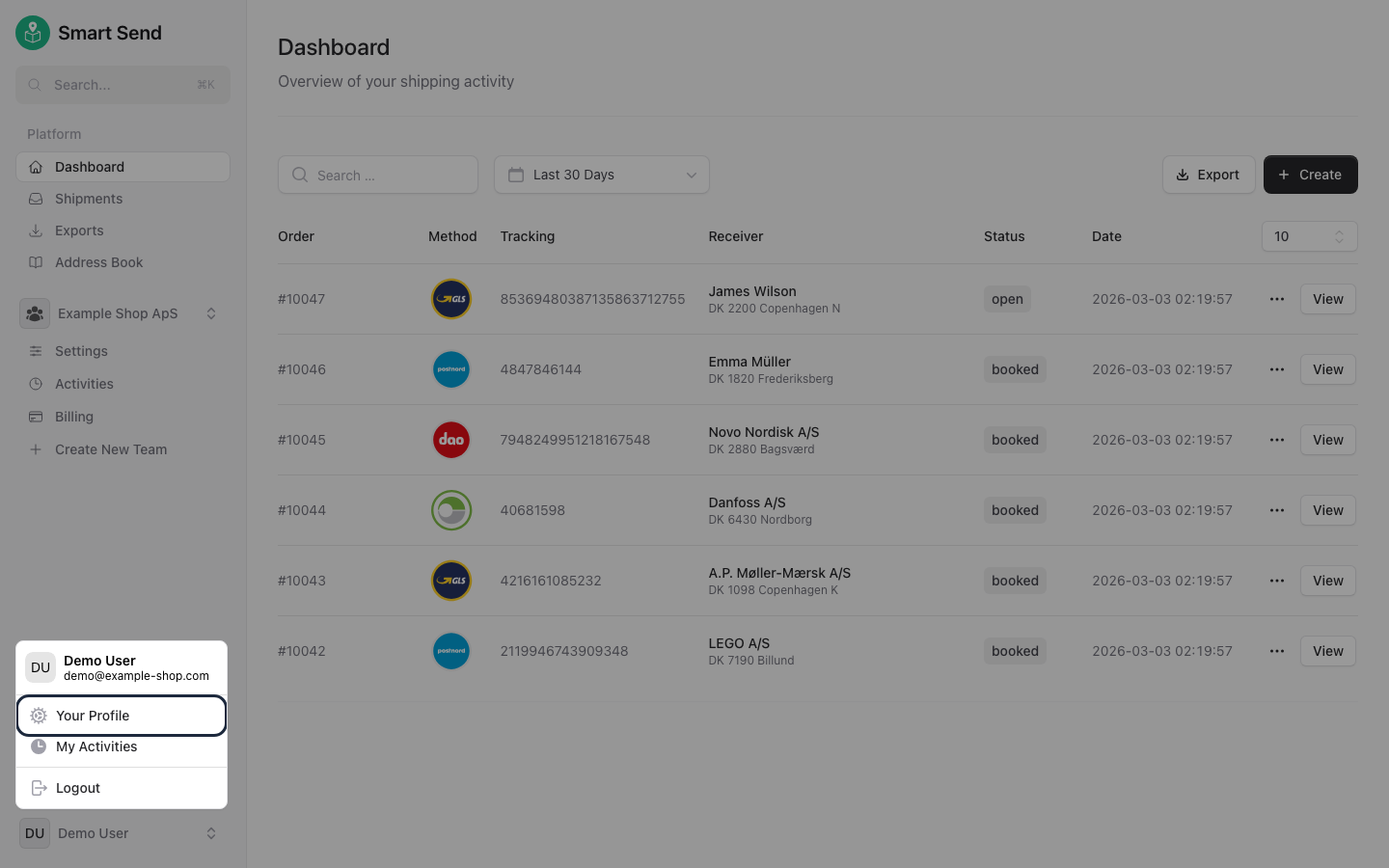
    Click your name in the bottom left corner and select **<Link href="https://app.smartsend.io/settings/profile">Your Profile</Link>**

    <img src="https://mintcdn.com/smartsend/oG0vUhSrEWp3SfSv/images/account/profile-menu-highlight.png?fit=max&auto=format&n=oG0vUhSrEWp3SfSv&q=85&s=6e0ccbc2cc354a775ef42dd7ce209a0a" alt="Navigation menu with profile option highlighted" className="rounded-lg" width="1440" height="900" data-path="images/account/profile-menu-highlight.png" />
  </Step>

  <Step title="Edit name or email">
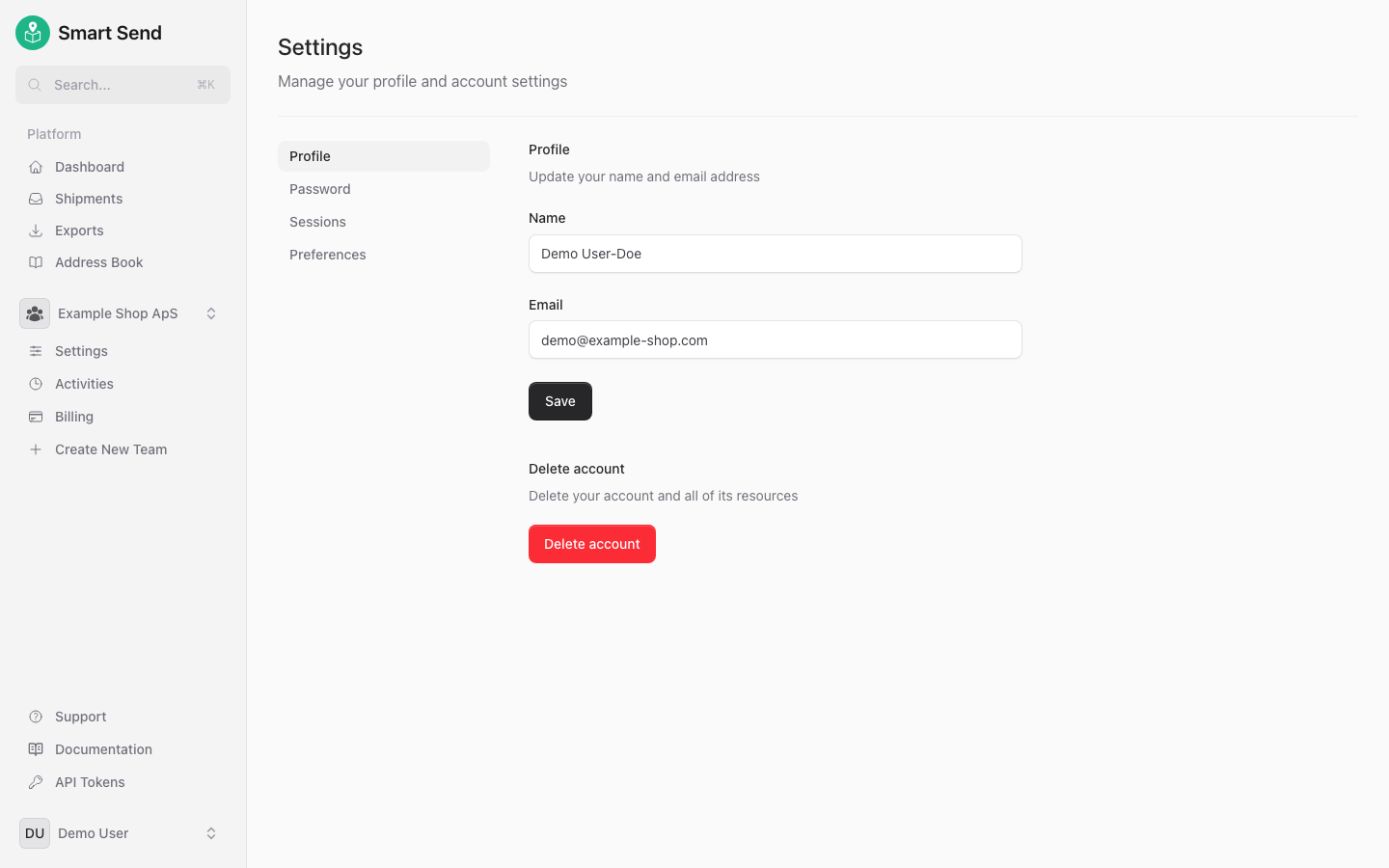
    Update your **name** or **email address** in the profile form and click **Save** to apply your changes

    <img src="https://mintcdn.com/smartsend/oG0vUhSrEWp3SfSv/images/account/profile-updated.png?fit=max&auto=format&n=oG0vUhSrEWp3SfSv&q=85&s=007f0a256a677f0b095ef55a132d1e66" alt="Profile page with updated information saved" className="rounded-lg" width="1440" height="900" data-path="images/account/profile-updated.png" />
  </Step>
</Steps>

## Change password

To change your password, start by logging into the <Link href="https://app.smartsend.io">Smart Send platform</Link> <Icon icon="arrow-up-right" size={12} />.

<Note>
  This way of changing password require that you know the **current password** - if you do not know that, instead use the [recover password](#recover-password) guide.
</Note>

<Steps>
  <Step title="Navigate to Profile">
    Click your name in the bottom left corner and select **<Link href="https://app.smartsend.io/settings/profile">Your Profile</Link>**

    <img src="https://mintcdn.com/smartsend/oG0vUhSrEWp3SfSv/images/account/profile-menu-highlight.png?fit=max&auto=format&n=oG0vUhSrEWp3SfSv&q=85&s=6e0ccbc2cc354a775ef42dd7ce209a0a" alt="Navigation menu with profile option highlighted" className="rounded-lg" width="1440" height="900" data-path="images/account/profile-menu-highlight.png" />
  </Step>

  <Step title="Navigate to Password">
    Select **<Link href="https://app.smartsend.io/settings/password">Password</Link>** in the submenu.
  </Step>

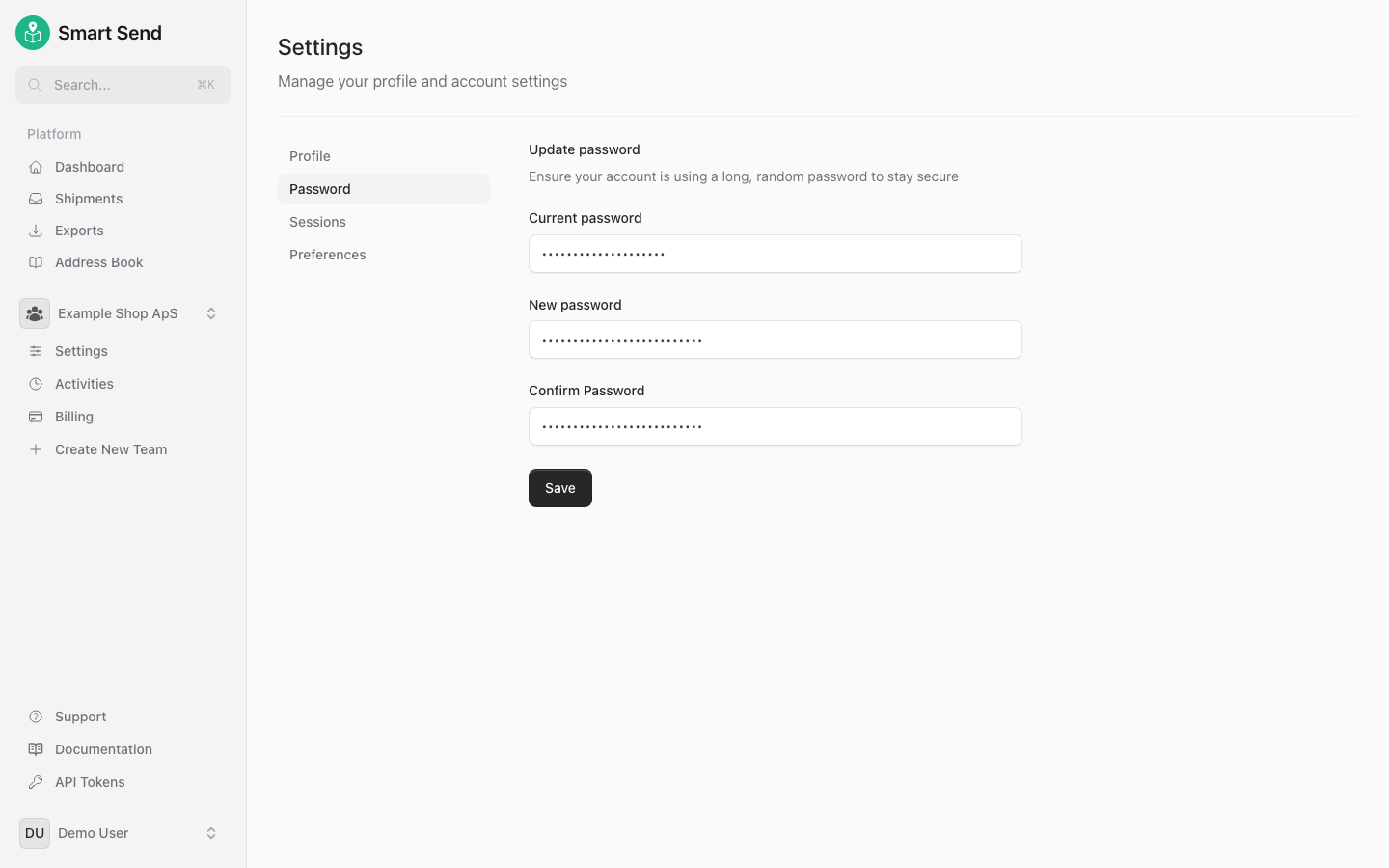
  <Step title="Enter current and new password">
    Enter your **current password**, then choose a **new password**, confirm it and click **Save** to update your password

    <img src="https://mintcdn.com/smartsend/oG0vUhSrEWp3SfSv/images/account/password-filled.png?fit=max&auto=format&n=oG0vUhSrEWp3SfSv&q=85&s=4647c2942b6097b52351285f95f320e8" alt="Password change form with fields filled in" className="rounded-lg" width="1440" height="900" data-path="images/account/password-filled.png" />
  </Step>
</Steps>

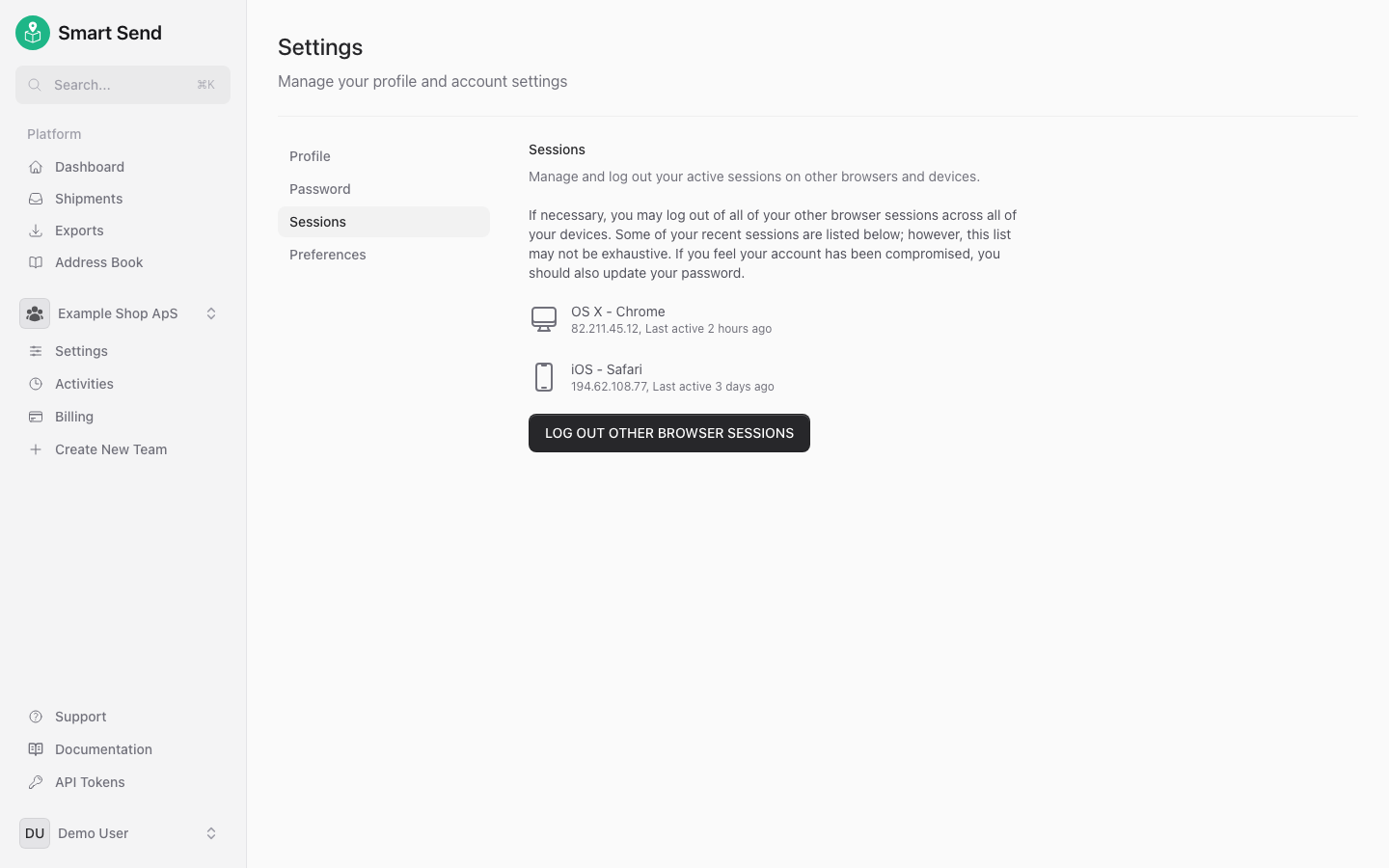
## Sessions

View all active sessions for your account. To log out of other devices or browsers, start by logging into the <Link href="https://app.smartsend.io">Smart Send platform</Link> <Icon icon="arrow-up-right" size={12} />.

<Steps>
  <Step title="Navigate to Profile">
    Click your name in the bottom left corner and select **<Link href="https://app.smartsend.io/settings/profile">Your Profile</Link>**

    <img src="https://mintcdn.com/smartsend/oG0vUhSrEWp3SfSv/images/account/profile-menu-highlight.png?fit=max&auto=format&n=oG0vUhSrEWp3SfSv&q=85&s=6e0ccbc2cc354a775ef42dd7ce209a0a" alt="Navigation menu with profile option highlighted" className="rounded-lg" width="1440" height="900" data-path="images/account/profile-menu-highlight.png" />
  </Step>

  <Step title="Navigate to Sessions">
    Select **<Link href="https://app.smartsend.io/settings/sessions">Sessions</Link>** in the submenu to view all active sessions.
  </Step>

  <Step title="Log out other sessions (optional)">
    Click **Log out other browser sessions** to end all sessions except the current one.

    <img src="https://mintcdn.com/smartsend/oG0vUhSrEWp3SfSv/images/account/sessions.png?fit=max&auto=format&n=oG0vUhSrEWp3SfSv&q=85&s=bef021527642895c181a58fe4e99a7d3" alt="Active sessions list showing devices and browsers" className="rounded-lg" width="1440" height="900" data-path="images/account/sessions.png" />
  </Step>
</Steps>

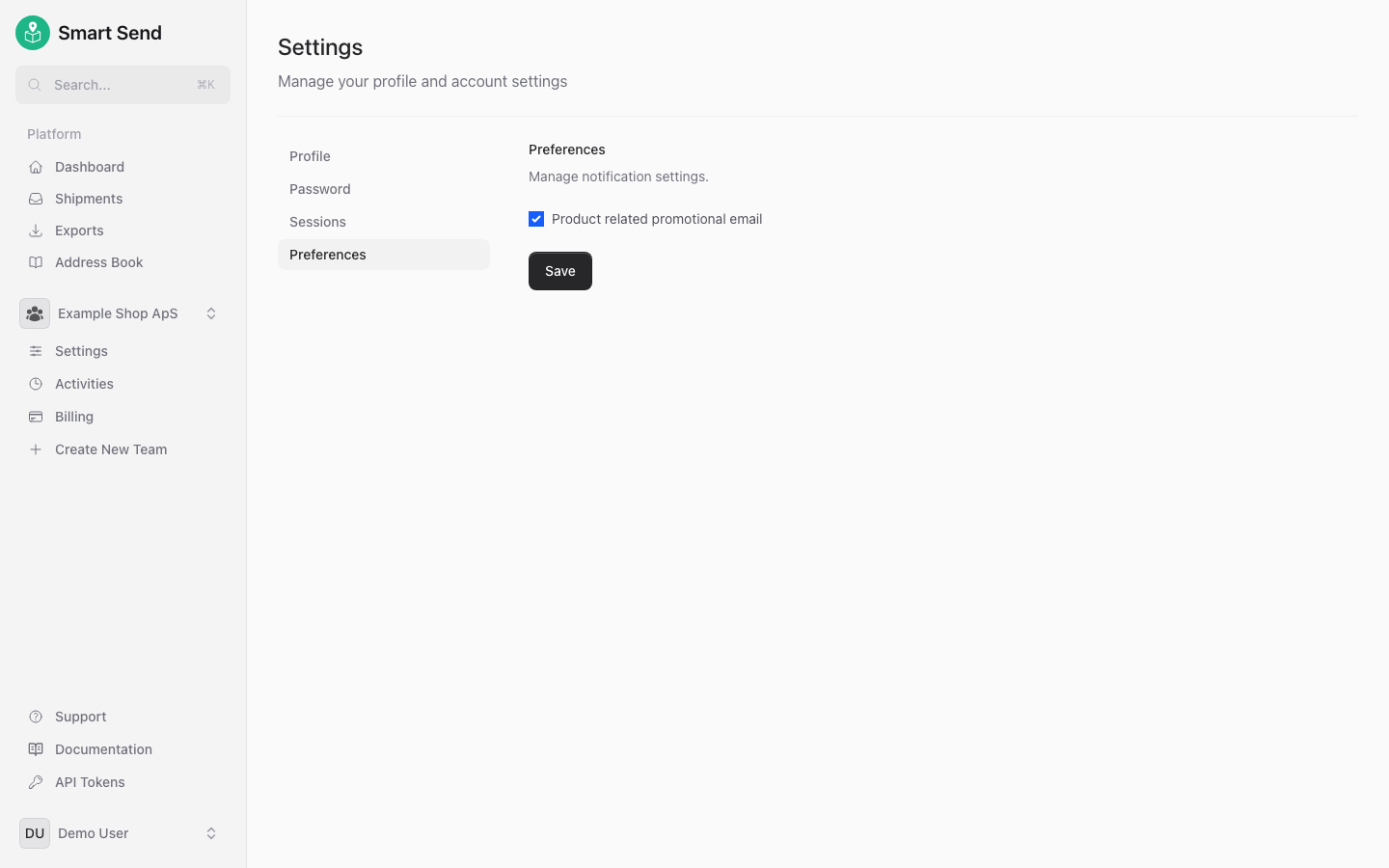
## Preferences

Set your personal preferences to customize your experience. To configure preferences, start by logging into the <Link href="https://app.smartsend.io">Smart Send platform</Link> <Icon icon="arrow-up-right" size={12} />.

<Steps>
  <Step title="Navigate to Profile">
    Click your name in the bottom left corner and select **<Link href="https://app.smartsend.io/settings/profile">Your Profile</Link>**

    <img src="https://mintcdn.com/smartsend/oG0vUhSrEWp3SfSv/images/account/profile-menu-highlight.png?fit=max&auto=format&n=oG0vUhSrEWp3SfSv&q=85&s=6e0ccbc2cc354a775ef42dd7ce209a0a" alt="Navigation menu with profile option highlighted" className="rounded-lg" width="1440" height="900" data-path="images/account/profile-menu-highlight.png" />
  </Step>

  <Step title="Navigate to Preferences">
    Select **<Link href="https://app.smartsend.io/settings/preferences">Preferences</Link>** in the submenu.
  </Step>

  <Step title="Configure preferences">
    Adjust the settings to match your workflow and click **Save** to apply your preferences

    <img src="https://mintcdn.com/smartsend/oG0vUhSrEWp3SfSv/images/account/preferences.png?fit=max&auto=format&n=oG0vUhSrEWp3SfSv&q=85&s=9420527841d892f89dd87e931722af4e" alt="User preferences page with available options" className="rounded-lg" width="1440" height="900" data-path="images/account/preferences.png" />
  </Step>
</Steps>

<Info>
  Personal preferences only affect your user account. Most configuration is managed at the team level. To update team-wide settings, go to the <Link href="/fundamentals/settings">team settings page</Link>.
</Info>

## Delete account

<Warning>
  Deleting your account is permanent and cannot be undone.
</Warning>

Before you can delete your account, you must first cancel subscriptions for all teams you are a member of. To delete your account, start by logging into the <Link href="https://app.smartsend.io">Smart Send platform</Link> <Icon icon="arrow-up-right" size={12} />.

<Steps>
  <Step title="Navigate to Profile">
    Click your name in the bottom left corner and select **<Link href="https://app.smartsend.io/settings/profile">Your Profile</Link>**

    <img src="https://mintcdn.com/smartsend/oG0vUhSrEWp3SfSv/images/account/profile-menu-highlight.png?fit=max&auto=format&n=oG0vUhSrEWp3SfSv&q=85&s=6e0ccbc2cc354a775ef42dd7ce209a0a" alt="Navigation menu with profile option highlighted" className="rounded-lg" width="1440" height="900" data-path="images/account/profile-menu-highlight.png" />
  </Step>

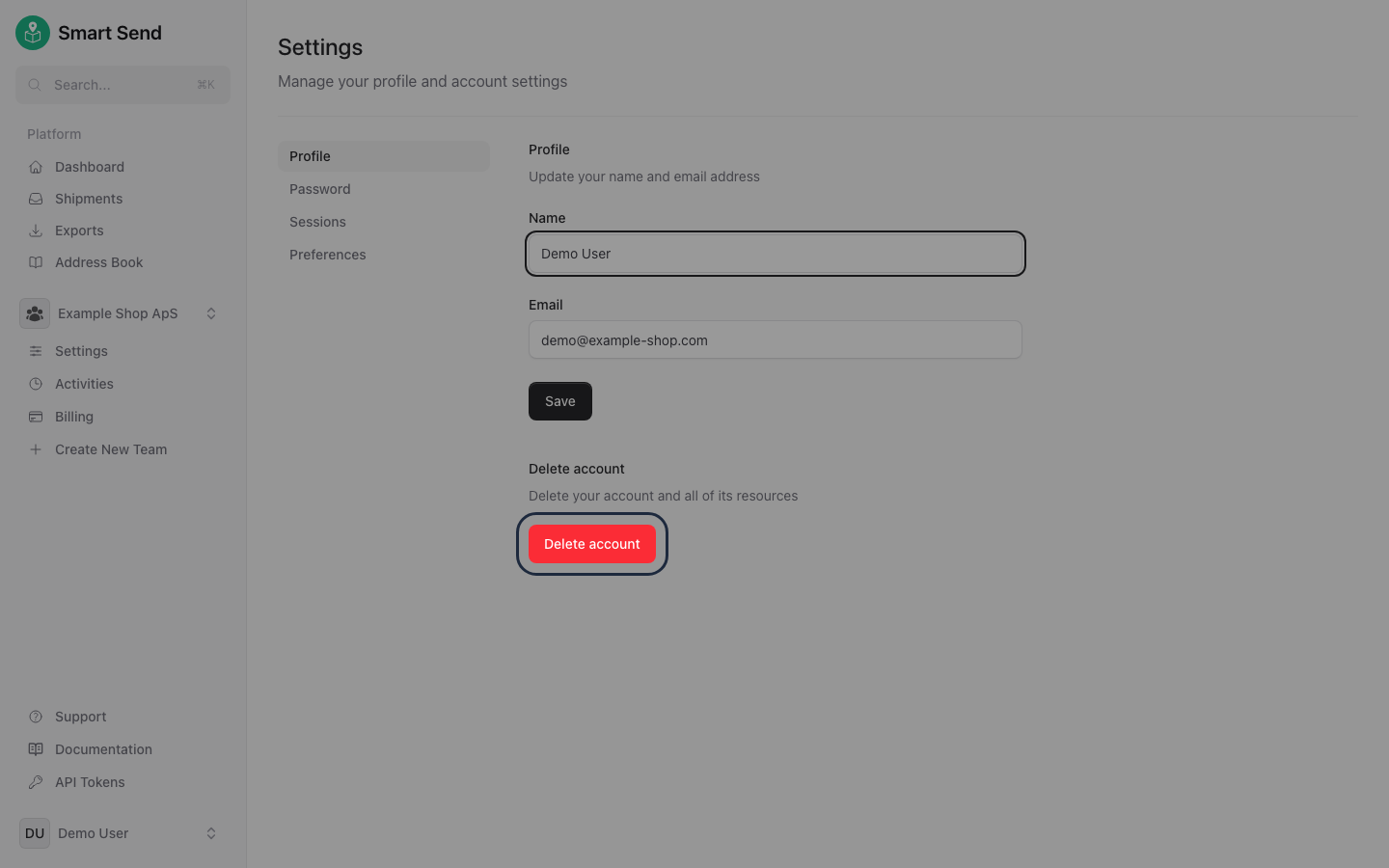
  <Step title="Find the Delete Account section">
    Scroll down to the **Delete Account** section at the bottom of the page and click **Delete Account**.

    <img src="https://mintcdn.com/smartsend/EoqwaB4czWP68web/images/account/delete-account-section.png?fit=max&auto=format&n=EoqwaB4czWP68web&q=85&s=3df7bc767759606179d22da307e7b126" alt="Delete Account section at the bottom of the profile page" className="rounded-lg" width="1440" height="900" data-path="images/account/delete-account-section.png" />
  </Step>

  <Step title="Confirm deletion">
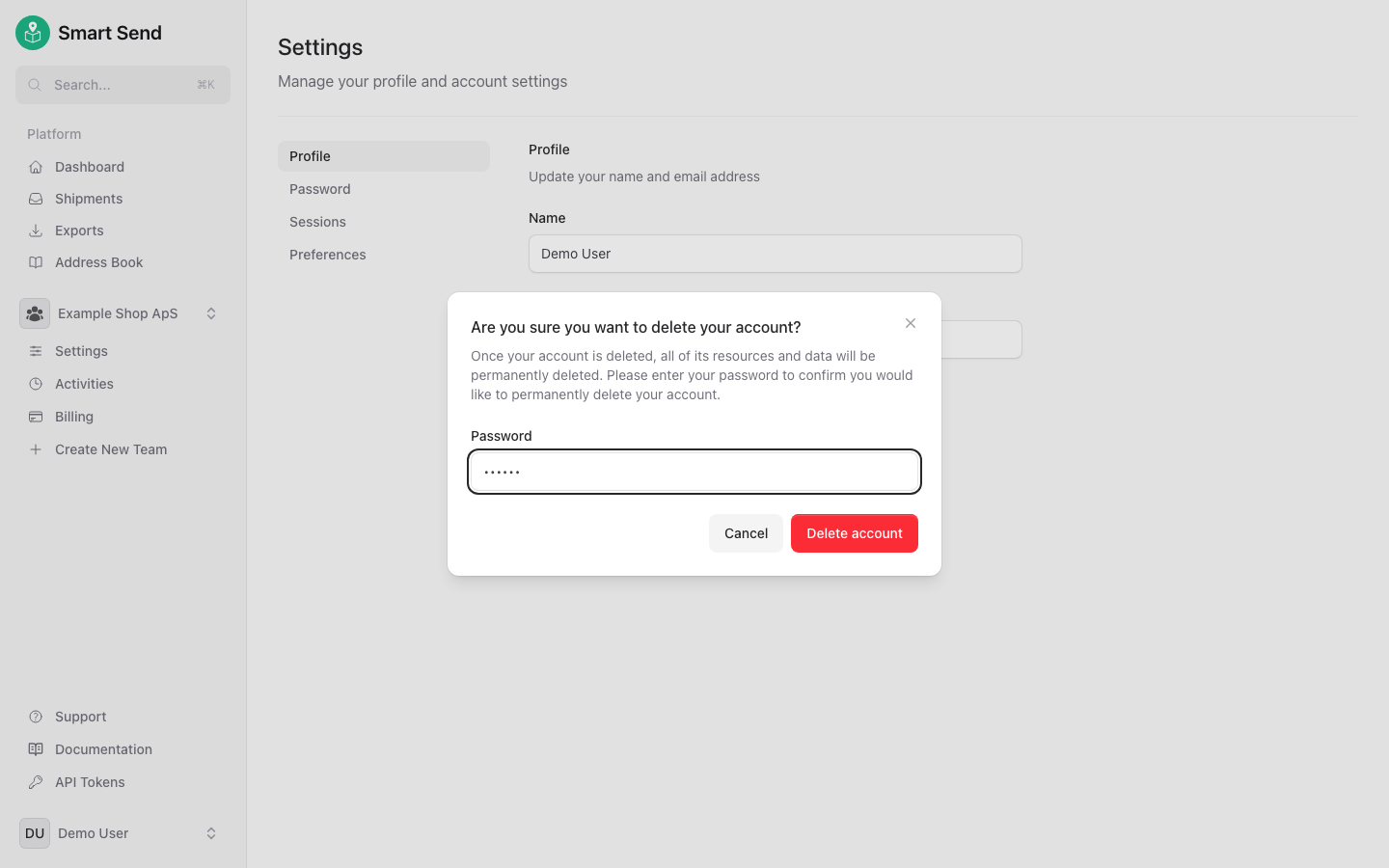
    Enter the current user password and confirm the deletion by clicking **Delete Account** in the confirmation modal.

    <img src="https://mintcdn.com/smartsend/EoqwaB4czWP68web/images/account/delete-account-modal.png?fit=max&auto=format&n=EoqwaB4czWP68web&q=85&s=55375f1a70216cfcb17642b66d137569" alt="Confirmation dialog for account deletion" className="rounded-lg" width="1440" height="900" data-path="images/account/delete-account-modal.png" />
  </Step>
</Steps>

## Recover password

If you have forgotten your password, you can reset it using the password recovery flow explained below.

<Note>
  If you know the existing password but just wanna change it, then instead use the [Change password](#change-password) guide.
</Note>

<Steps>
  <Step title="Go to the forgot password page">
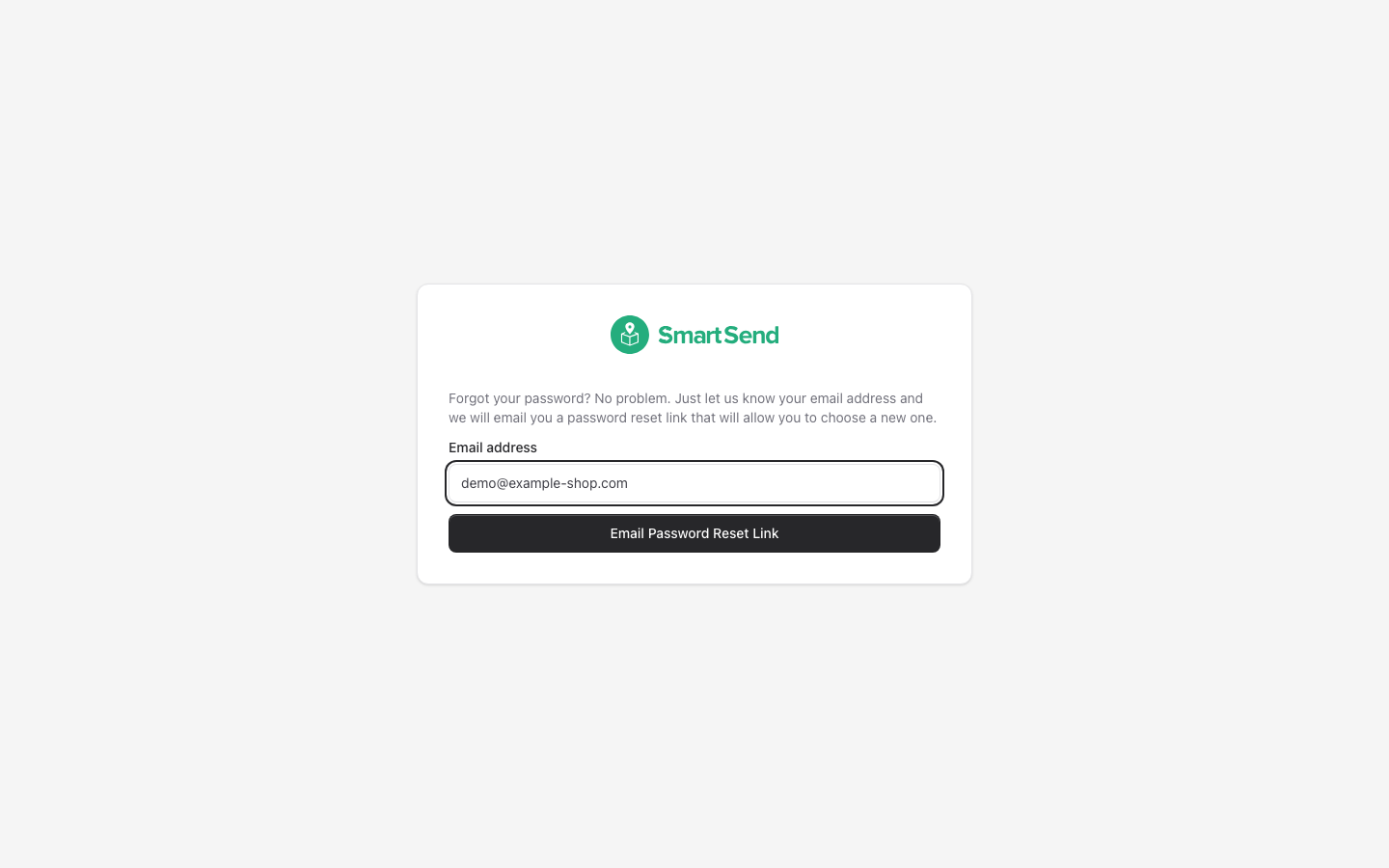
    Navigate to the <Link href="https://app.smartsend.io/forgot-password">forgot password page</Link> <Icon icon="arrow-up-right" size={12} /> that is always available from the login page.

    <img src="https://mintcdn.com/smartsend/oG0vUhSrEWp3SfSv/images/auth/forgot-password-filled.png?fit=max&auto=format&n=oG0vUhSrEWp3SfSv&q=85&s=5db420b7d55b10a7dccbc616600f2492" alt="Forgot password page with email address filled in" className="rounded-lg" width="1440" height="900" data-path="images/auth/forgot-password-filled.png" />
  </Step>

  <Step title="Request a password reset link">
    Enter your **email address** and click **Email Password Reset Link**.

    <Warning>
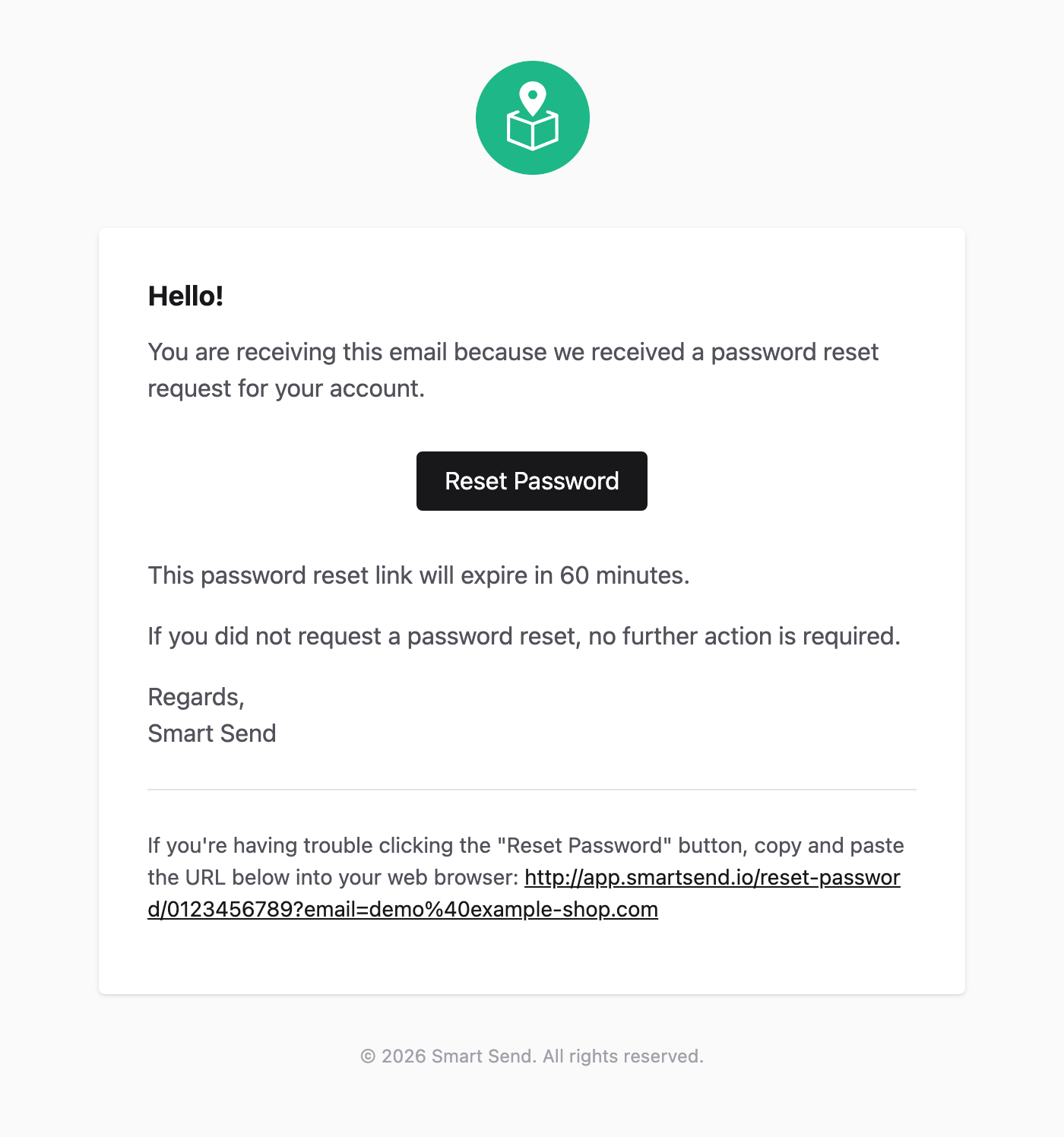
      Note that the link in the email you receive is only valid for short time, so ideally set the new password once after you receive the email without waiting.
    </Warning>

    <img src="https://mintcdn.com/smartsend/oG0vUhSrEWp3SfSv/images/auth/reset-password-email.png?fit=max&auto=format&n=oG0vUhSrEWp3SfSv&q=85&s=d22bf44157afa07da927a51203709e54" alt="Password reset email with reset link" className="rounded-lg" width="1400" height="1496" data-path="images/auth/reset-password-email.png" />
  </Step>

  <Step title="Reset your password">
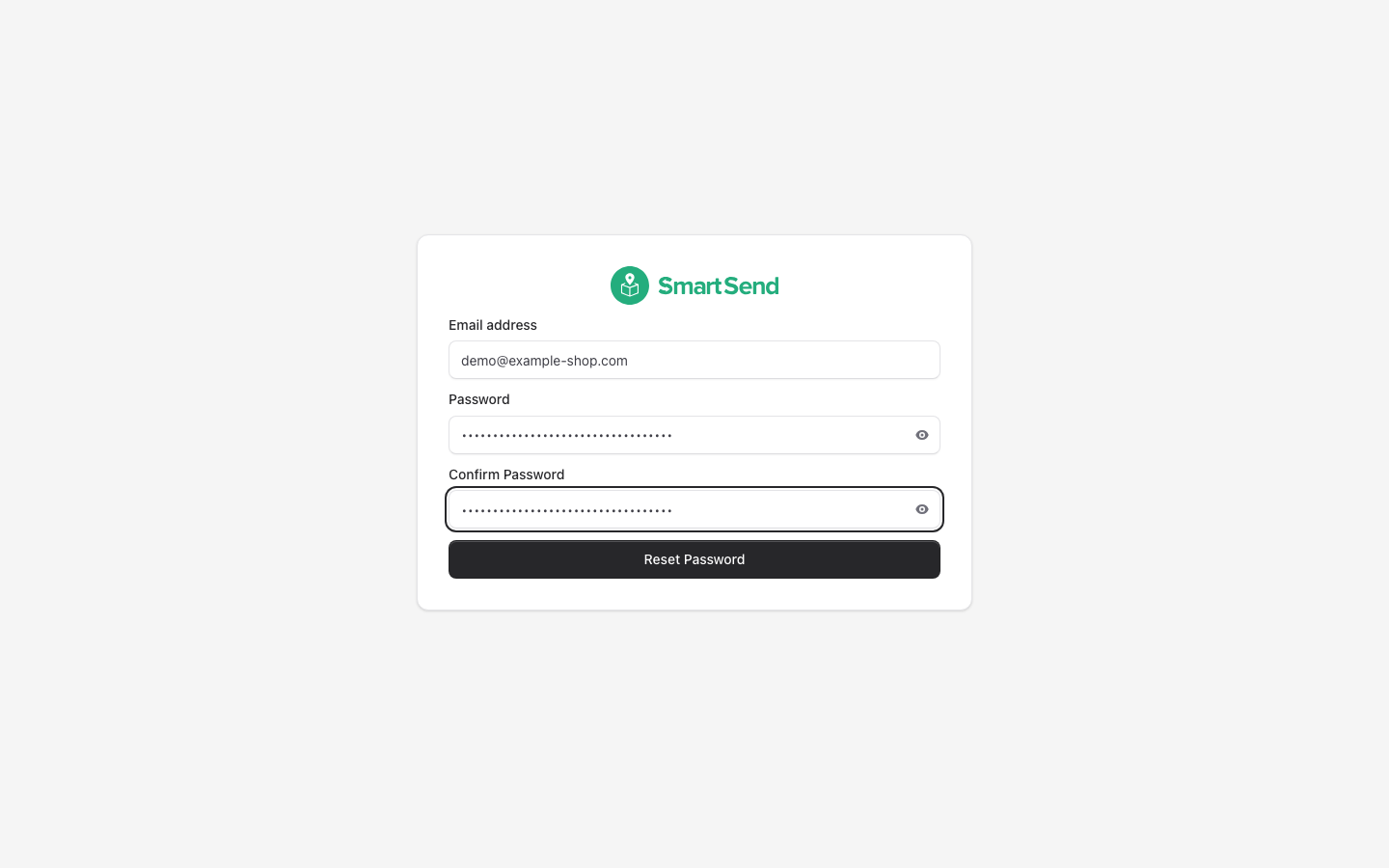
    Click the password reset link in the email you receive, then enter and confirm your **new password**.
    <img src="https://mintcdn.com/smartsend/oG0vUhSrEWp3SfSv/images/auth/reset-password-filled.png?fit=max&auto=format&n=oG0vUhSrEWp3SfSv&q=85&s=cbfc03cf1efca94bcec39ef9d439f625" alt="Reset password form with new password filled in" className="rounded-lg" width="1440" height="900" data-path="images/auth/reset-password-filled.png" />
  </Step>
</Steps>