> ## Documentation Index
> Fetch the complete documentation index at: https://docs.smartsend.io/llms.txt
> Use this file to discover all available pages before exploring further.
# Billing
> Manage billing and subscription settings
## Trial and plans
We offer both a **free version** and several paid versions of our application. See our pricing page for current plans, their pricing and what features are included in which plan.
**No credit card needed up front** - newly created accounts get a 30-day free trial with no strings attached 👍
### Trial
We provide a generous 30-day free trial for all new accounts. You can try out our features unlimited without any commitment for 30 days, without even entering your credit card information.
#### What happens when the trial ends?
Once the trial period ends, your account automatically continues on the **free version**. You can always upgrade to a paid plan at any time during the trial period or after it ends. The paid plan starts immediately after choosing it.
#### How do I ensure everything works after my trial ends?
To continue using Smart Send after your 30-day trial ends, simply sign up for one of our subscription plans before the trial period expires. This ensures uninterrupted access to all features and prevents any service disruption.
### Plans
We offer different subscription plans depending on your needs. You can choose to commit either monthly or yearly, with a 40% discount when choosing yearly payment. The plans, features included in each plan, and prices can always be seen on our website.
See our plans and features .
## Subscription status
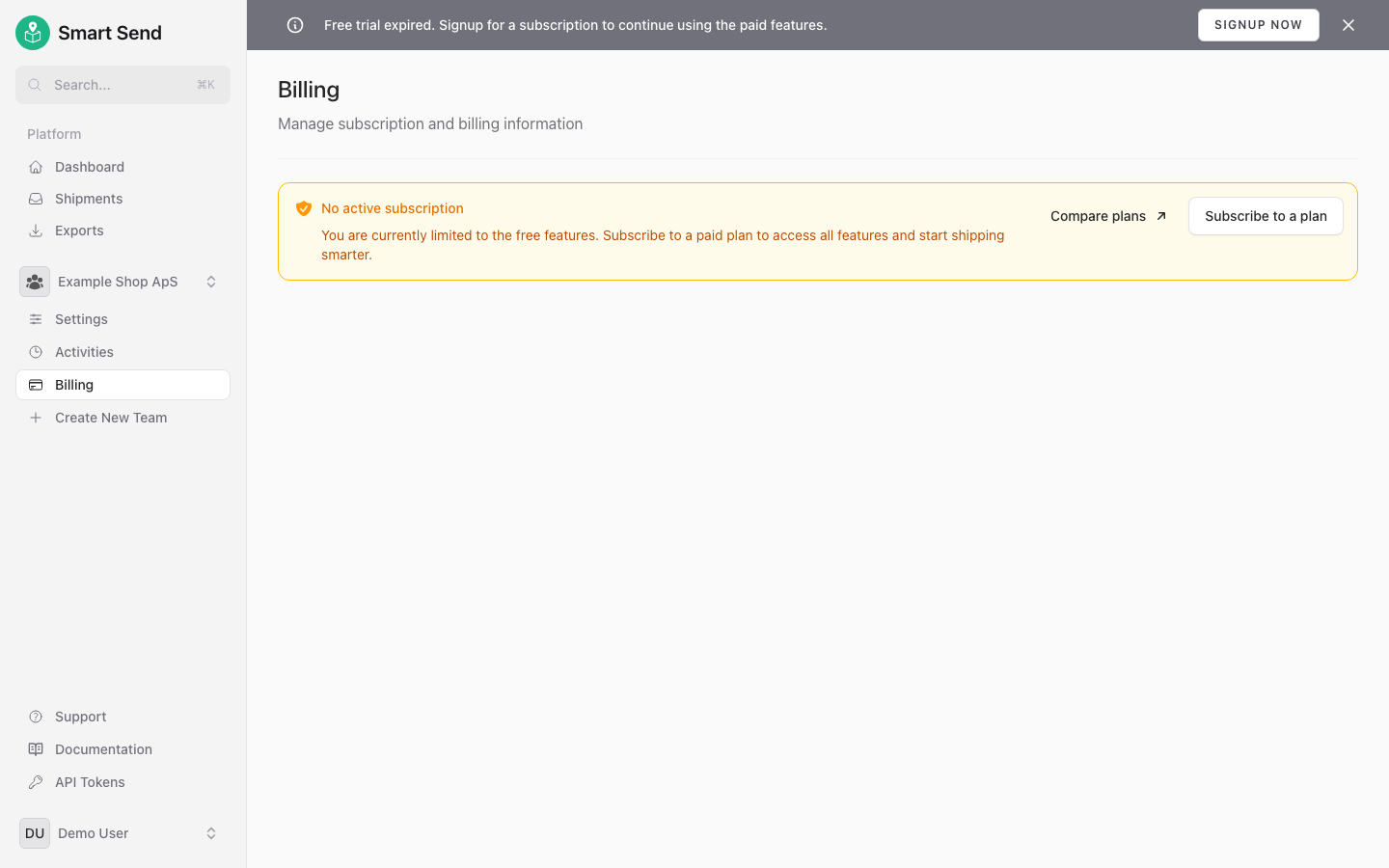
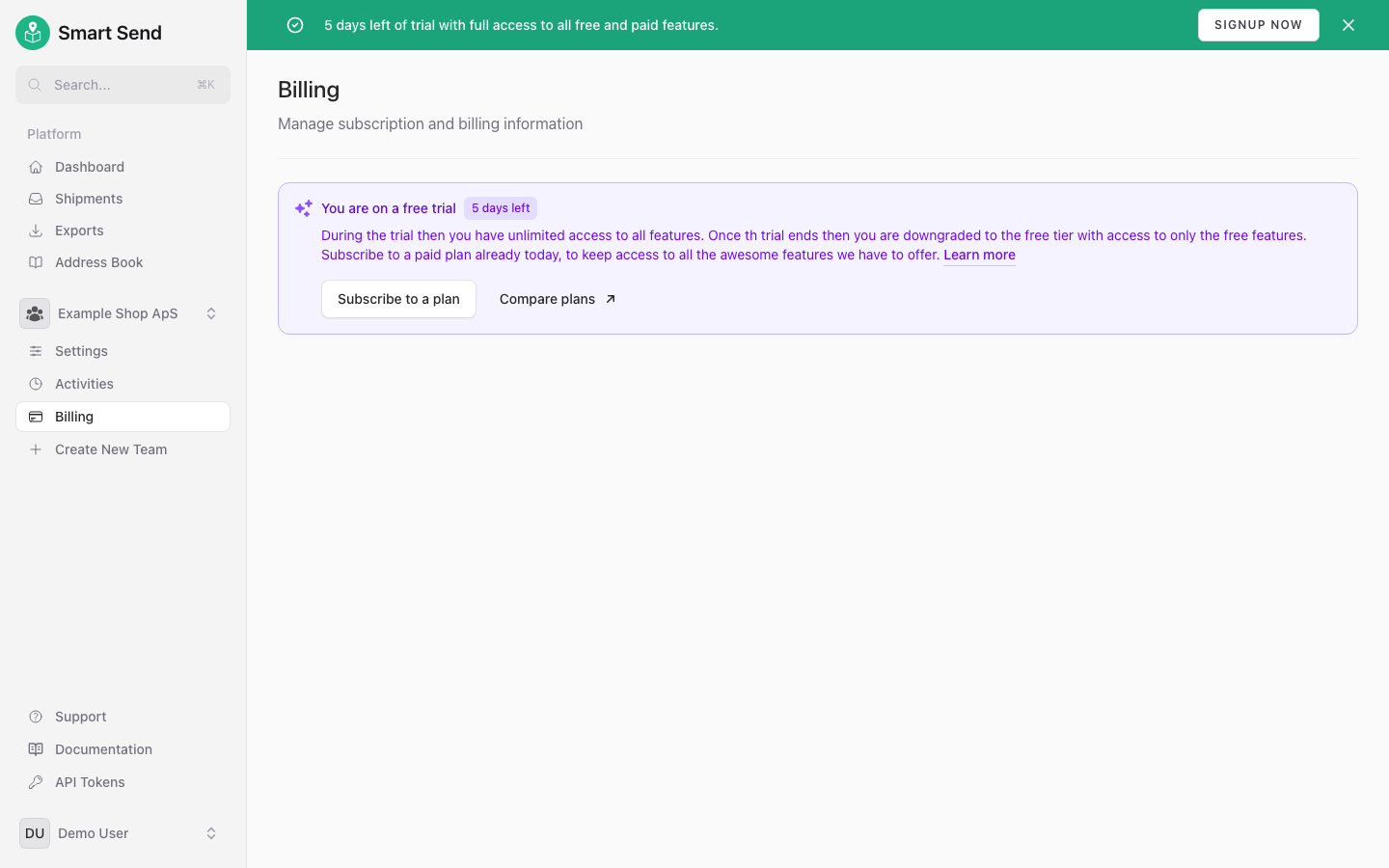
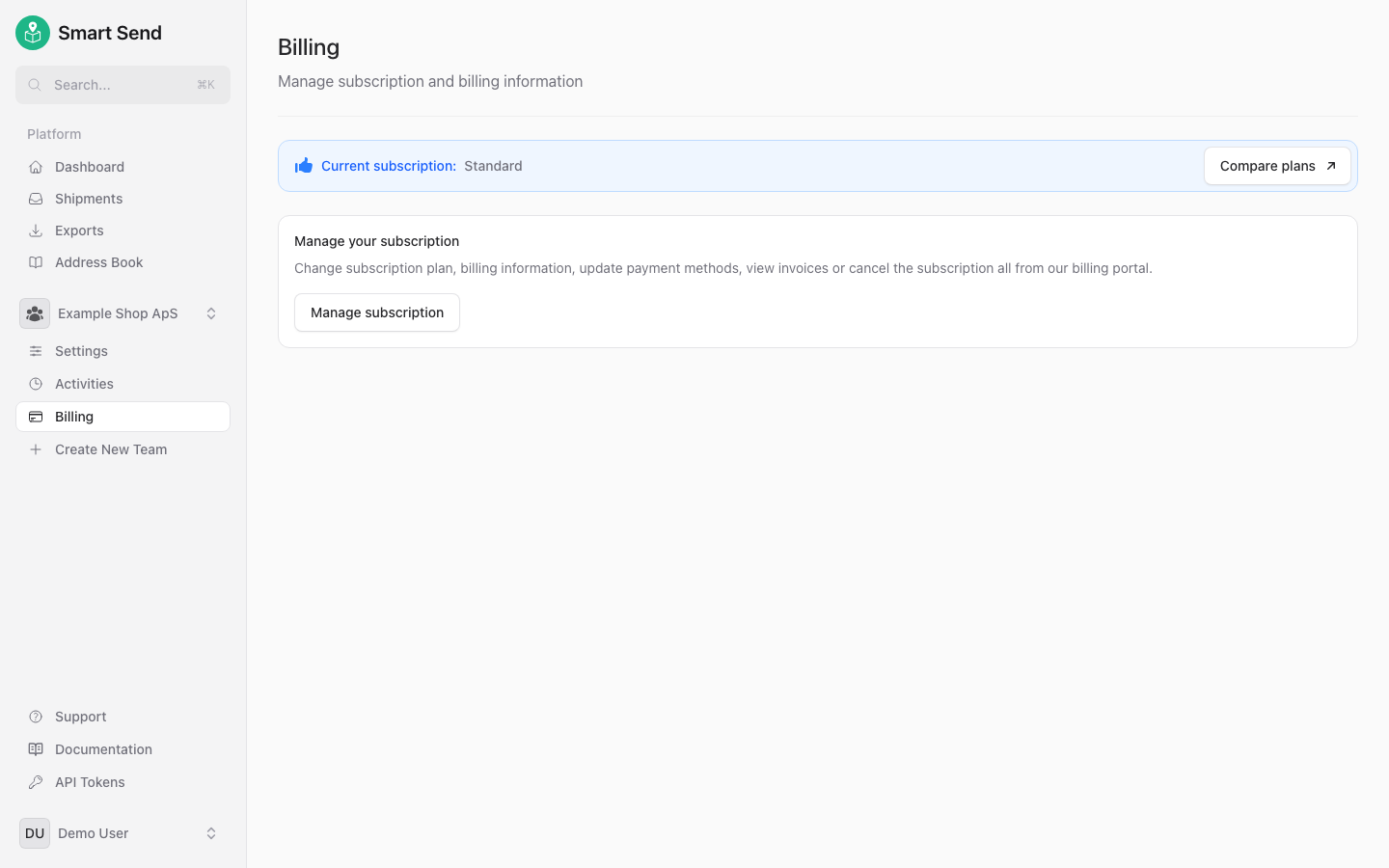
Your billing page shows the current status of your subscription. Here is what each status looks like:
When no subscription is active, you are on the free version.
During your 30-day trial, you have access to all features.
When you have an active subscription, your current plan and billing period are displayed.
## Create subscription
Check our pricing page for a comparison of the different subscription plans and what features are included in which plans before signing up for a subscription.
Once you have determined the proper subscription plan, start by logging into the Smart Send platform .
Go to **Billing**
Choose whether you want to pay **Monthly** or **Yearly** in the toggle at the top of the page
Locate the plan that is suitable and click the **Subscribe** button
Select the country in the dropdown and click the button **Add VAT number**
Enter the *billing address* and the business VAT number (**must** be prefixed with the country code). Enter the *Business name* in the field **Extra Billing Information**
Click the **Continue To Payment** button, fill out *Payment details* and complete *3D Secure payment* if requested
The yearly payment provides a discount of \~40% compared to paying monthly.
## Manage subscription
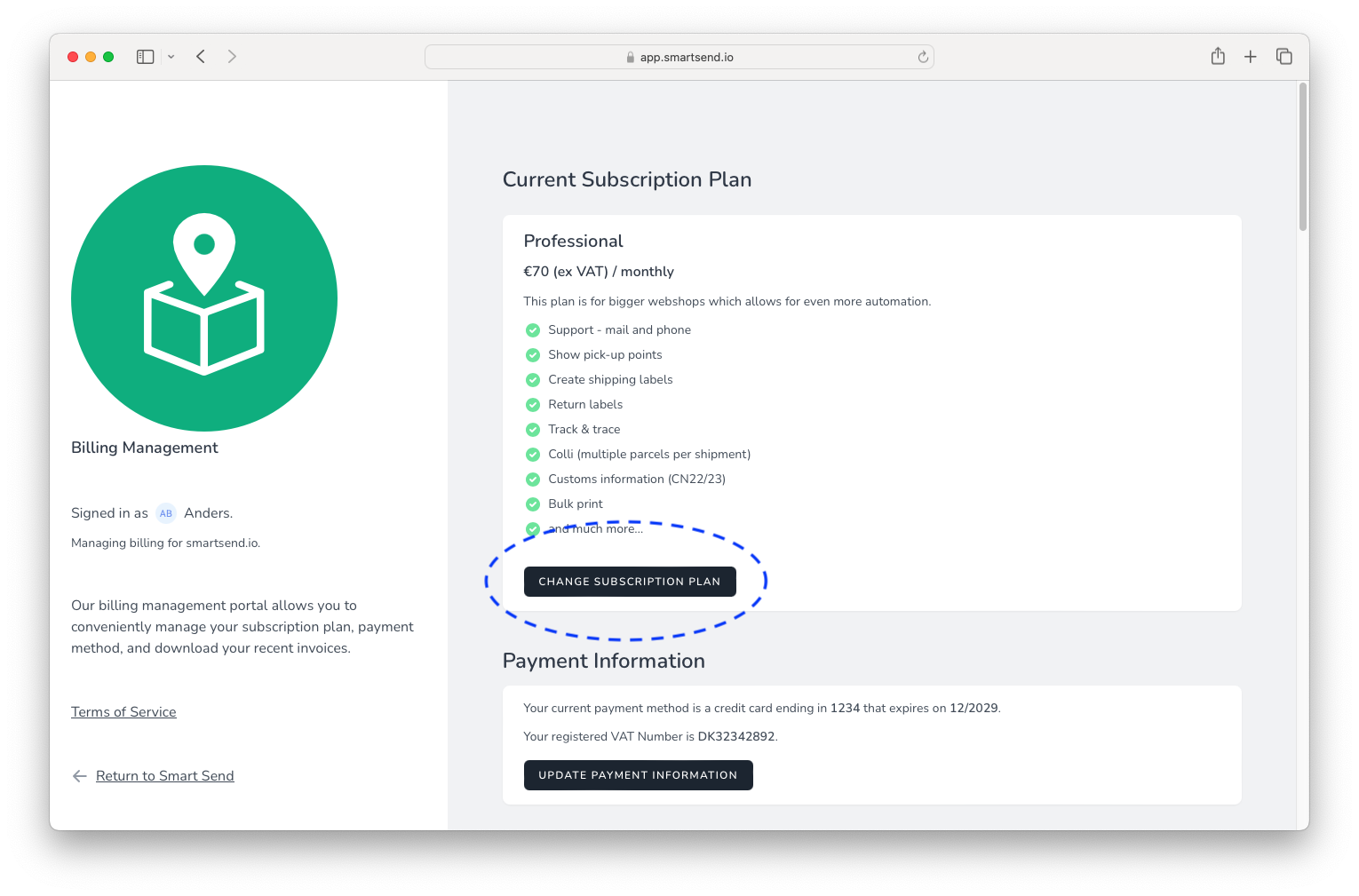
If you have an active subscription already, then you can easily change the plan and/or the billing period. That means you can either change a *Monthly Standard* subscription to a *Yearly Standard* subscription or you change a *Standard* subscription to a *Professional* subscription.
To manage your subscription, start by logging into the Smart Send platform .
Go to **Billing** and find the section **Current Subscription Plan**
Click the **Change Subscription Plan** button (also if you just want to change the billing period)
Choose whether you want to pay **Monthly** or **Yearly** in the toggle at the top of the page
Click the **Subscribe** button next to the subscription plan you want to switch to
**Prorating:** When you upgrade or downgrade your plan, you'll only be charged or credited for the price difference between the plans for the remaining billing period.
*Upgrading a plan* takes effect immediately and you will be charged the difference between what you have already paid and what the new subscription package costs.
*Downgrading* is effective immediately and you will be credited for the unused timeframe. The money is not refundable but the credit will be used to pay any future invoices, such as for the next billing period.
## Cancel a subscription
You can easily cancel your subscription in the same place you created it. It is only possible to cancel the subscription through your own login to our webapp. It is not possible to cancel your subscription by contacting our support by mail or phone.
To cancel your subscription, start by logging into the Smart Send platform .
Go to **Billing** and find the section **Cancel Subscription**
Click the **Cancel subscription** button
Canceling your subscription may break existing shipping workflows and affect all team members.
**Grace period:** Your account will continue to have access to all features in your current plan for the remainder of the already paid billing period. When the subscription period ends, your account will not be renewed and will revert to the free version.
## Update billing information
Only team admins can manage billing settings and subscriptions.
Payment details are the details available on invoices and receipts and consists of a billing address and a VAT number.
A European VAT number is prefixed with the two-letter country code without a space. As an example then Smart Send's VAT number is `DK32342892`
Payment details can be entered before signing up for a subscription plan and can also be updated while having an active subscription.
To update payment details, start by logging into the Smart Send platform .
Go to **Billing**
In the section **Payment Information** click the **Update Payment Information** button
Enter the payment information and click the **Update Payment Information** button
## Update payment method
It is possible to add a payment method either before subscribing or when creating a new subscription. It is also possible to update payment information eg. when you get a new credit card.
To update your payment method, start by logging into the Smart Send platform .
Go to **Billing** and find the section **Payment Methods**
Click the **Add Payment Method** button
Fill out the form and click the **Save card** button
Complete *3D secure payment* if requested
Assign the new credit card as the default card by clicking the **Make default** link next to the new credit card
Delete the old payment method by clicking the **Delete** icon next to the old payment method
## Invoices
### Receipt notification
You can provide extra email addresses that will receive a copy of the invoice for each payment.
To configure receipt notifications, start by logging into the Smart Send platform .
Go to **Billing** and find the section **Invoice Email Addresses**
Enter one or more comma-separated email addresses in the field **Email Addresses** and click **Save**
### Downloading historical receipts
To download historical receipts, start by logging into the Smart Send platform .
Go to **Billing** and find the section **Receipts**
Click the **Download** button next to a receipt to download it as a PDF file
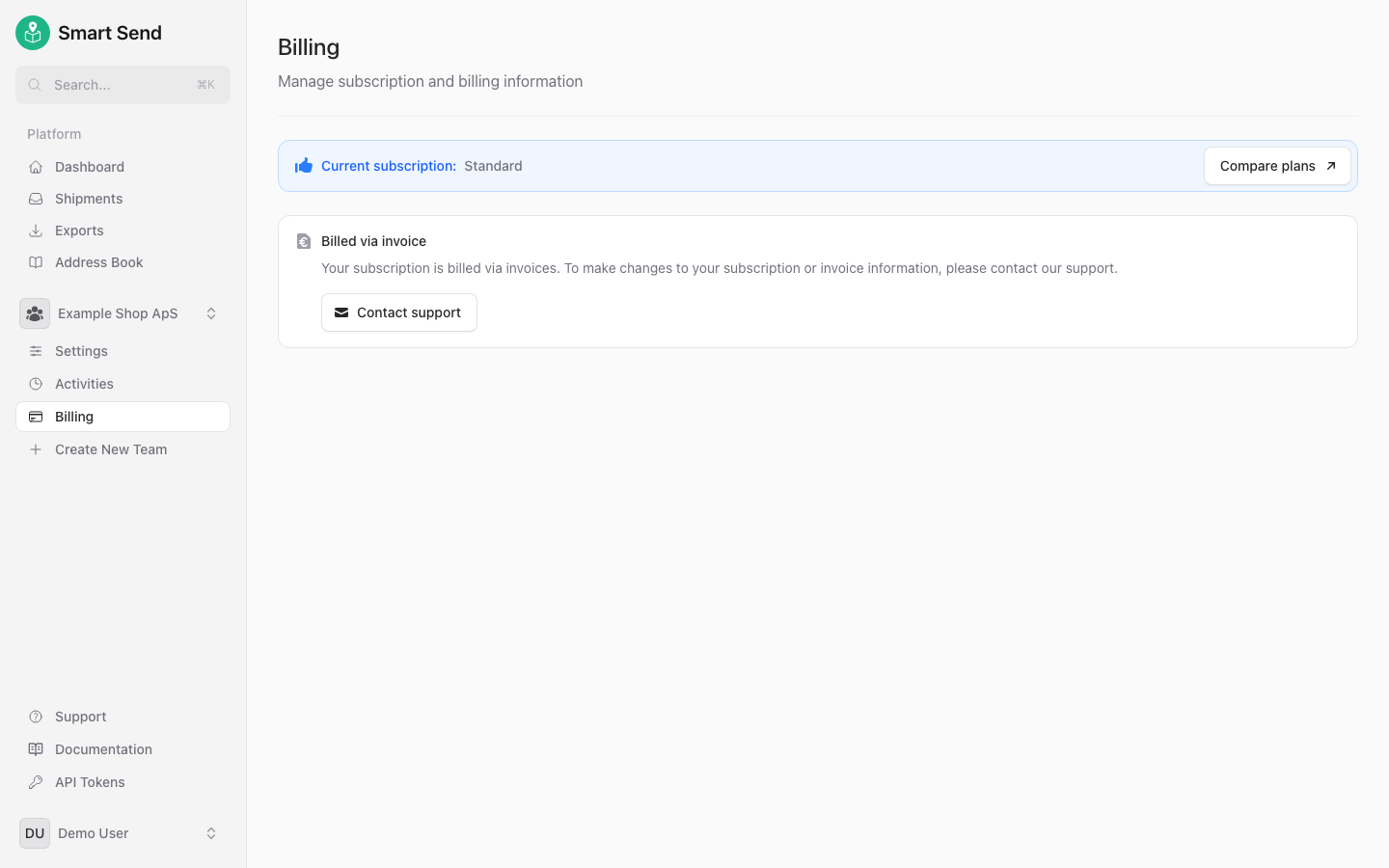
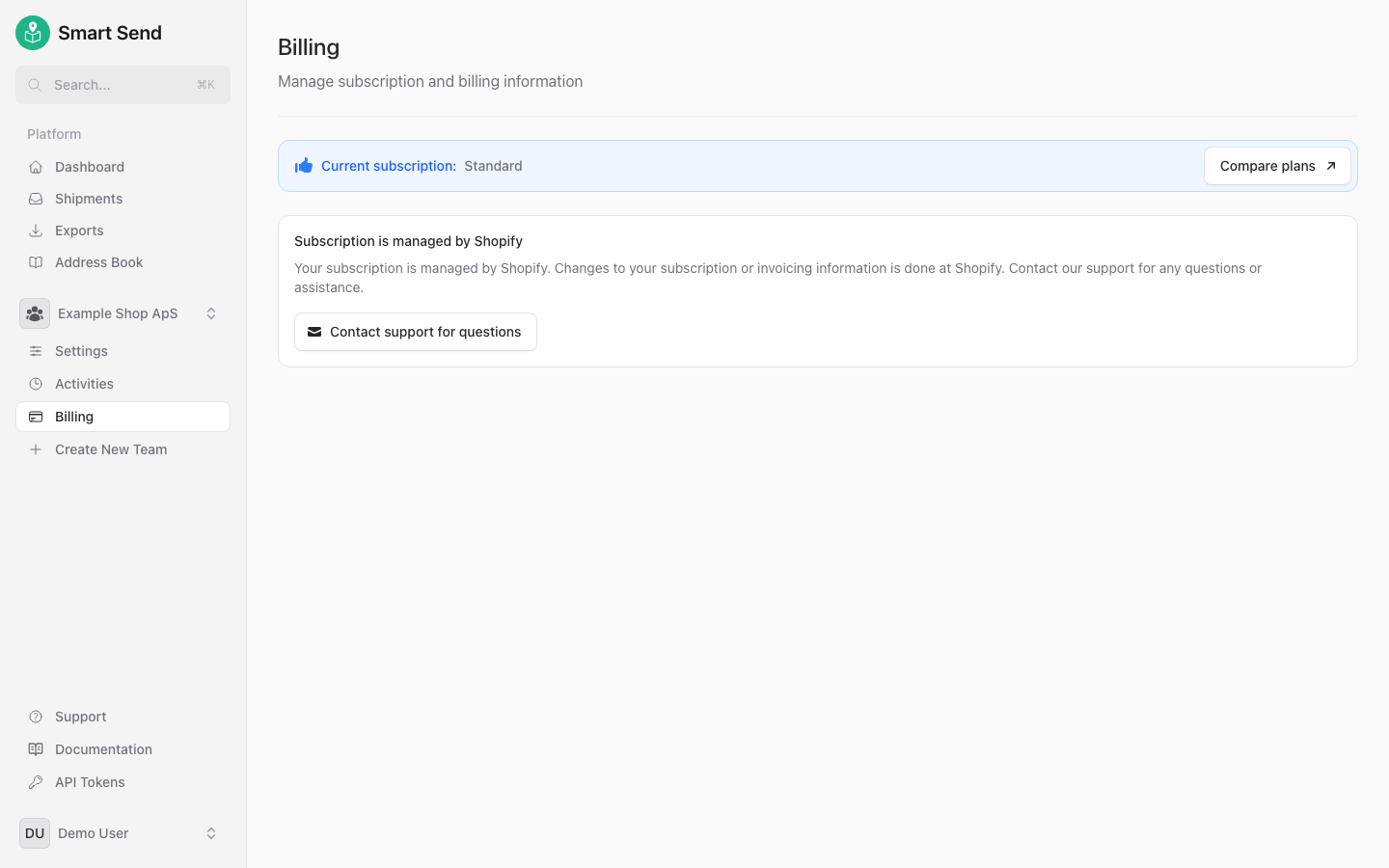
## Billed via invoice/EAN
Some teams are not billed through the standard subscription system. Instead, billing is handled externally — either via invoice/EAN or through the Shopify App Store.
If your team is billed externally, the billing page reflects this and you do not need to manage payment methods or subscriptions in Smart Send.
Teams billed via invoice or EAN see their billing managed through an external invoicing system.
Teams using the Shopify app are billed through the Shopify App Store. Subscription management is handled directly in Shopify.
 ## Cancel a subscription
You can easily cancel your subscription in the same place you created it. It is only possible to cancel the subscription through your own login to our webapp. It is not possible to cancel your subscription by contacting our support by mail or phone.
To cancel your subscription, start by logging into the Smart Send platform
## Cancel a subscription
You can easily cancel your subscription in the same place you created it. It is only possible to cancel the subscription through your own login to our webapp. It is not possible to cancel your subscription by contacting our support by mail or phone.
To cancel your subscription, start by logging into the Smart Send platform 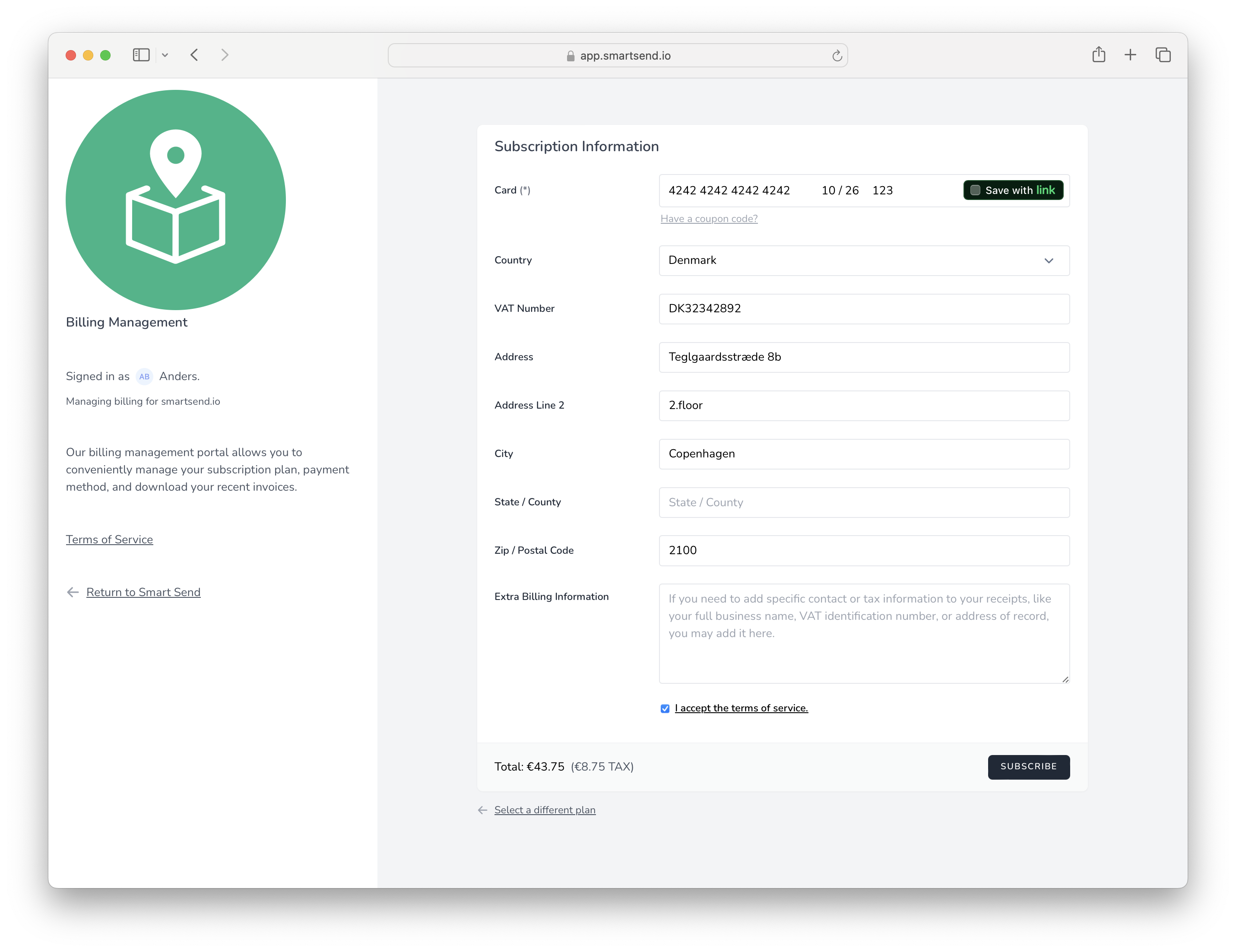 ## Update payment method
It is possible to add a payment method either before subscribing or when creating a new subscription. It is also possible to update payment information eg. when you get a new credit card.
To update your payment method, start by logging into the Smart Send platform
## Update payment method
It is possible to add a payment method either before subscribing or when creating a new subscription. It is also possible to update payment information eg. when you get a new credit card.
To update your payment method, start by logging into the Smart Send platform 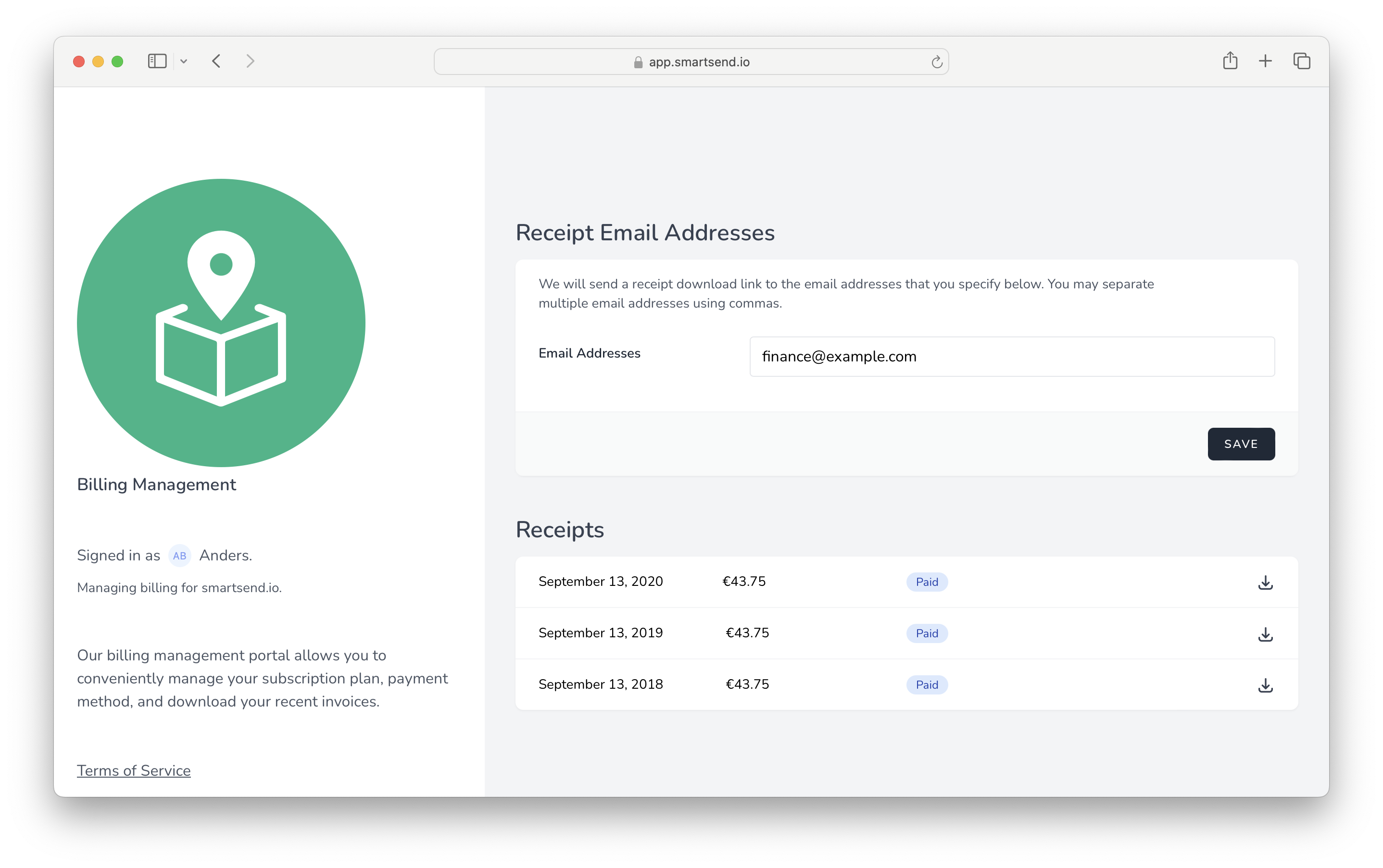 ## Billed via invoice/EAN
Some teams are not billed through the standard subscription system. Instead, billing is handled externally — either via invoice/EAN or through the Shopify App Store.
If your team is billed externally, the billing page reflects this and you do not need to manage payment methods or subscriptions in Smart Send.
## Billed via invoice/EAN
Some teams are not billed through the standard subscription system. Instead, billing is handled externally — either via invoice/EAN or through the Shopify App Store.
If your team is billed externally, the billing page reflects this and you do not need to manage payment methods or subscriptions in Smart Send.