> ## Documentation Index
> Fetch the complete documentation index at: https://docs.smartsend.io/llms.txt
> Use this file to discover all available pages before exploring further.

# Carrier Connections

> Autenticate Smart Send to manage shipments

<Note>
  Carrier connections are added to the *Team* allowing all members to use the same carrier agreements and settings.
</Note>

## What are carrier connections?

Before you can start booking shipments, you need to connect your carrier agreement(s) to Smart Send. By adding your carrier agreement, you authorize Smart Send to book shipping labels on your behalf according to your agreement with the carrier. When a label is booked, a tracking number is assigned and the required shipping documents are created.

<Info>
  Invoicing for the actual shipping cost is handled directly by the carrier according to your agreement with them. Smart Send simply registers the shipment with the carrier on your behalf.
</Info>

<Info>
  **Need a carrier agreement?** If you don't yet have a carrier agreement, we'll happily assist you with choosing the correct carrier for your needs. [Contact our support team](/troubleshooting/support) for personalized recommendations.
</Info>

## Managing carrier connections

For details on connecting to a particular carrier, see the carrier-specific guides below:

<CardGroup cols={3}>
  <Card title="Bifrost" img="https://mintcdn.com/smartsend/Etg8PBiY9Ohcqt65/images/carrier-background-cloud/bifrost.png?fit=max&auto=format&n=Etg8PBiY9Ohcqt65&q=85&s=496787a87737032512f49f67493f49f5" href="/carriers/bifrost/connect" width="2280" height="1040" data-path="images/carrier-background-cloud/bifrost.png" />

  <Card title="Bring" img="https://mintcdn.com/smartsend/Etg8PBiY9Ohcqt65/images/carrier-background-cloud/bring.png?fit=max&auto=format&n=Etg8PBiY9Ohcqt65&q=85&s=38dfcb60f6043f2948a3a222e450f0c3" href="/carriers/bring/connect" width="2280" height="1040" data-path="images/carrier-background-cloud/bring.png" />

  <Card title="DAO" img="https://mintcdn.com/smartsend/Etg8PBiY9Ohcqt65/images/carrier-background-cloud/dao.png?fit=max&auto=format&n=Etg8PBiY9Ohcqt65&q=85&s=a4a9dfb14c9ba884a720d053bc74f3f3" href="/carriers/dao/connect" width="2280" height="1040" data-path="images/carrier-background-cloud/dao.png" />

  <Card title="GLS" img="https://mintcdn.com/smartsend/Etg8PBiY9Ohcqt65/images/carrier-background-cloud/gls.png?fit=max&auto=format&n=Etg8PBiY9Ohcqt65&q=85&s=b94e4589a427405d882733151f1c1ddb" href="/carriers/gls/connect" width="2280" height="1040" data-path="images/carrier-background-cloud/gls.png" />

  <Card title="PostNord" img="https://mintcdn.com/smartsend/Etg8PBiY9Ohcqt65/images/carrier-background-cloud/postnord.png?fit=max&auto=format&n=Etg8PBiY9Ohcqt65&q=85&s=6548a0986d89a6108263d44fcf077aab" href="/carriers/postnord/connect" width="2280" height="1040" data-path="images/carrier-background-cloud/postnord.png" />
</CardGroup>

To update or remove carrier connections, start by logging into the <Link href="https://app.smartsend.io">Smart Send platform</Link> <Icon icon="arrow-up-right" size={12} />.

<Steps>
  <Step title="Navigate to Carrier Accounts">
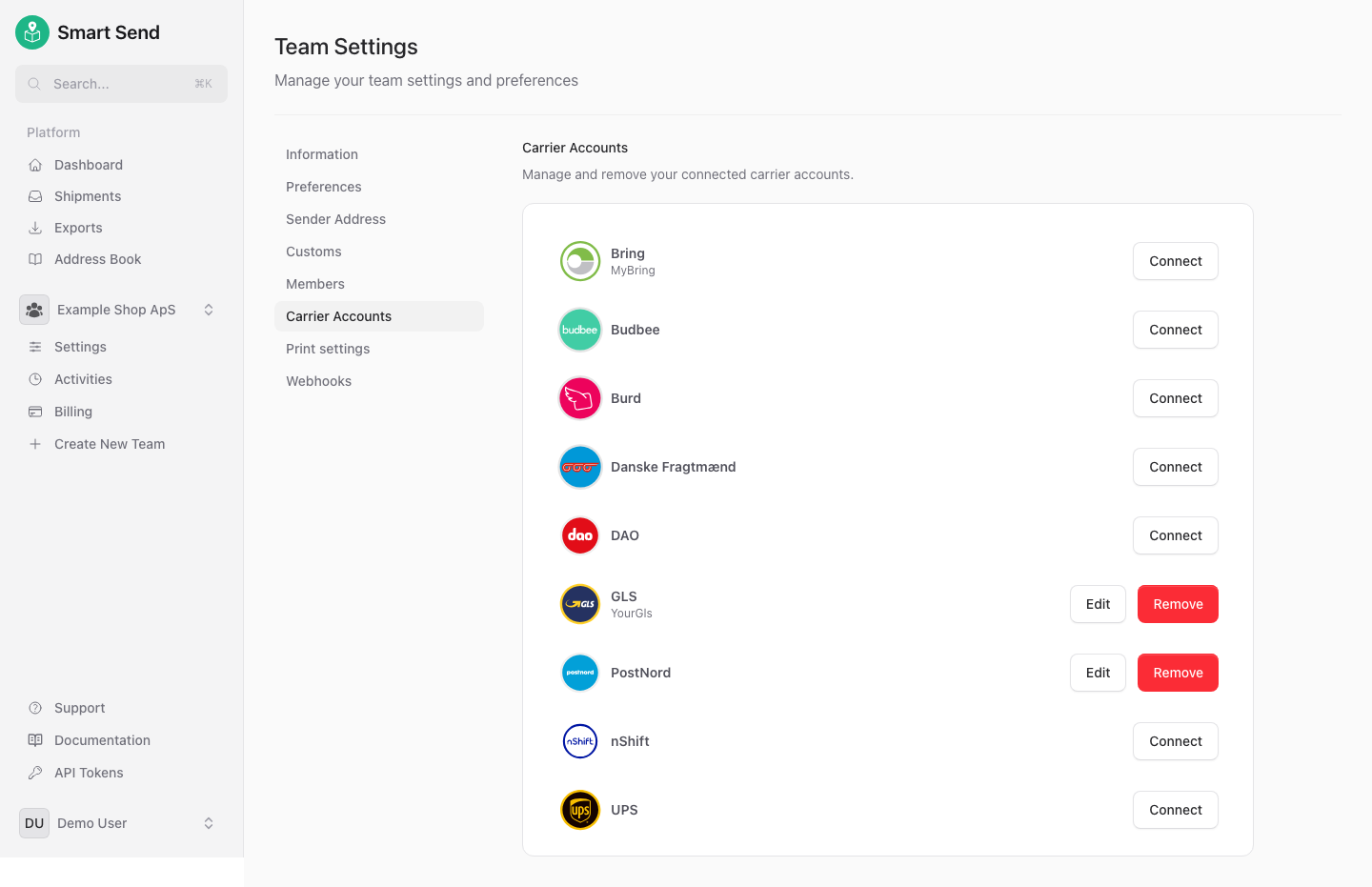
    Go to **Settings** → **<Link href="https://app.smartsend.io/team/settings/carriers">Carrier Accounts</Link>** to manage your connections.
  </Step>

  <Step title="Edit or remove">
    Find the connection you want to modify, then click **Edit** to update credentials or settings, or click **Remove** to delete the connection

    <img src="https://mintcdn.com/smartsend/oG0vUhSrEWp3SfSv/images/carrier-connections/overview.png?fit=max&auto=format&n=oG0vUhSrEWp3SfSv&q=85&s=d7a7b8832e12b8834bfe80027b8c6e41" alt="Carrier accounts page with edit and remove options" className="rounded-lg" width="1440" height="931" data-path="images/carrier-connections/overview.png" />
  </Step>
</Steps>

<Warning>
  Removing a carrier connection affects all team members and may break existing shipping workflows.
</Warning>
