> ## Documentation Index
> Fetch the complete documentation index at: https://docs.smartsend.io/llms.txt
> Use this file to discover all available pages before exploring further.

# Print setup

> Configure your printer for shipping labels with Smart Send

Shipping labels generated through Smart Send can be printed on all printers. This guide covers setup for both dedicated label printers and standard A4 printers.

## Recommended setup

<Tip>
  We recommend using a [label printer](#label-printers) with the [Smart Send print client](#print-client-setup) configured for the best experience. The optimal label size depends on the carrier you use — read more under [label sizes by carrier](#label-sizes-by-carrier).
</Tip>

A dedicated label printer is a relatively small investment that quickly pays for itself in saved time and materials. If you ship more than a few parcels per week, we strongly recommend getting one.

Clicking the print button and confirming the browser's print dialog is not a big task in itself, but when you process many orders per day, avoiding that step entirely with automatic printing using the [print client](#print-client-setup) is a real timesaver.

### Printer types

Read more on the different printer types below:

<CardGroup cols={2}>
  <Card title="Label printer" img="https://mintcdn.com/smartsend/XCgOMzxiu3qxsxSh/images/printing/ste-print-example.png?fit=max&auto=format&n=XCgOMzxiu3qxsxSh&q=85&s=9fd040e047cbaca74fc9ec4ad81b230b" width="1600" height="1198" data-path="images/printing/ste-print-example.png">
    A dedicated label printer prints directly onto adhesive labels that you peel off and stick to your parcel. This is the fastest and most convenient option for daily shipping.
  </Card>

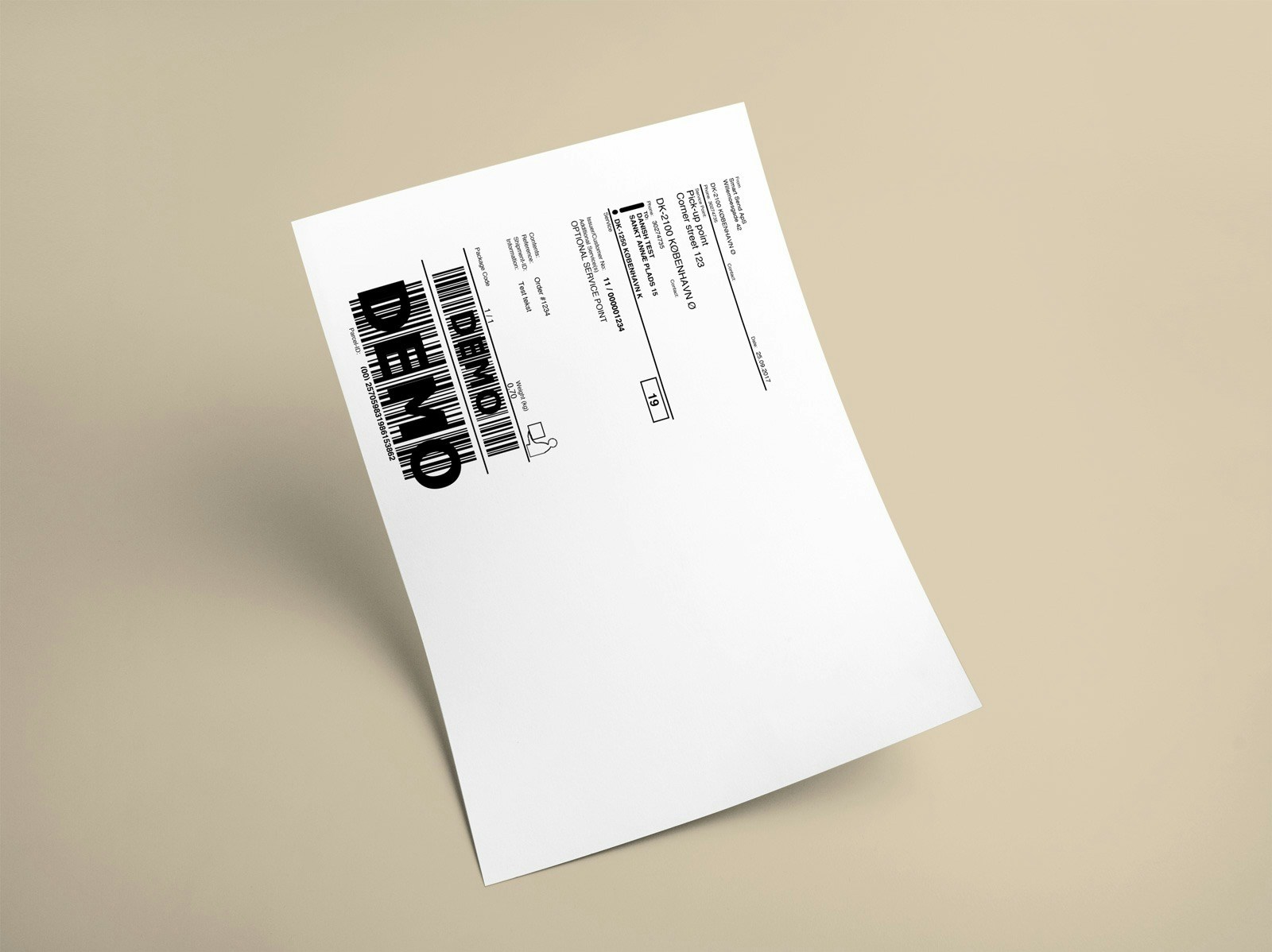
  <Card title="A4 printer" img="https://mintcdn.com/smartsend/hLcvB1FxJcAYyyTe/images/printing/a4-print-example.jpg?fit=max&auto=format&n=hLcvB1FxJcAYyyTe&q=85&s=4ee47ab1f0bf3b33a24645a207cf6491" width="1600" height="1198" data-path="images/printing/a4-print-example.jpg">
    A standard A4 printer prints the label on regular paper. You then fold the paper and attach it to your parcel using tape or an adhesive document pouch.
  </Card>
</CardGroup>

## Buying printer and shipping labels

Smart Send works with any printer and shipping labels. To make it easy, we have listed our suggestions below.

### Label printers

There are many label printers available on the market. We recommend a thermal label printer with at least 203 DPI resolution. Here are our suggestions:

| Printer                                                                                                                                     | Description                                                                                        |
| ------------------------------------------------------------------------------------------------------------------------------------------- | -------------------------------------------------------------------------------------------------- |
| **<Link href="https://shop.delfi.com/da/vare/zebra-zd421d-8-dots-mm-203-dpi">Zebra ZD421d</Link>** <Icon icon="arrow-up-right" size={12} /> | Our recommended choice. Preferably with WiFi or Ethernet so you can print from multiple computers. |
| **Zebra GK420d**                                                                                                                            | Older, more affordable version of the ZD421d.                                                      |
| **Zebra ZD220**                                                                                                                             | A budget-friendly yet high-quality option if you don't have the biggest volume.                    |

### Label sizes by carrier

Choose the right label size based on your carriers:

| Carrier      | 102x192mm |   100x150mm   |
| ------------ | :-------: | :-----------: |
| **PostNord** |     ✓     |               |
| **GLS**      |     ✓     |       ✓       |
| **DAO**      |     ✓     |       ✓       |
| **Bring**    |     ✓     | Some services |

<Info>
  Use the coupon code **SmartSend** to get 10% discount on labels from [billige-fragtlabels.dk](https://www.billige-fragtlabels.dk/produkt/smart-send-luksus-fragtlabels-paa-rulle-102x192-mm).
</Info>

## Print client setup

The Smart Send print client is a desktop application that connects to your printer and automatically prints shipping labels and documents as they are generated. The print client must be running on a computer connected to the internet and the printer, and can be installed on multiple computers at the same time.

<Note>
  The print client requires a paid plan. See our <Link href="https://www.smartsend.io/pricing">pricing page</Link> <Icon icon="arrow-up-right" size={12} /> for details.
</Note>

To set up the print client, start by logging into the <Link href="https://app.smartsend.io">Smart Send platform</Link> <Icon icon="arrow-up-right" size={12} />.

<Steps>
  <Step title="Download the print client">
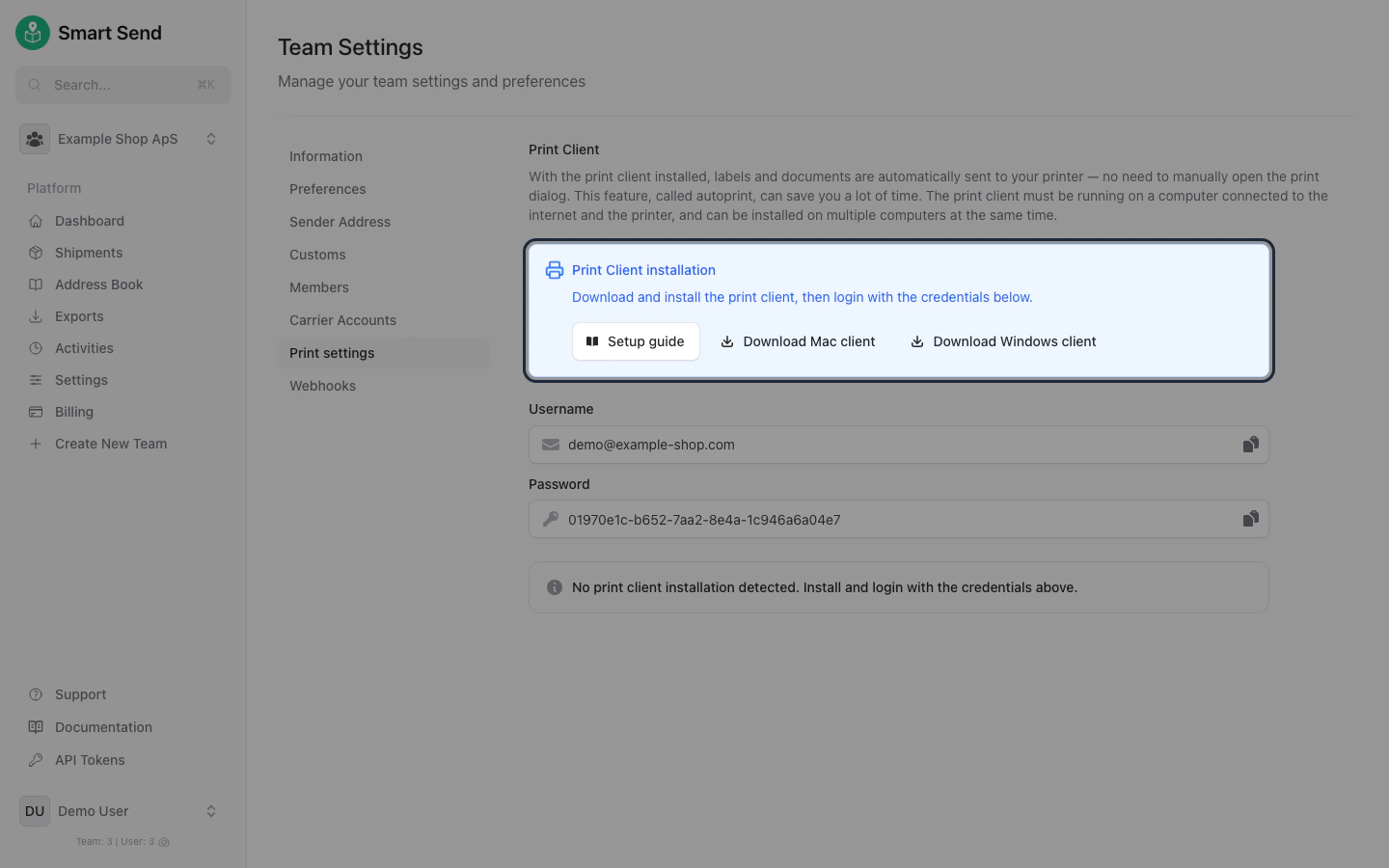
    Go to **Settings** → **<Link href="https://app.smartsend.io/team/settings/printing">Print settings</Link>**, download and install the print client for your operating system (Mac or Windows).

    <img src="https://mintcdn.com/smartsend/XCgOMzxiu3qxsxSh/images/print-client/setup-autoprint-install.png?fit=max&auto=format&n=XCgOMzxiu3qxsxSh&q=85&s=e9a745228de902f43a6e50d1b20d5bb0" alt="Print settings page with download links for Mac and Windows print client" className="rounded-lg" width="1440" height="900" data-path="images/print-client/setup-autoprint-install.png" />
  </Step>

  <Step title="Log in to the print client">
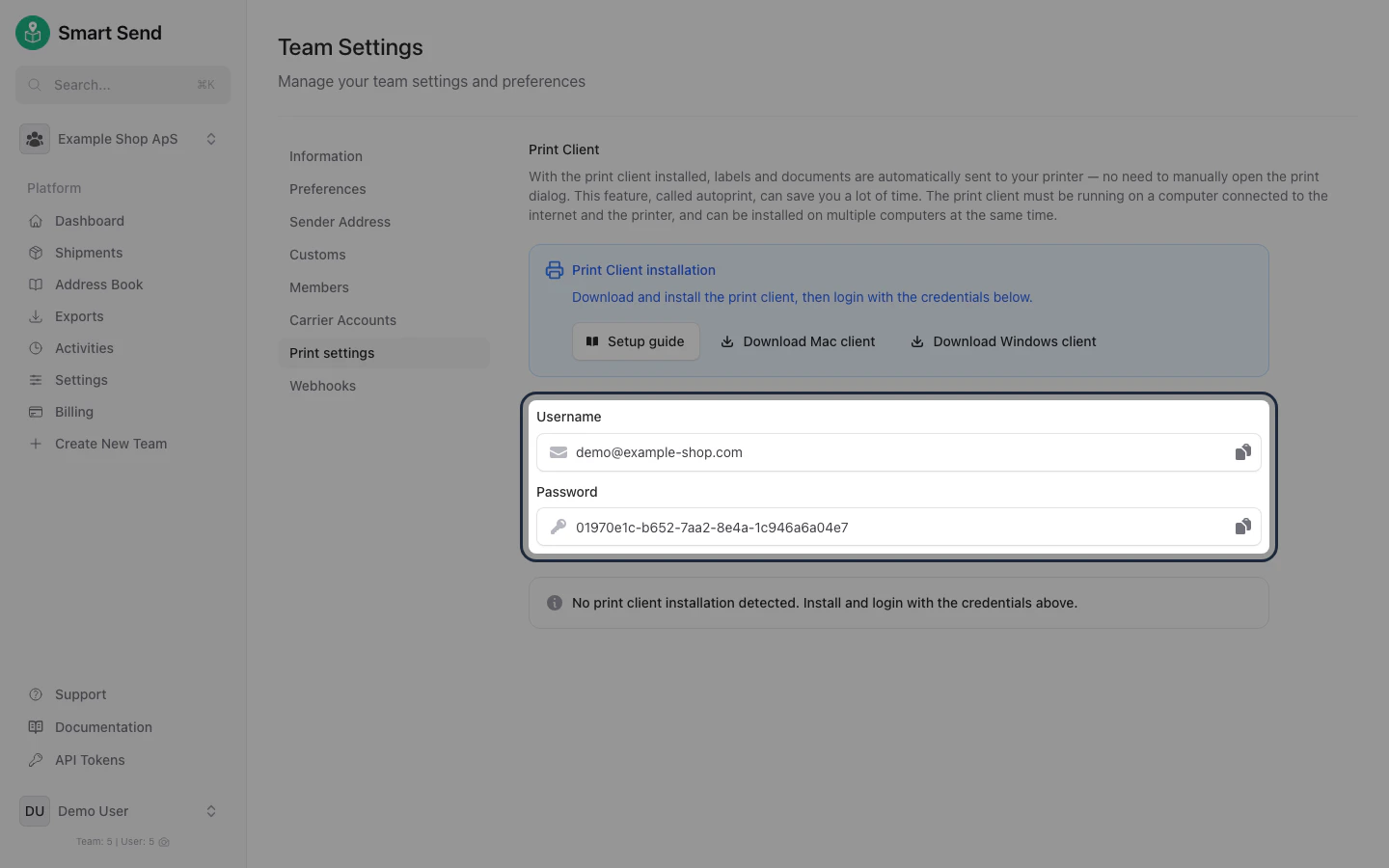
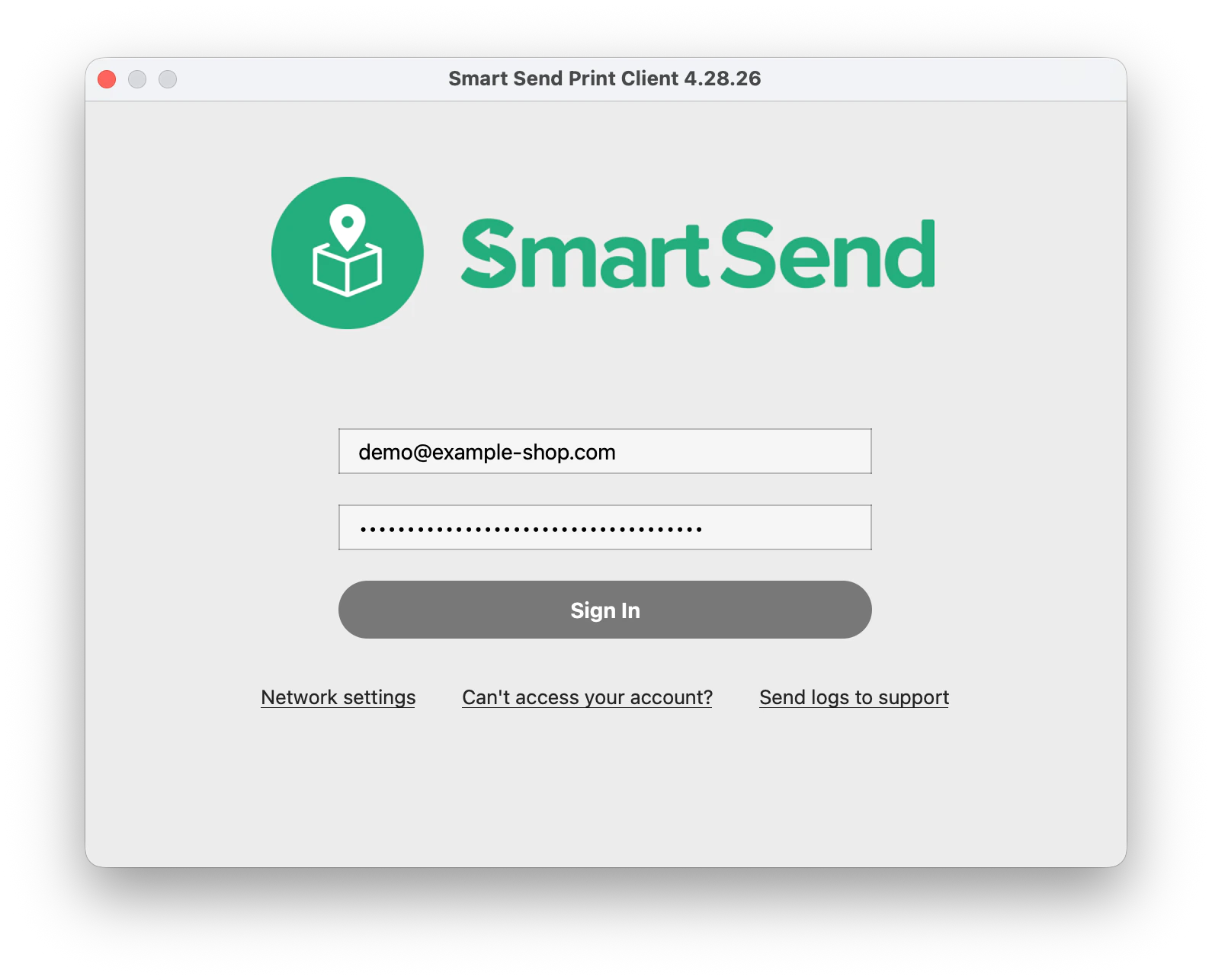
    Copy the **username** and **password** shown on the *Print settings* page and paste them into the print client login form and then press **Sign in**.

    <img src="https://mintcdn.com/smartsend/XCgOMzxiu3qxsxSh/images/print-client/setup-autoprint-credentials.png?fit=max&auto=format&n=XCgOMzxiu3qxsxSh&q=85&s=6b3afd70c1b38d06b5bac2ee953278bb" alt="Print settings page showing the username and password credentials for the print client" className="rounded-lg" width="1440" height="900" data-path="images/print-client/setup-autoprint-credentials.png" />

    <img src="https://mintcdn.com/smartsend/XCgOMzxiu3qxsxSh/images/print-client/setup-autoprint-sign-in.png?fit=max&auto=format&n=XCgOMzxiu3qxsxSh&q=85&s=067014f9257c62904a5dd29cec14072d" alt="Print settings page showing the username and password credentials for the print client" className="rounded-lg" width="1590" height="1286" data-path="images/print-client/setup-autoprint-sign-in.png" />
  </Step>

  <Step title="Configure your printers">
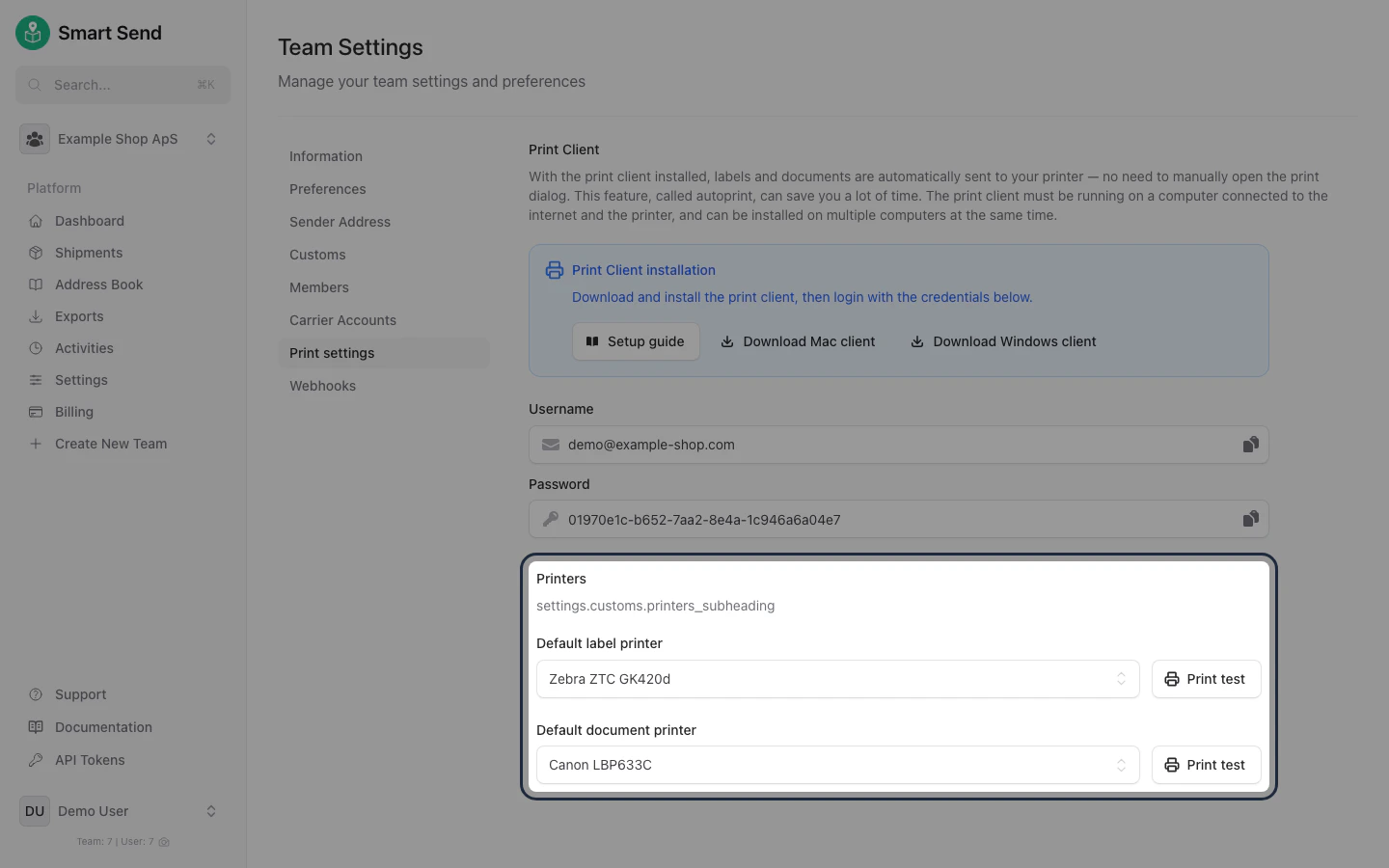
    Once connected, select your **default label printer** and **default document printer**. You can use the **Print test** button to verify each printer works correctly.

    <img src="https://mintcdn.com/smartsend/XCgOMzxiu3qxsxSh/images/print-client/setup-autoprint-printer-selected.png?fit=max&auto=format&n=XCgOMzxiu3qxsxSh&q=85&s=2a669536fda644c65662735dd8005946" alt="Print settings page showing configured label printer and document printer" className="rounded-lg" width="1440" height="900" data-path="images/print-client/setup-autoprint-printer-selected.png" />
  </Step>
</Steps>

## Printing manually

If you are not using the print client, you can print shipping labels manually from your browser or a PDF viewer. The setup depends on your printer and the application you are printing from.

### Label printers

When printing on a label printer, then remember to configure the correct paper size in the printer setting (most likely you use labels of sie **102x192mm** or **100x150mm**).

If you are using a Zebra label printer, see the [Zebra label printer setup guide](/fundamentals/zebra-label-printer-setup) for instructions on configuring the paper size on Mac and Windows.

### A4 printers

<Tip>
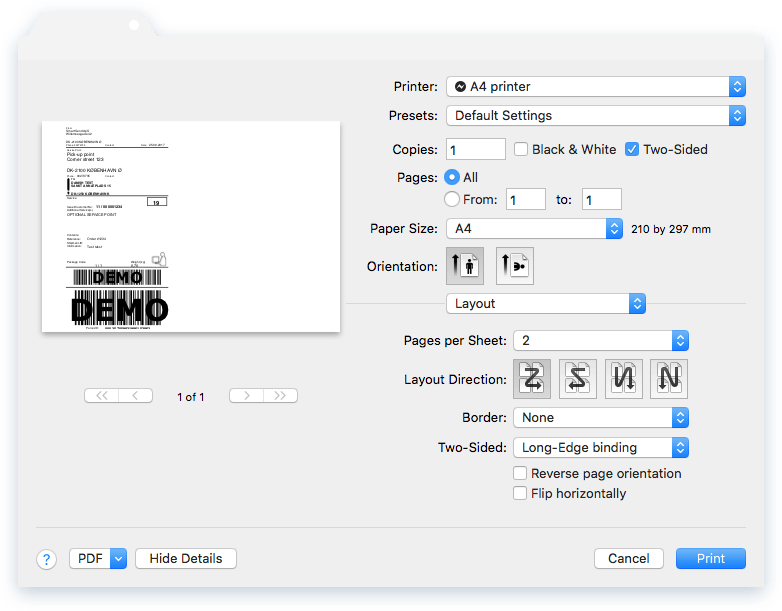
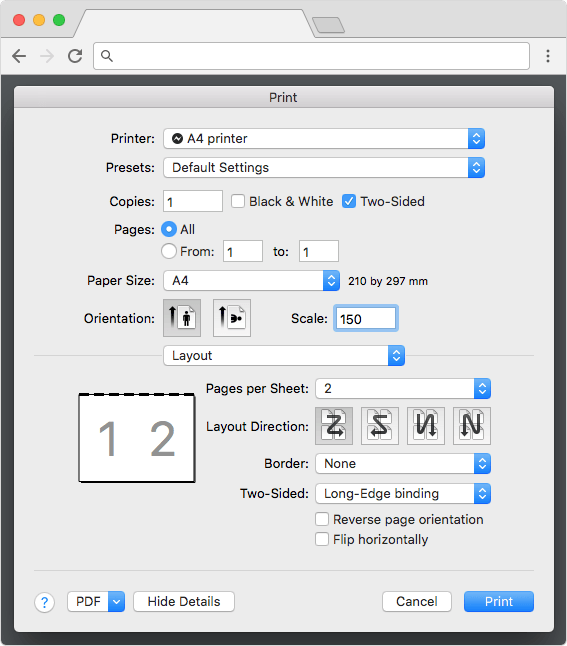
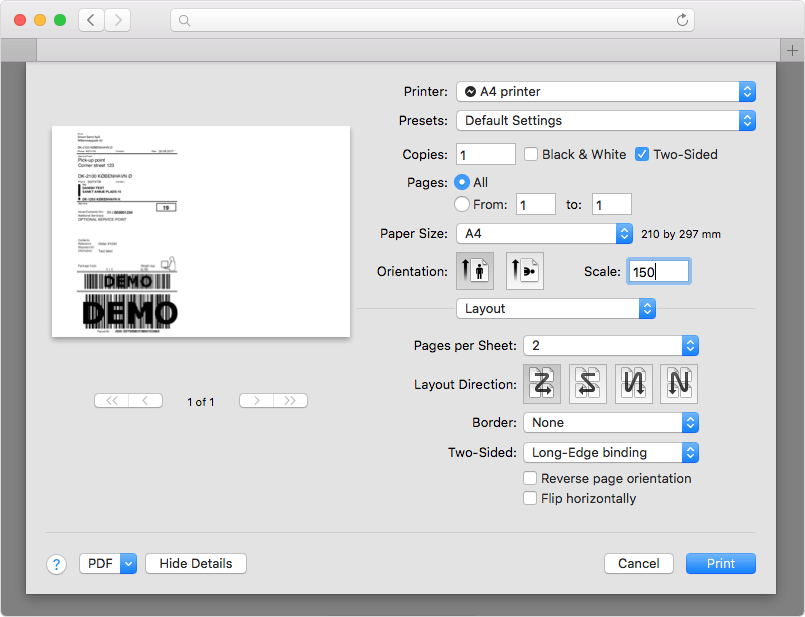
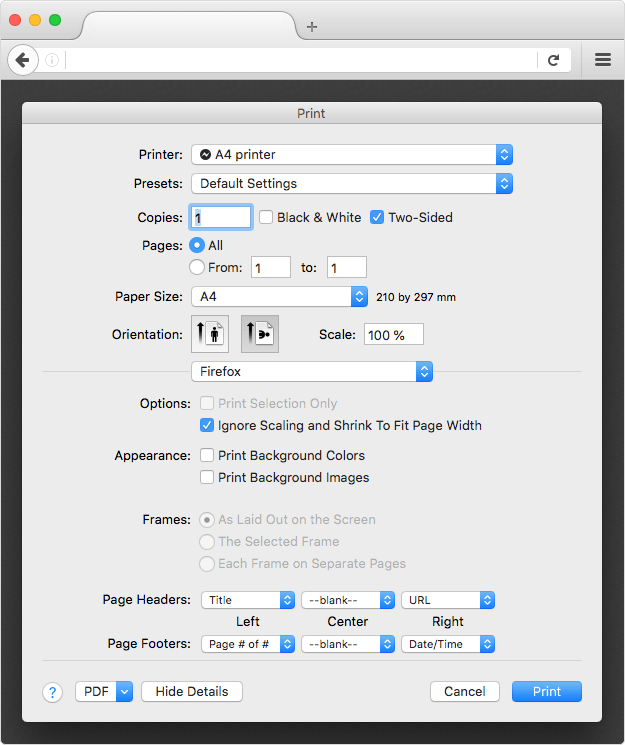
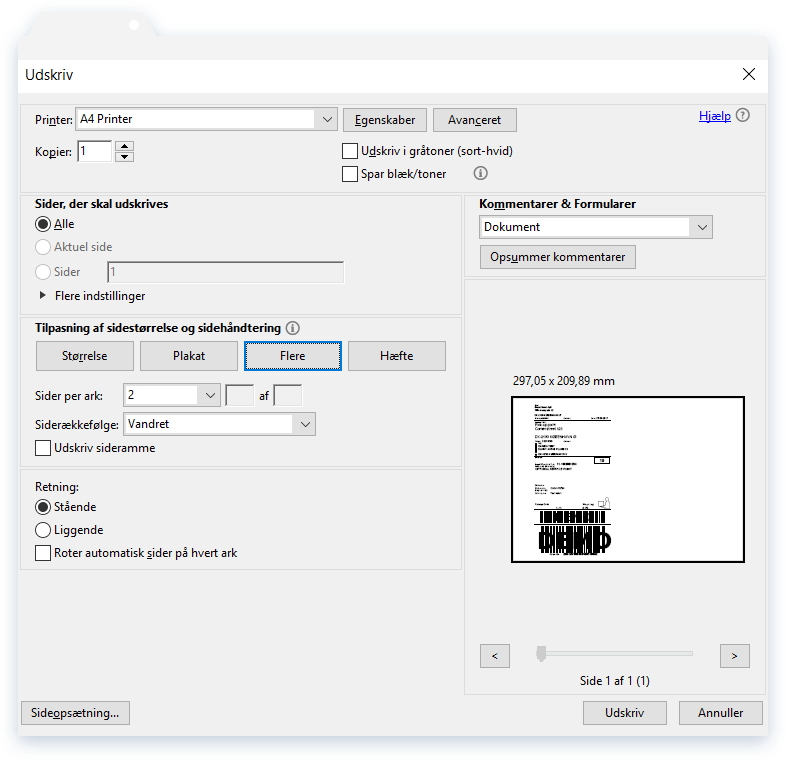
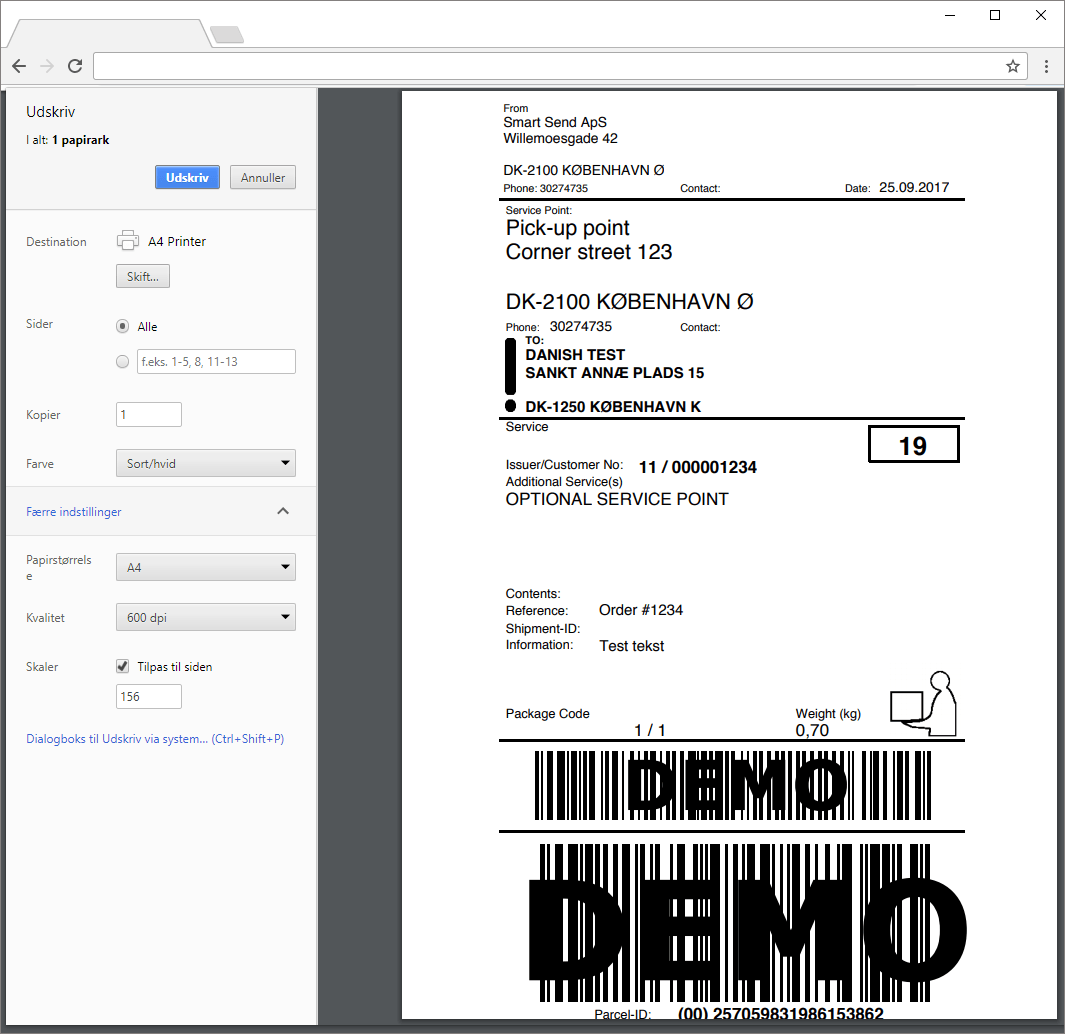
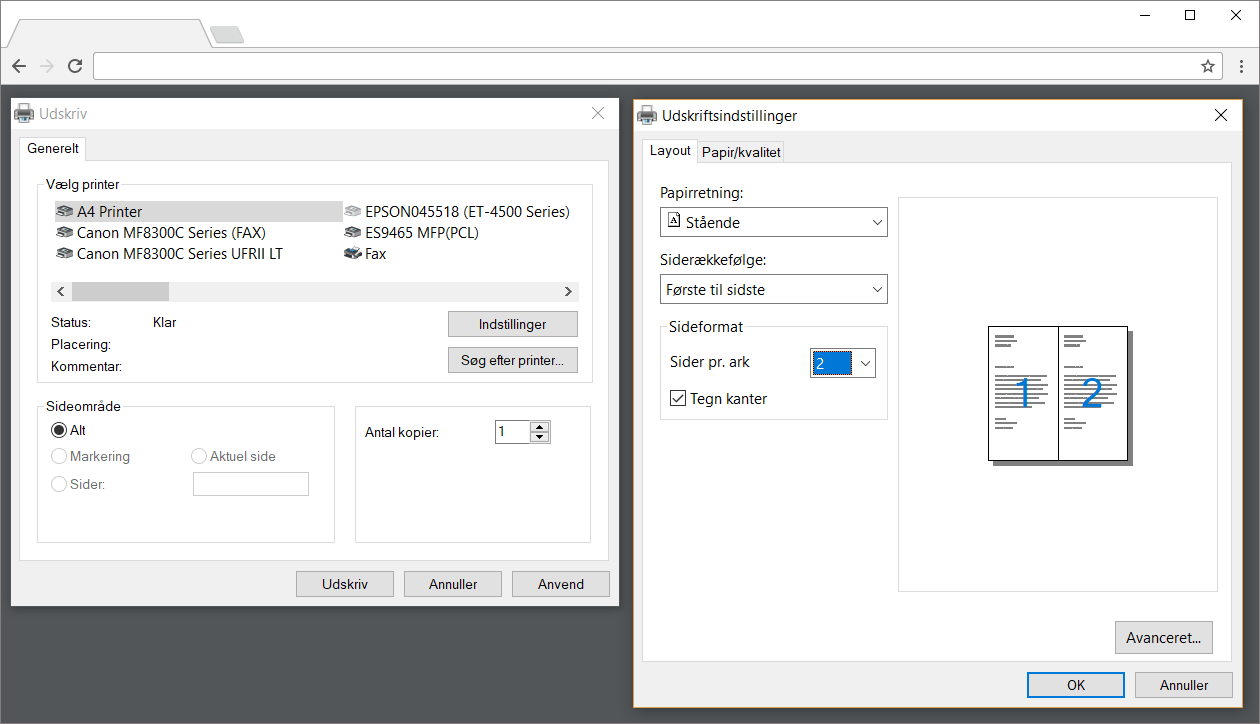
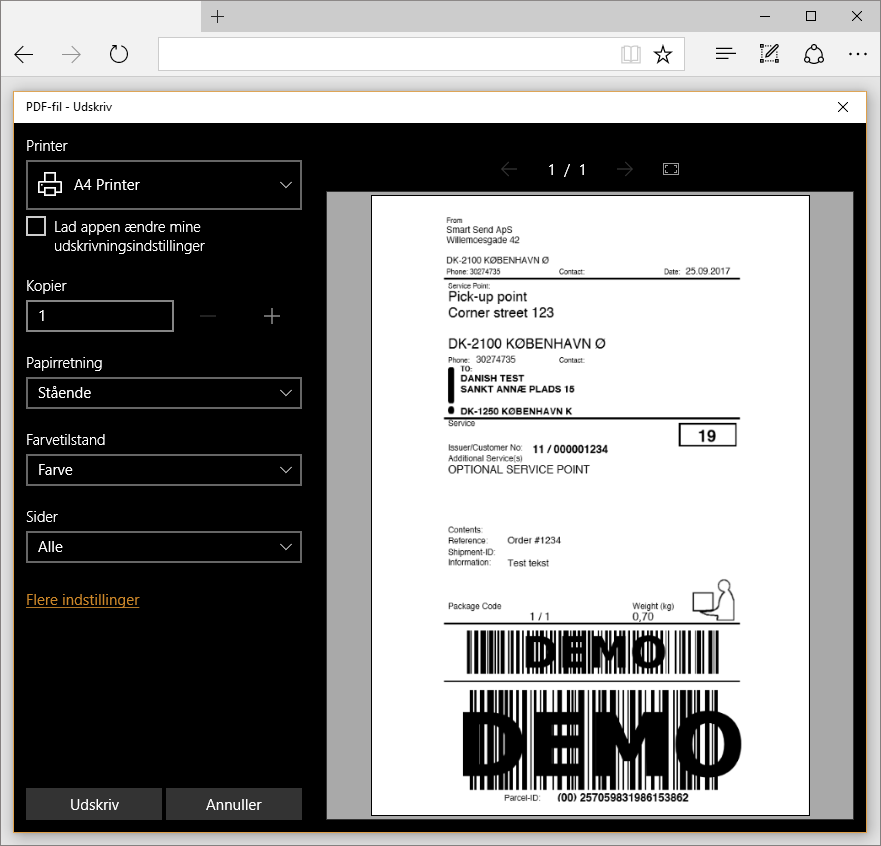
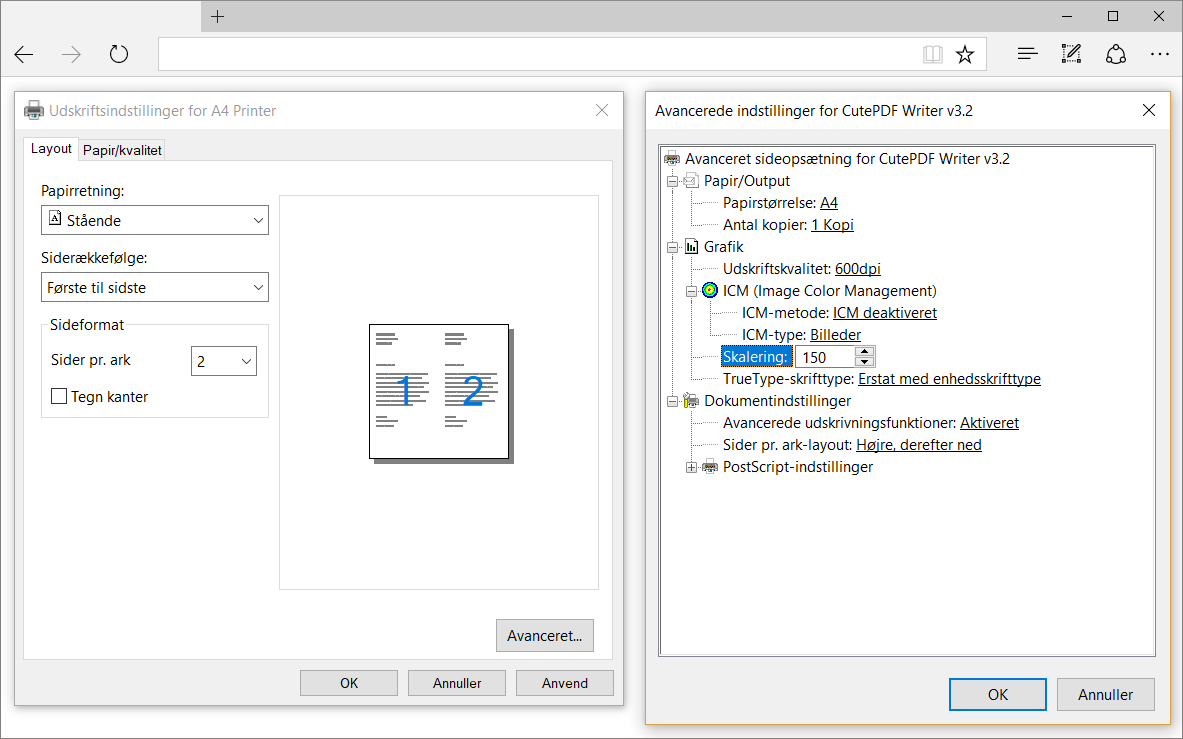
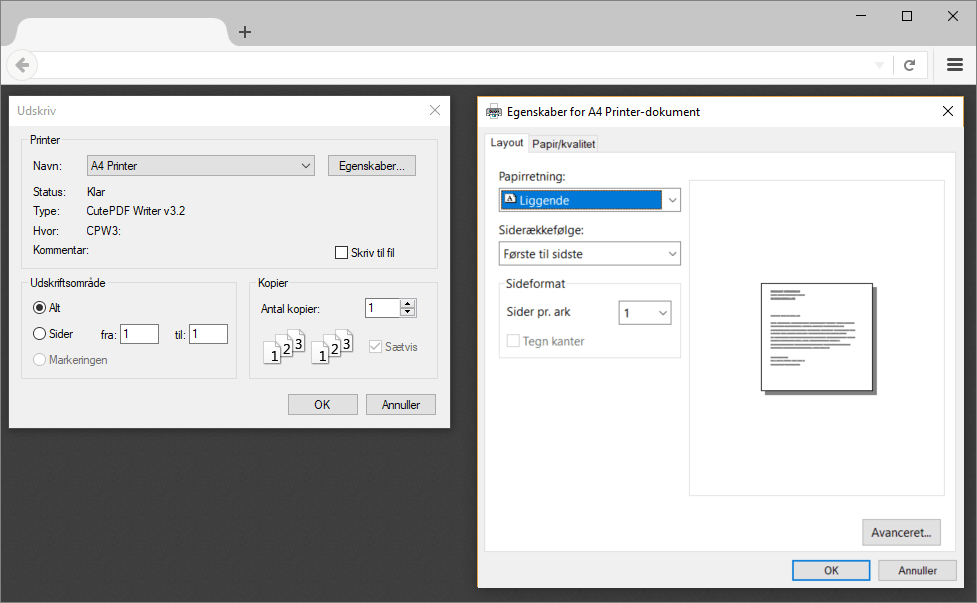
  Set the print options to **2 pages per sheet** and **actual size (100% scale)**. This prints the label at the correct dimensions on one half of the A4 page, making it easy to fold and attach to your parcel.
</Tip>

<img src="https://mintcdn.com/smartsend/hLcvB1FxJcAYyyTe/images/printing/a4-print-example.jpg?fit=max&auto=format&n=hLcvB1FxJcAYyyTe&q=85&s=4ee47ab1f0bf3b33a24645a207cf6491" alt="A4 print example showing two labels per page" className="rounded-lg" width="1600" height="1198" data-path="images/printing/a4-print-example.jpg" />

<Tip>
  If you add a **copy** of your A4 printer and configure the default settings to 2 pages per sheet, you won't need to set these values on every print.
</Tip>

<Tabs>
  <Tab title="Mac">
    <Tabs>
      <Tab title="Preview">
        <img src="https://mintcdn.com/smartsend/hLcvB1FxJcAYyyTe/images/printing/a4-mac-preview.png?fit=max&auto=format&n=hLcvB1FxJcAYyyTe&q=85&s=c47850268f1e55312eaf4d65c6126667" alt="Mac A4 printing settings in Preview" className="rounded-lg" width="782" height="611" data-path="images/printing/a4-mac-preview.png" />
      </Tab>

      <Tab title="Google Chrome">
        <img src="https://mintcdn.com/smartsend/hLcvB1FxJcAYyyTe/images/printing/a4-mac-chrome.png?fit=max&auto=format&n=hLcvB1FxJcAYyyTe&q=85&s=7549d78c40759eee2566dd517629f691" alt="Mac A4 printing settings in Google Chrome" className="rounded-lg" width="567" height="646" data-path="images/printing/a4-mac-chrome.png" />
      </Tab>

      <Tab title="Safari">
        <img src="https://mintcdn.com/smartsend/hLcvB1FxJcAYyyTe/images/printing/a4-mac-safari.png?fit=max&auto=format&n=hLcvB1FxJcAYyyTe&q=85&s=ebeb09da0c1233a4116a40781f055140" alt="Mac A4 printing settings in Safari" className="rounded-lg" width="805" height="617" data-path="images/printing/a4-mac-safari.png" />
      </Tab>

      <Tab title="Mozilla Firefox">
        <img src="https://mintcdn.com/smartsend/hLcvB1FxJcAYyyTe/images/printing/a4-mac-firefox.png?fit=max&auto=format&n=hLcvB1FxJcAYyyTe&q=85&s=d4cf00e27a222ab0353a971c1c1ca955" alt="Mac A4 printing settings in Mozilla Firefox" className="rounded-lg" width="625" height="745" data-path="images/printing/a4-mac-firefox.png" />
      </Tab>
    </Tabs>
  </Tab>

  <Tab title="Windows">
    <Tabs>
      <Tab title="Adobe Acrobat Reader">
        <img src="https://mintcdn.com/smartsend/hLcvB1FxJcAYyyTe/images/printing/a4-windows-adobe-da.png?fit=max&auto=format&n=hLcvB1FxJcAYyyTe&q=85&s=7ef83af610e6e7e90dfdc37c5c652b27" alt="Windows A4 printing settings in Adobe Acrobat Reader" className="rounded-lg" width="786" height="760" data-path="images/printing/a4-windows-adobe-da.png" />
      </Tab>

      <Tab title="Google Chrome">
        <img src="https://mintcdn.com/smartsend/hLcvB1FxJcAYyyTe/images/printing/a4-windows-chrome-01-da.png?fit=max&auto=format&n=hLcvB1FxJcAYyyTe&q=85&s=ca5be78a95f12c6cc8cb06a3f15ba12c" alt="Windows A4 printing settings in Google Chrome - Step 1" className="rounded-lg" width="1065" height="1034" data-path="images/printing/a4-windows-chrome-01-da.png" />

        <img src="https://mintcdn.com/smartsend/hLcvB1FxJcAYyyTe/images/printing/a4-windows-chrome-02-da.png?fit=max&auto=format&n=hLcvB1FxJcAYyyTe&q=85&s=fddacb66e21858b0895cd030ec5118a7" alt="Windows A4 printing settings in Google Chrome - Step 2" className="rounded-lg" width="1260" height="724" data-path="images/printing/a4-windows-chrome-02-da.png" />
      </Tab>

      <Tab title="Microsoft Edge">
        <img src="https://mintcdn.com/smartsend/hLcvB1FxJcAYyyTe/images/printing/a4-windows-edge-01-da.png?fit=max&auto=format&n=hLcvB1FxJcAYyyTe&q=85&s=d52c9ae36bea1970974de3d938b05138" alt="Windows A4 printing settings in Microsoft Edge - Step 1" className="rounded-lg" width="881" height="846" data-path="images/printing/a4-windows-edge-01-da.png" />

        <img src="https://mintcdn.com/smartsend/hLcvB1FxJcAYyyTe/images/printing/a4-windows-edge-02-da.png?fit=max&auto=format&n=hLcvB1FxJcAYyyTe&q=85&s=b0b3b3e9859400a58fd915d9b83d48ac" alt="Windows A4 printing settings in Microsoft Edge - Step 2" className="rounded-lg" width="1183" height="739" data-path="images/printing/a4-windows-edge-02-da.png" />
      </Tab>

      <Tab title="Mozilla Firefox">
        <img src="https://mintcdn.com/smartsend/hLcvB1FxJcAYyyTe/images/printing/a4-windows-firefox-da.png?fit=max&auto=format&n=hLcvB1FxJcAYyyTe&q=85&s=0dc7f8c7f559d4572630ce74ca782153" alt="Windows A4 printing settings in Mozilla Firefox" className="rounded-lg" width="977" height="603" data-path="images/printing/a4-windows-firefox-da.png" />
      </Tab>
    </Tabs>
  </Tab>
</Tabs>

## Test labels

Download sample labels below to test your printer setup:

<CardGroup cols={2}>
  <Card title="PostNord" href="https://app.smartsend.io/Label-PostNord-Test.pdf" icon="https://mintcdn.com/smartsend/bqSp1rejr9w3k8P_/icons/shipping-label-simple.svg?fit=max&auto=format&n=bqSp1rejr9w3k8P_&q=85&s=4f7f4cfe7b239c0458690ddcf5c0888d" horizontal width="85" height="130" data-path="icons/shipping-label-simple.svg">
    PostNord label (102x192mm)
  </Card>

  <Card title="GLS" href="https://app.smartsend.io/Label-GLS-Test.pdf" icon="https://mintcdn.com/smartsend/bqSp1rejr9w3k8P_/icons/shipping-label-simple.svg?fit=max&auto=format&n=bqSp1rejr9w3k8P_&q=85&s=4f7f4cfe7b239c0458690ddcf5c0888d" horizontal width="85" height="130" data-path="icons/shipping-label-simple.svg">
    GLS label (102x192mm)
  </Card>

  <Card title="DAO" href="https://app.smartsend.io/Label-DAO-Test.pdf" icon="https://mintcdn.com/smartsend/bqSp1rejr9w3k8P_/icons/shipping-label-simple.svg?fit=max&auto=format&n=bqSp1rejr9w3k8P_&q=85&s=4f7f4cfe7b239c0458690ddcf5c0888d" horizontal width="85" height="130" data-path="icons/shipping-label-simple.svg">
    DAO label (102x192mm)
  </Card>

  <Card title="Bring" href="https://app.smartsend.io/Label-Bring-Test.pdf" icon="https://mintcdn.com/smartsend/bqSp1rejr9w3k8P_/icons/shipping-label-simple.svg?fit=max&auto=format&n=bqSp1rejr9w3k8P_&q=85&s=4f7f4cfe7b239c0458690ddcf5c0888d" horizontal width="85" height="130" data-path="icons/shipping-label-simple.svg">
    Bring label (102x192mm)
  </Card>
</CardGroup>