> ## Documentation Index
> Fetch the complete documentation index at: https://docs.smartsend.io/llms.txt
> Use this file to discover all available pages before exploring further.
# Shipping methods
> Configure how Shopify shipping rates map to Smart Send carrier methods
Configure your shipping methods to link Shopify shipping rates with specific carrier shipping methods. This ensures the correct shipping method is used when creating labels for orders.
## How shipping methods work
Your Shopify **shipping rates** determine the price customers pay during checkout. When you create a shipping label, Smart Send needs to know which **carrier shipping method** to use for that order.
By linking each Shopify shipping rate to a Smart Send shipping method, the system automatically selects the correct carrier method for each order.
## Add Shopify shipping rates
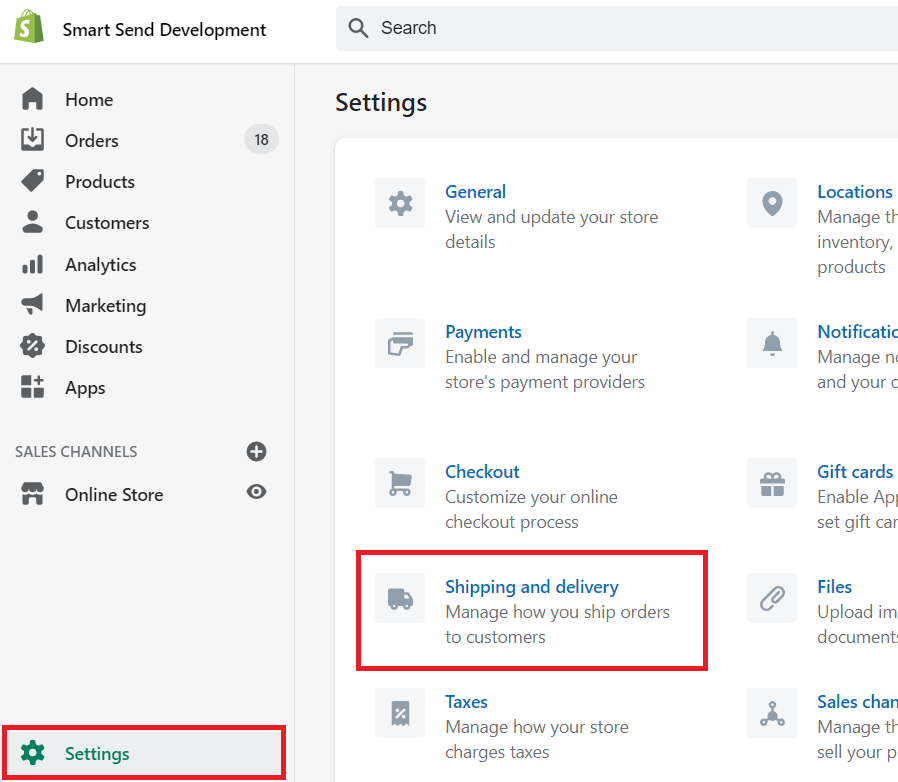
If you don't have shipping rates set up yet, follow these steps in your Shopify admin .
If you want to enable pickup points for customers during checkout, see [how to set up pickup points](/integrations/shopify/pickup-points) instead.
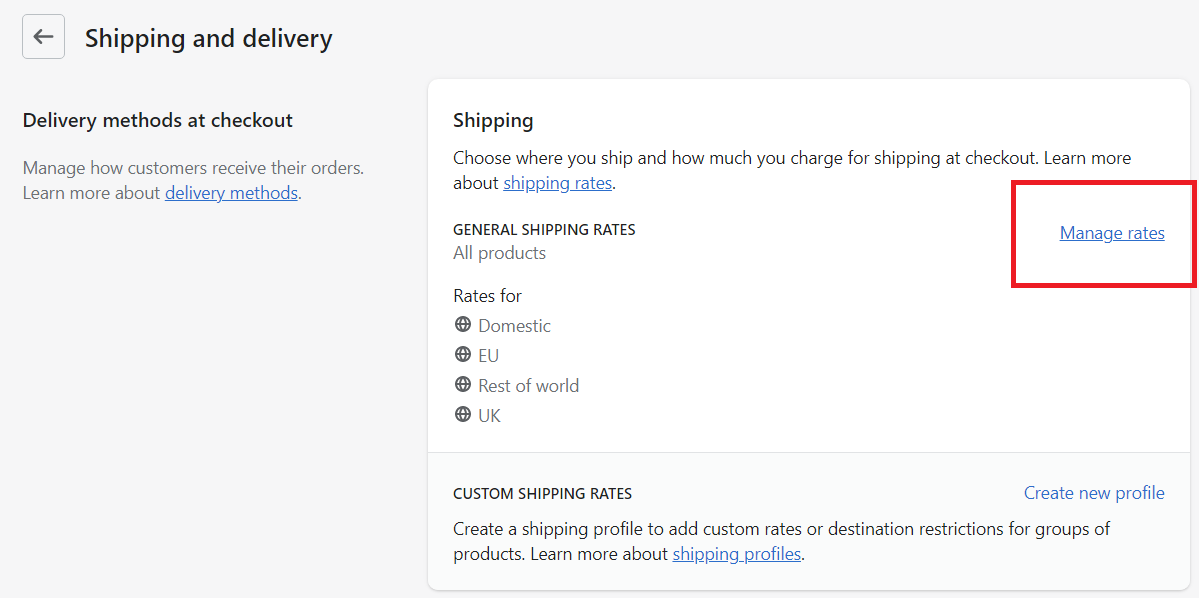
Click **Manage rates** next to the shipping zone you want to configure.
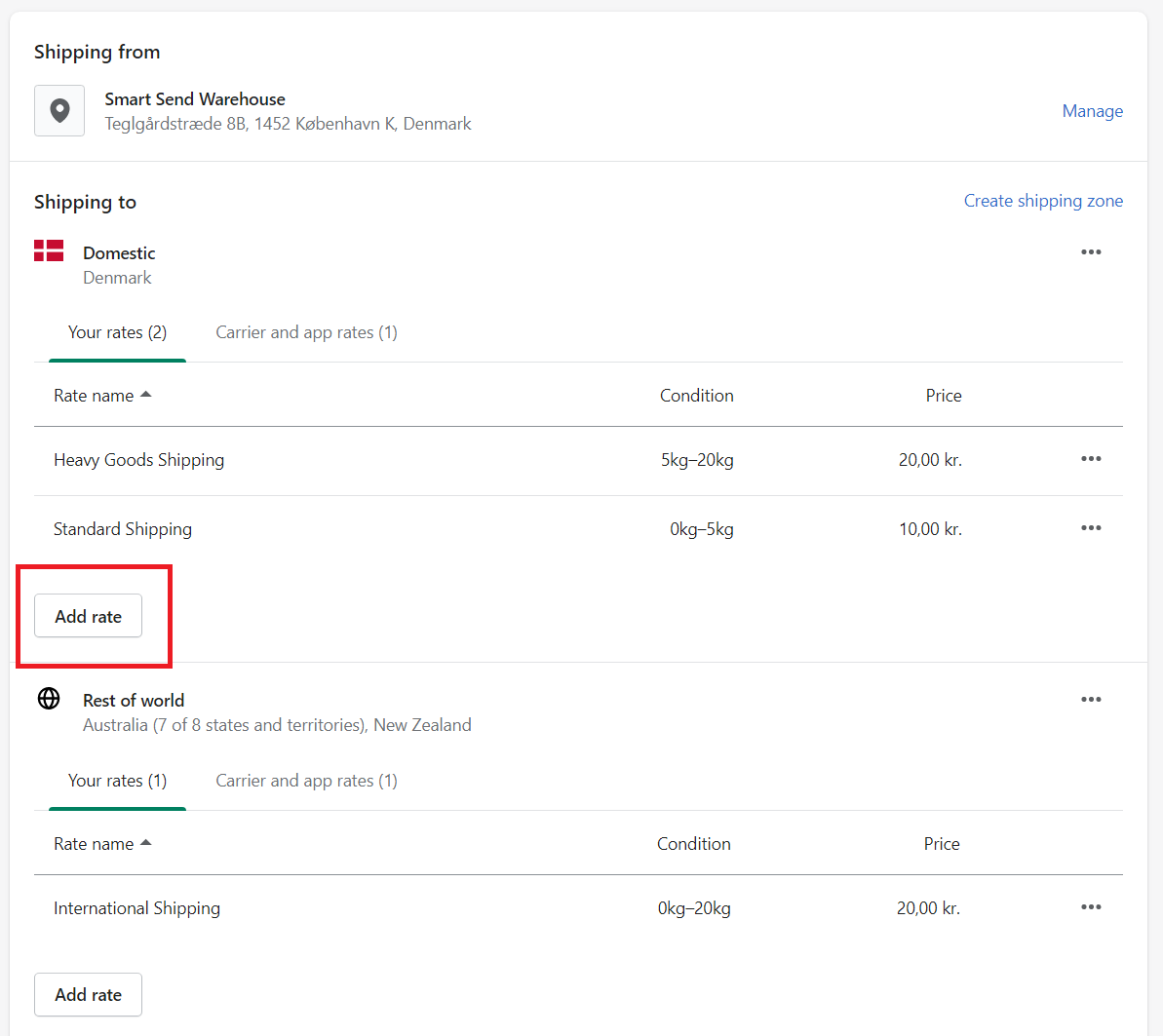
Click **Add rate**.
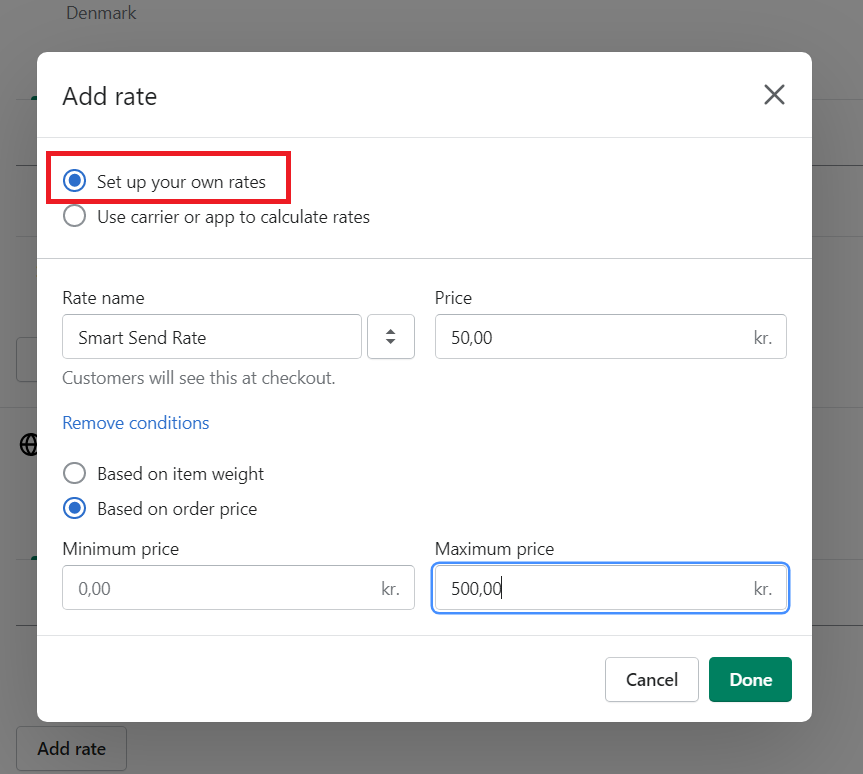
Select **Set up your own rates** and configure the settings as needed.
For free shipping, create two rates with different conditions. For example: one rate for orders 0-100 EUR and another for orders 100+ EUR. Learn more about Shopify shipping rates .
## Link shipping methods
After setting up your Shopify shipping rates, you need to link each rate to a Smart Send shipping method.
Open the Smart Send app in your Shopify admin
Navigate to the shipping methods section
For each shipping rate, select the corresponding Smart Send shipping method from the dropdown
## Configuration example
Here's how the linking works:
| Shopify shipping rate | Smart Send shipping method | Result |
| ---------------------------- | -------------------------- | ------------------------------------------------------------- |
| Standard shipping (5-7 days) | Bring Standard | Orders with this rate use Bring Standard when creating labels |
| Express shipping (1-2 days) | Bring Express | Orders with this rate use Bring Express when creating labels |
| Free shipping (over 100 EUR) | Bring Standard | Free shipping orders still use Bring Standard method |
## Next steps
After configuring your shipping methods:
1. [Set up pickup points](/integrations/shopify/pickup-points) (optional)
2. [Create your first shipping label](/integrations/shopify/shipping-labels)