> ## Documentation Index
> Fetch the complete documentation index at: https://docs.smartsend.io/llms.txt
> Use this file to discover all available pages before exploring further.
# Installation
> Install the Smart Send plugin from WordPress.org
Install the Smart Send plugin through the WordPress plugin directory to get started with automated shipping and pickup points.
## Install from WordPress.org
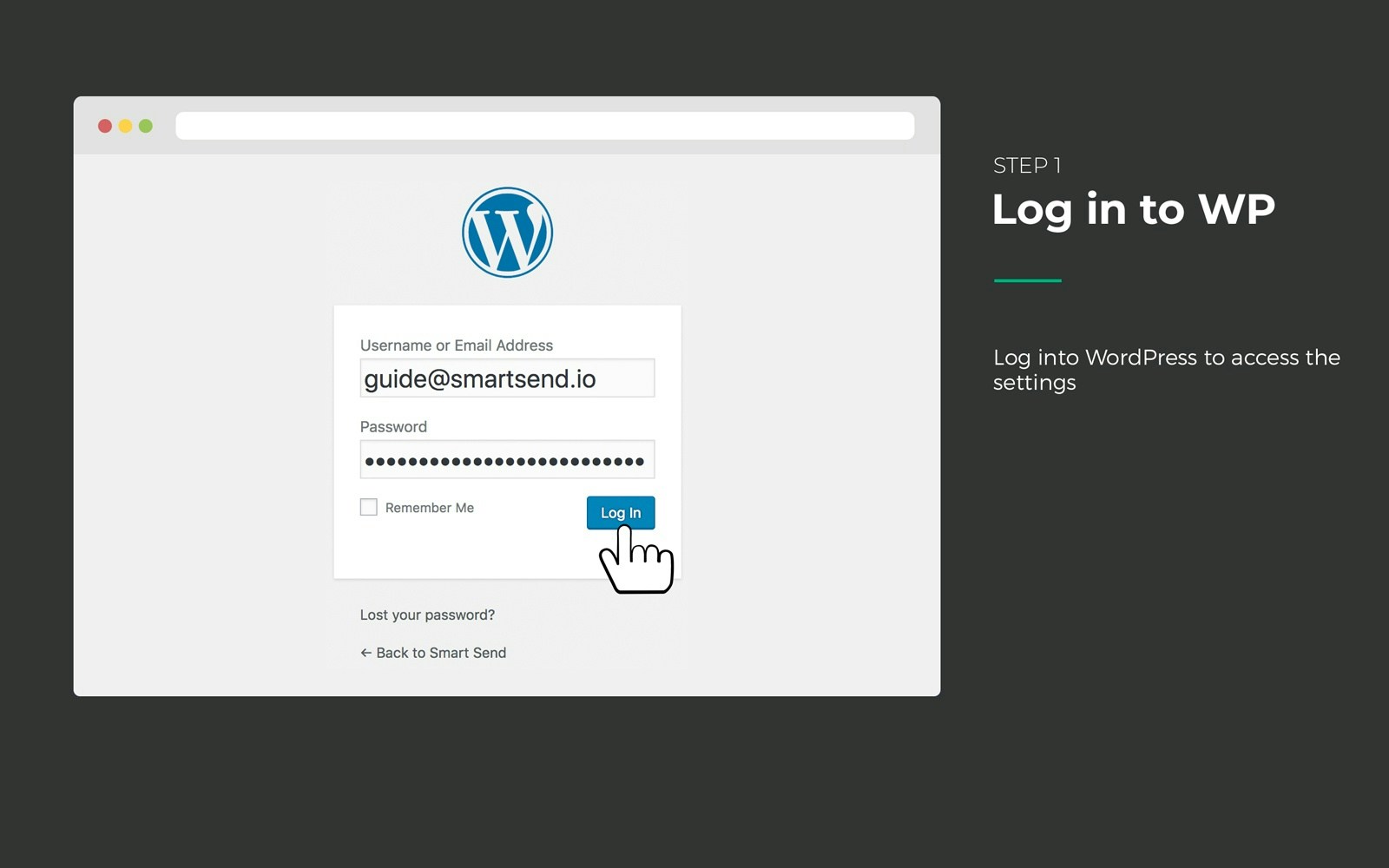
1. **Log in to your WordPress admin**
Access your WordPress admin dashboard with your administrator credentials.
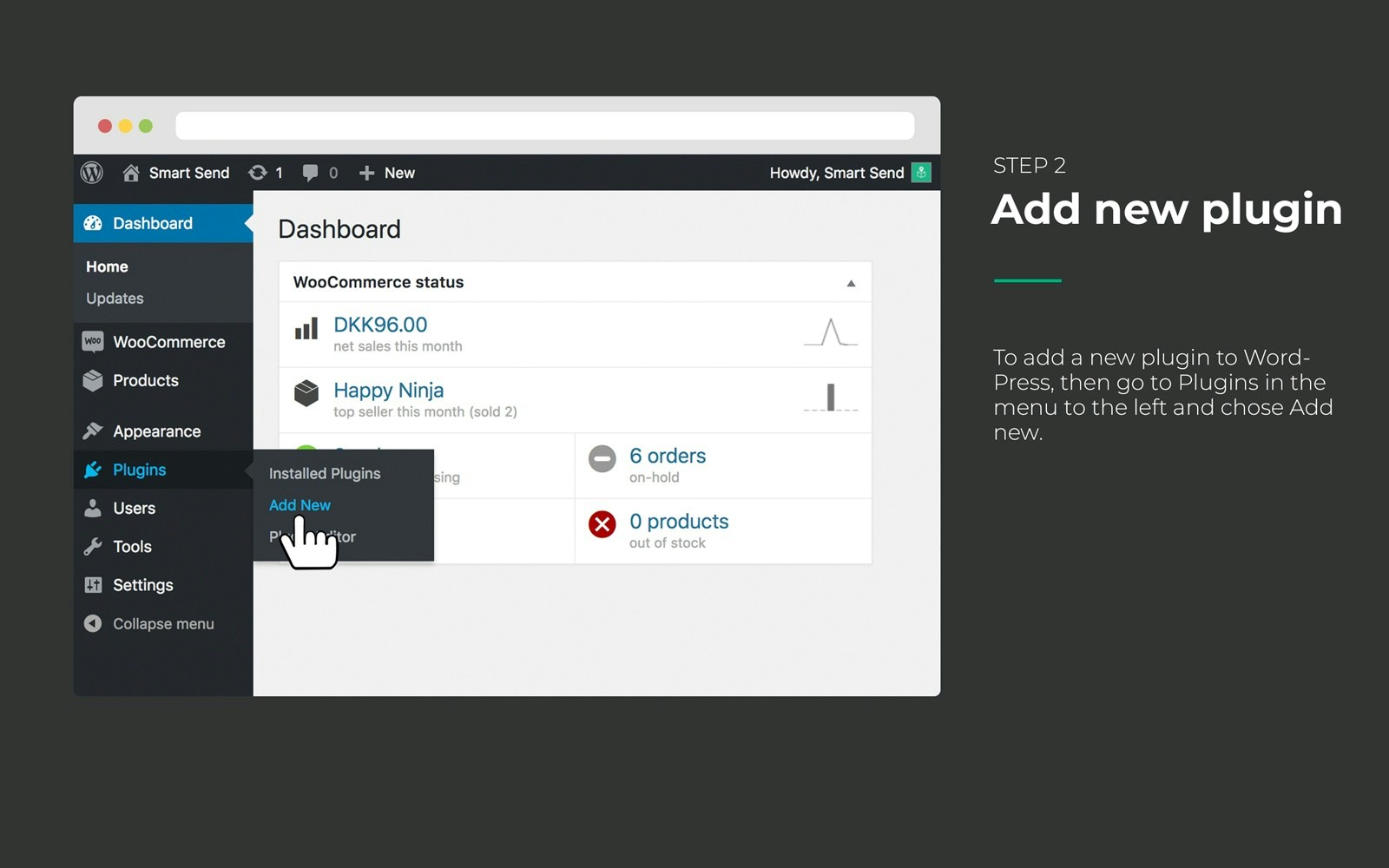
2. **Navigate to Plugins**
Go to **Plugins** in the left sidebar and click **Add New**.
3. **Search for Smart Send**
In the search field, search for "Smart Send Logistics" or use the direct link: Smart Send WooCommerce Plugin .
4. **Install the plugin**
Click **Install Now** next to the Smart Send Logistics plugin.
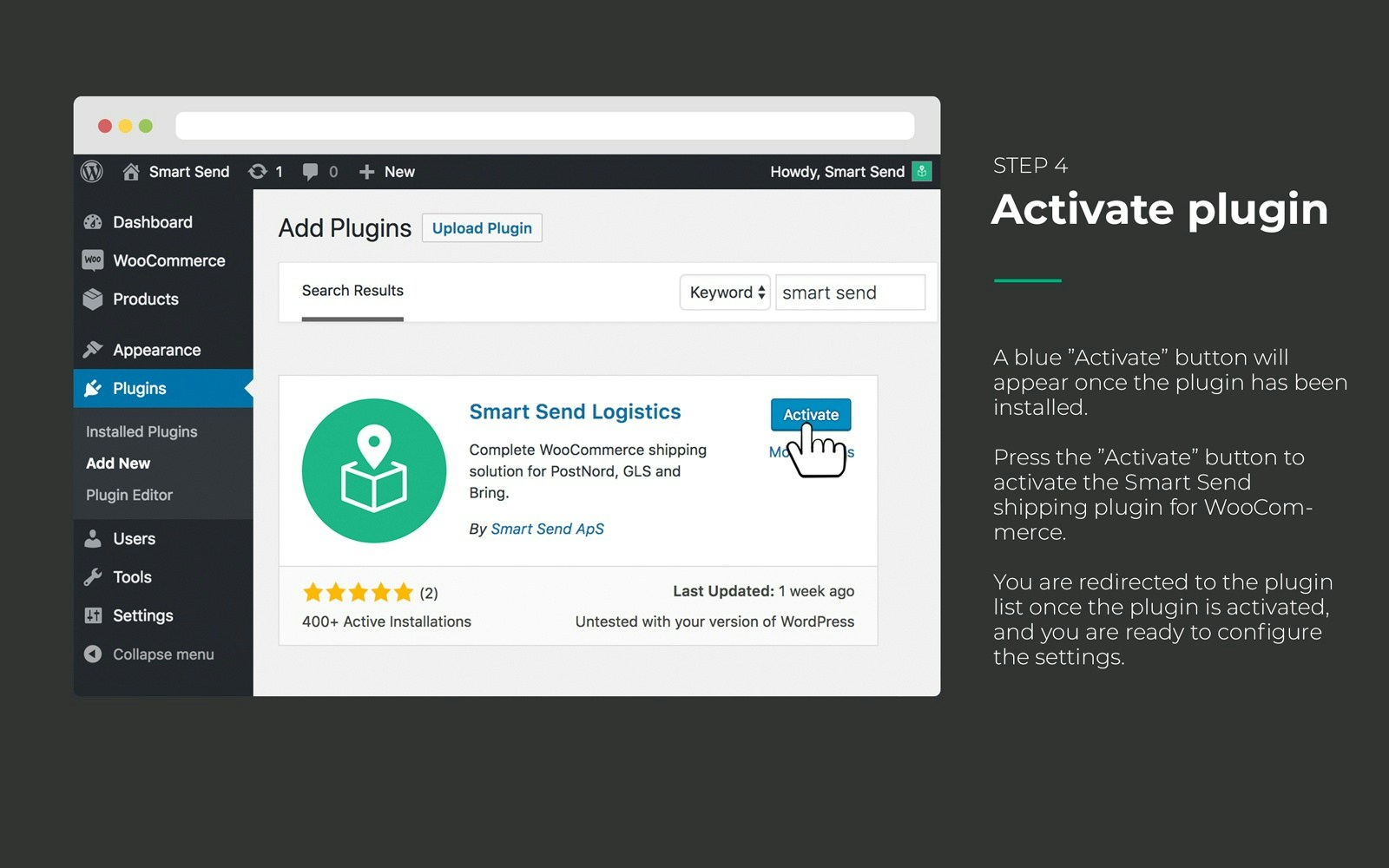
5. **Activate the plugin**
After installation, click **Activate** to enable the plugin.
## Verify installation
Once activated, you should see:
* **Smart Send** appears in your WooCommerce menu
* **No error messages** in the WordPress admin
* **Plugin is listed** as active in the Plugins page
## Next steps
After successful installation:
1. [Connect to your Smart Send account](/integrations/woocommerce/connection)
2. [Configure your shipping methods](/integrations/woocommerce/shipping-methods)
The plugin is now installed and ready for configuration. Continue with the connection setup to link your WooCommerce store with your Smart Send account.
 2. **Navigate to Plugins**
Go to **Plugins** in the left sidebar and click **Add New**.
2. **Navigate to Plugins**
Go to **Plugins** in the left sidebar and click **Add New**.
 3. **Search for Smart Send**
In the search field, search for "Smart Send Logistics" or use the direct link: Smart Send WooCommerce Plugin
3. **Search for Smart Send**
In the search field, search for "Smart Send Logistics" or use the direct link: Smart Send WooCommerce Plugin 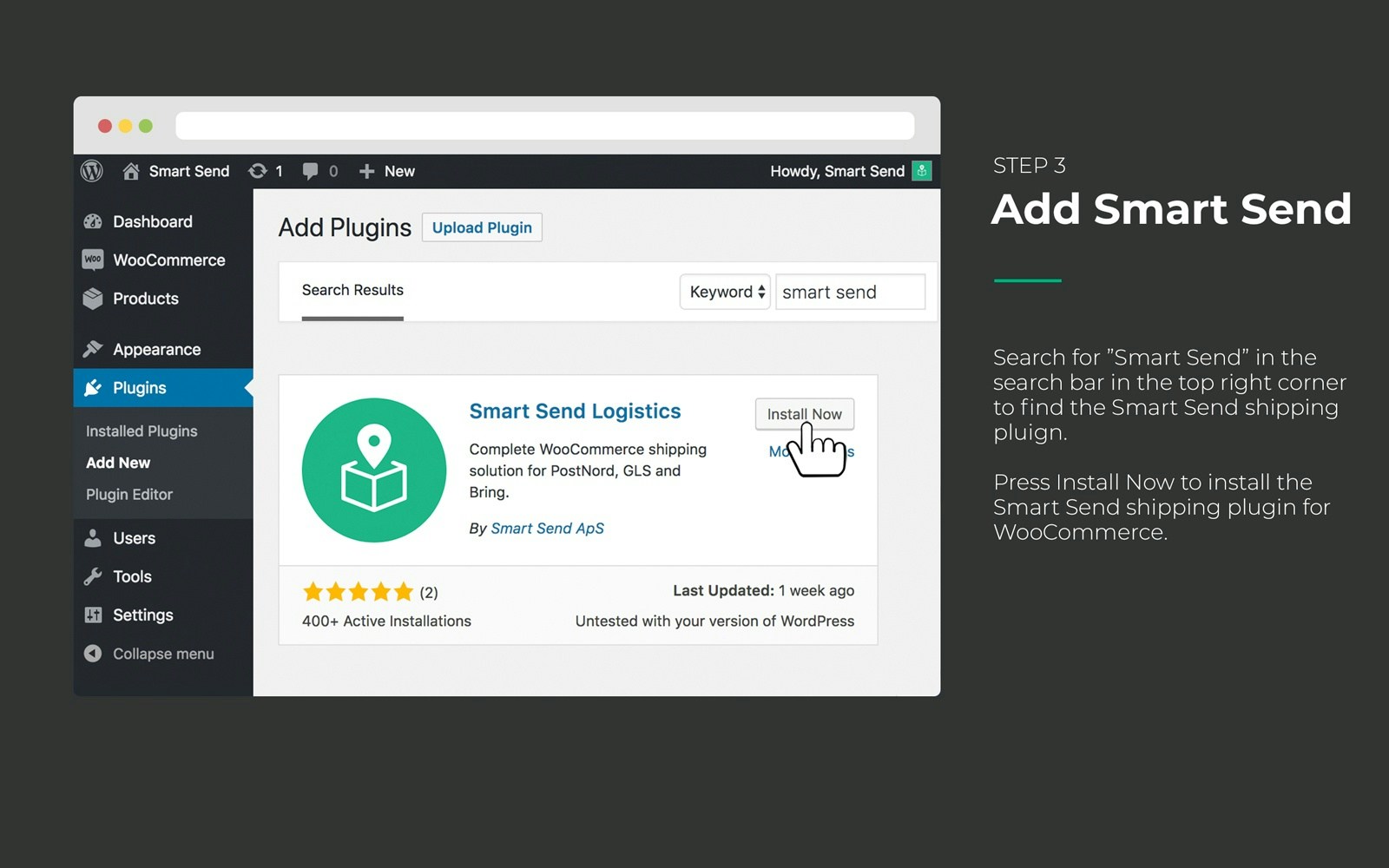 5. **Activate the plugin**
After installation, click **Activate** to enable the plugin.
5. **Activate the plugin**
After installation, click **Activate** to enable the plugin.
 ## Verify installation
Once activated, you should see:
* **Smart Send** appears in your WooCommerce menu
* **No error messages** in the WordPress admin
* **Plugin is listed** as active in the Plugins page
## Next steps
After successful installation:
1. [Connect to your Smart Send account](/integrations/woocommerce/connection)
2. [Configure your shipping methods](/integrations/woocommerce/shipping-methods)
The plugin is now installed and ready for configuration. Continue with the connection setup to link your WooCommerce store with your Smart Send account.
## Verify installation
Once activated, you should see:
* **Smart Send** appears in your WooCommerce menu
* **No error messages** in the WordPress admin
* **Plugin is listed** as active in the Plugins page
## Next steps
After successful installation:
1. [Connect to your Smart Send account](/integrations/woocommerce/connection)
2. [Configure your shipping methods](/integrations/woocommerce/shipping-methods)
The plugin is now installed and ready for configuration. Continue with the connection setup to link your WooCommerce store with your Smart Send account.