> ## Documentation Index
> Fetch the complete documentation index at: https://docs.smartsend.io/llms.txt
> Use this file to discover all available pages before exploring further.
# Return shipping
> Book return labels from a WooCommerce order, separately or with outbound labels, and retrieve their documents.
Create a return label from the order's **Smart Send** panel, independently or together with its outbound shipment. You need a [connected plugin](/integrations/woocommerce/introduction#connect-plugin) and a [carrier account](/fundamentals/carrier-connections) with a service that supports the return route. Review the order's addresses, items and weights before booking. Creating a return label does not issue a WooCommerce refund.
The order's **Return method** comes from the return configuration recorded when the order was placed. Use **Return method → Edit** to choose the service for this booking. To set the service and automatically include return labels by default for future orders, see the [automatic return label setting](/integrations/woocommerce/faq#auto-generate-return-label). Changing the zone's defaults does not rewrite existing orders.
## Book only a return label
Open **WooCommerce → Orders**, select the order, and find **Smart Send**. Review the addresses, items and parcel weight.
Check **Return method**. Click **Edit** to select a suitable return service if it is missing or needs changing.
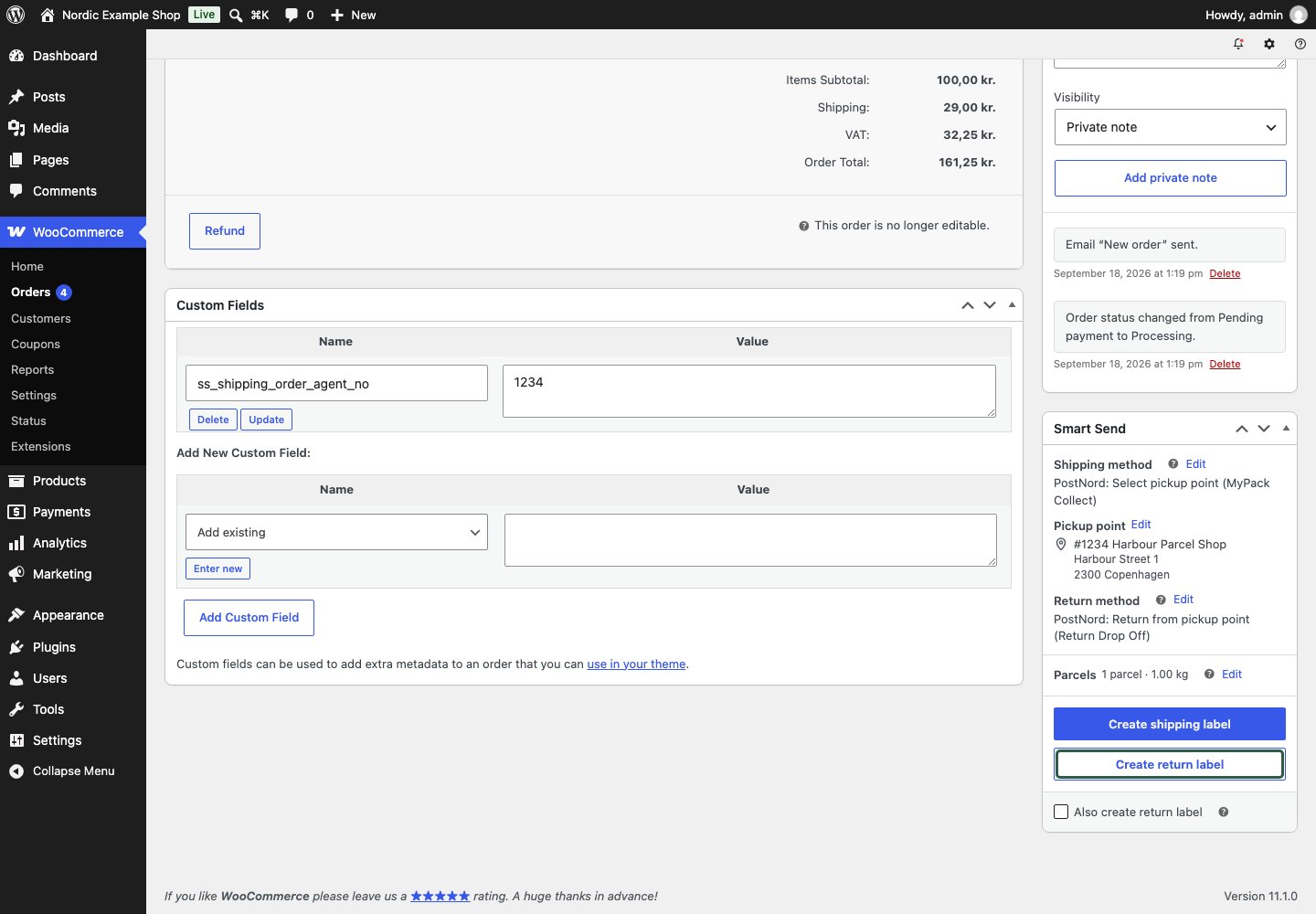 Click **Create return label**. You do not need to book an outbound shipment first or enable **Also create return label**.
Check for the successful **Return shipment** result and click **Download return label (PDF)**. Supply that document to the customer according to your returns process.
Click **Create return label**. You do not need to book an outbound shipment first or enable **Also create return label**.
Check for the successful **Return shipment** result and click **Download return label (PDF)**. Supply that document to the customer according to your returns process.
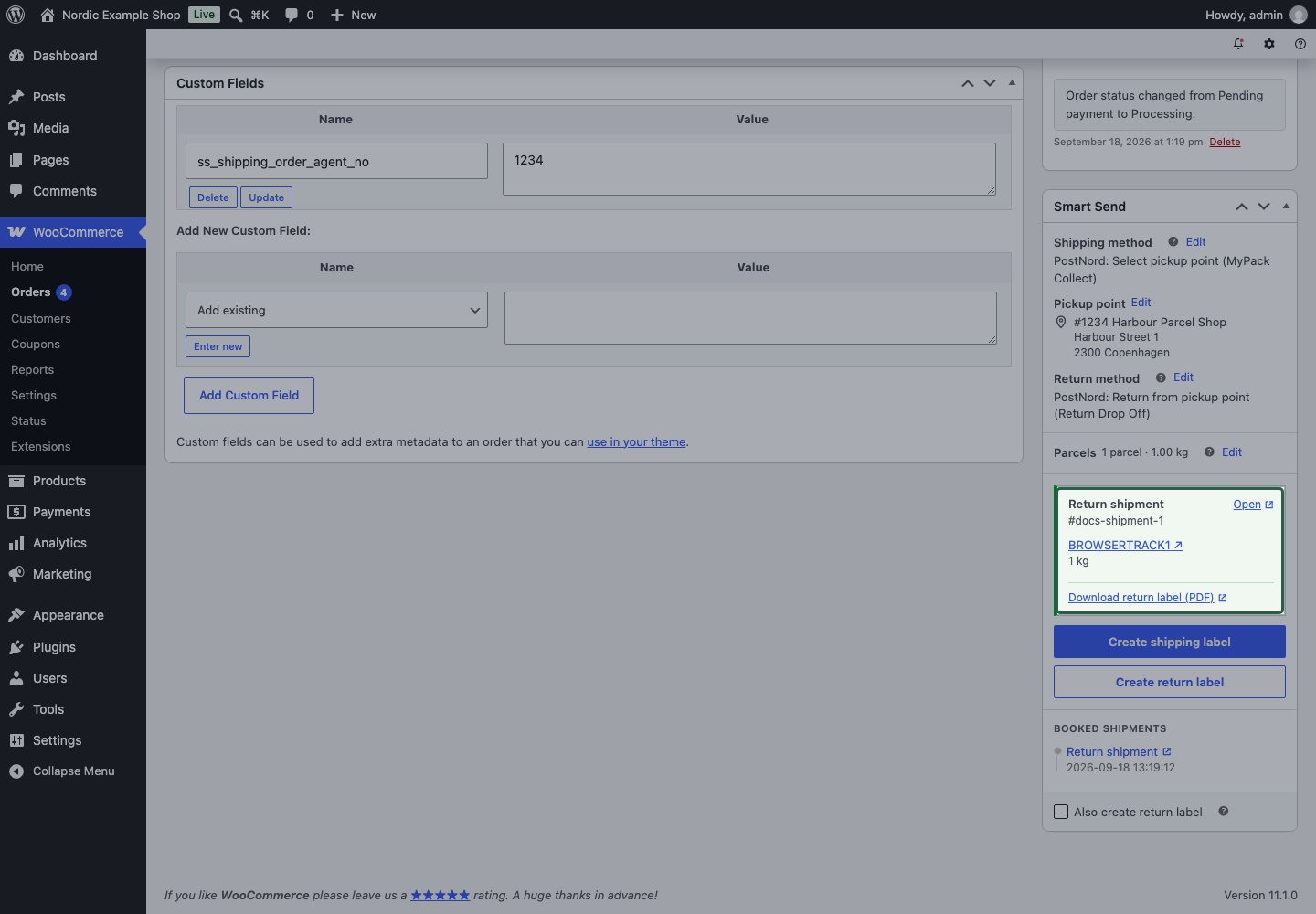 The order panel uses the order's items and parcel configuration. The return action is not a selector for returning only selected order-line quantities. Handle refund decisions separately in WooCommerce.
## Book outbound and return together
Check **Shipping method**, **Pickup point** where applicable, **Return method**, and **Parcels**.
Check **Also create return label**, then click **Create shipping label**.
The outbound booking runs first. When it succeeds, Smart Send attempts the return. Confirm that both **Shipment** and **Return shipment** succeeded, then download each document from its own result.
The order panel uses the order's items and parcel configuration. The return action is not a selector for returning only selected order-line quantities. Handle refund decisions separately in WooCommerce.
## Book outbound and return together
Check **Shipping method**, **Pickup point** where applicable, **Return method**, and **Parcels**.
Check **Also create return label**, then click **Create shipping label**.
The outbound booking runs first. When it succeeds, Smart Send attempts the return. Confirm that both **Shipment** and **Return shipment** succeeded, then download each document from its own result.
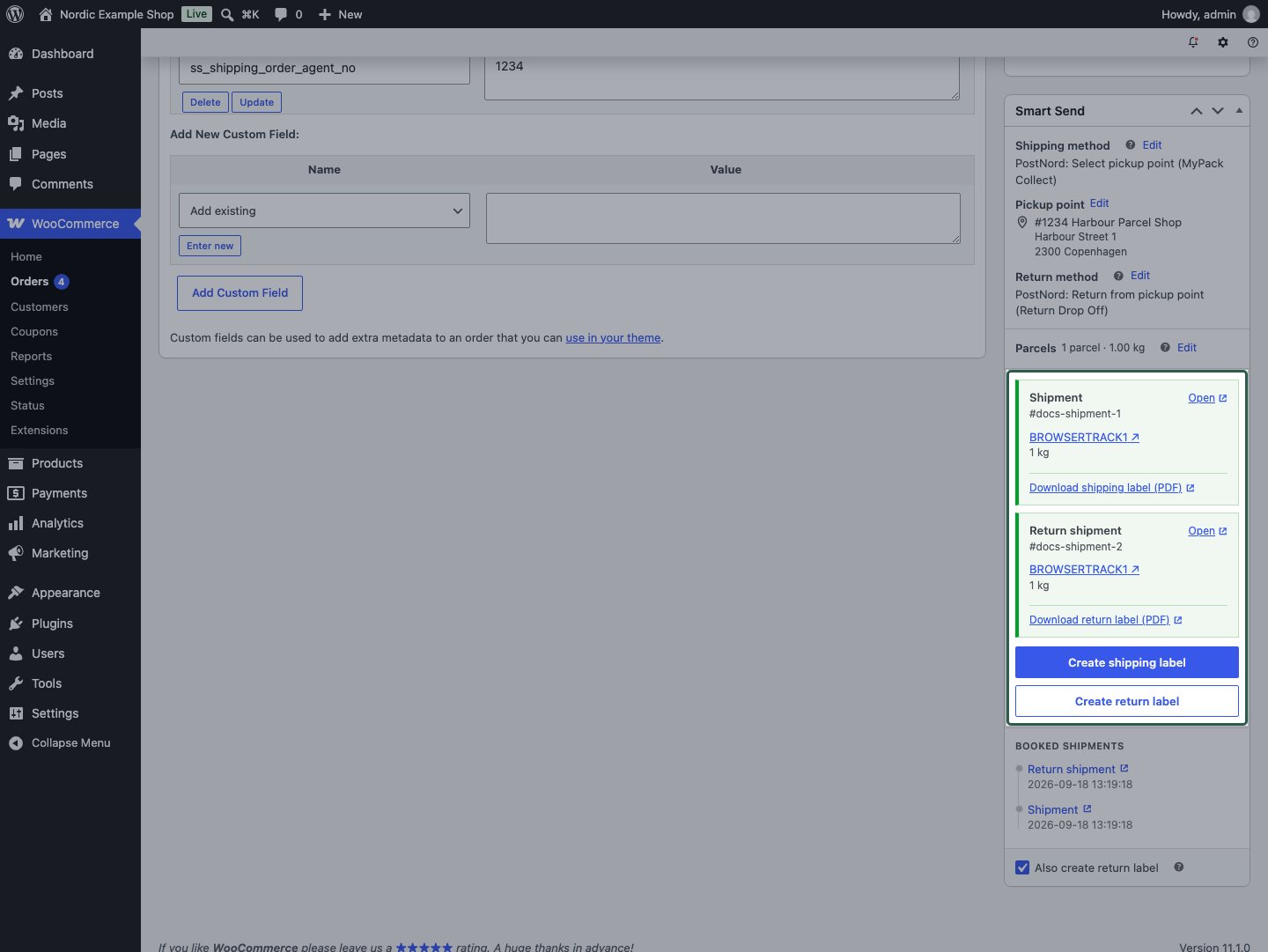 The outbound and return are separate shipments. Keep their labels distinct when preparing the package. The current parcel allocation and entered measurements are used for both legs in a combined booking.
## Find or print the documents again
After a full page reload, open **Order notes** for the document links, or use **Booked shipments** to open the shipment in Smart Send. See [tracking and booking history](/integrations/woocommerce/shipping-labels#history).
Booking another return requires confirmation when one already exists. **Yes, create another** creates an additional return shipment; it does not cancel an existing label. For general return-policy considerations, see [returns](/features/return).
The outbound and return are separate shipments. Keep their labels distinct when preparing the package. The current parcel allocation and entered measurements are used for both legs in a combined booking.
## Find or print the documents again
After a full page reload, open **Order notes** for the document links, or use **Booked shipments** to open the shipment in Smart Send. See [tracking and booking history](/integrations/woocommerce/shipping-labels#history).
Booking another return requires confirmation when one already exists. **Yes, create another** creates an additional return shipment; it does not cancel an existing label. For general return-policy considerations, see [returns](/features/return).