Update profile
To update your name or email address, start by logging into the Smart Send platform .1
Navigate to Profile
Click your name in the bottom left corner and select Your Profile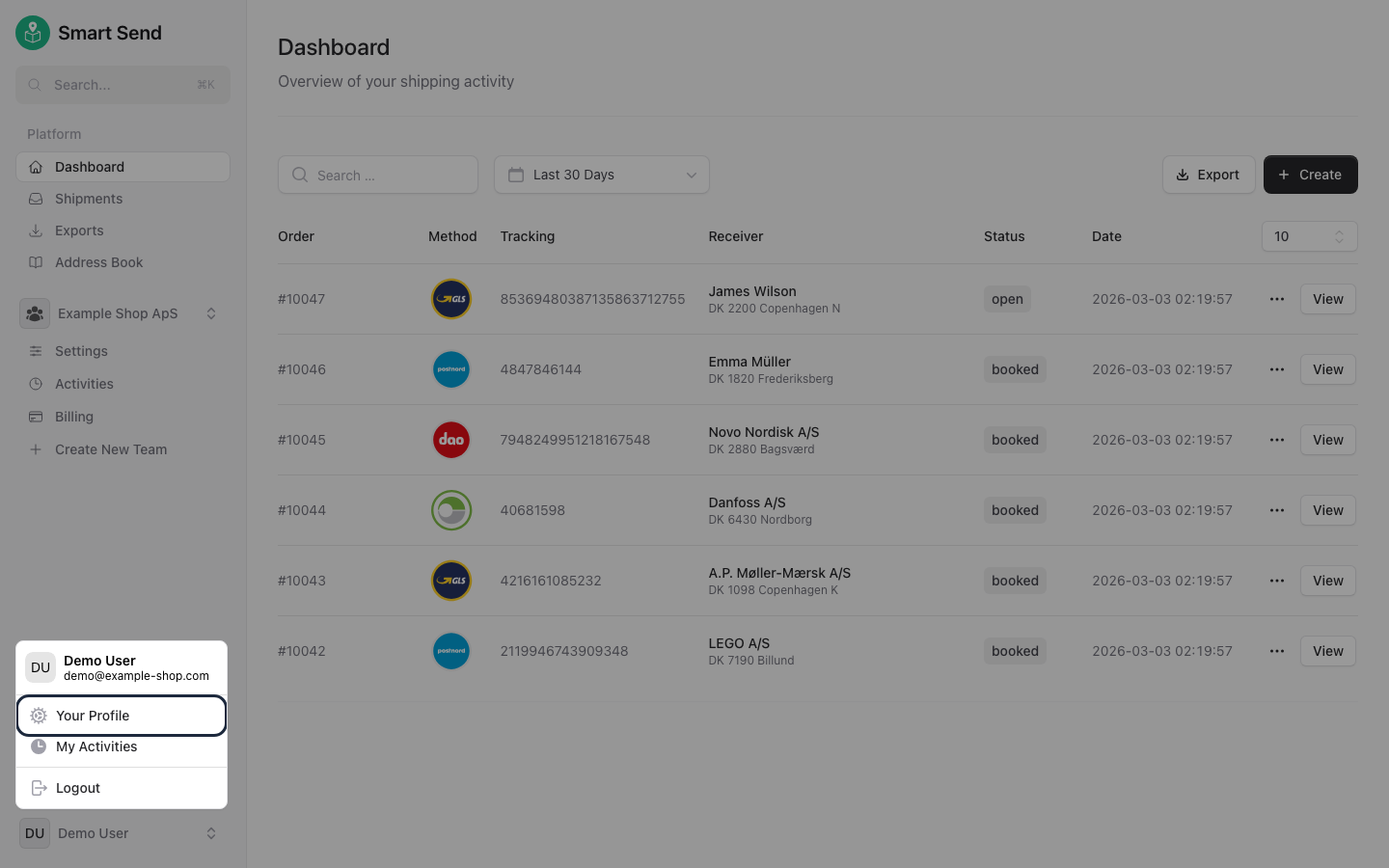
2
Edit name or email
Update your name or email address in the profile form and click Save to apply your changes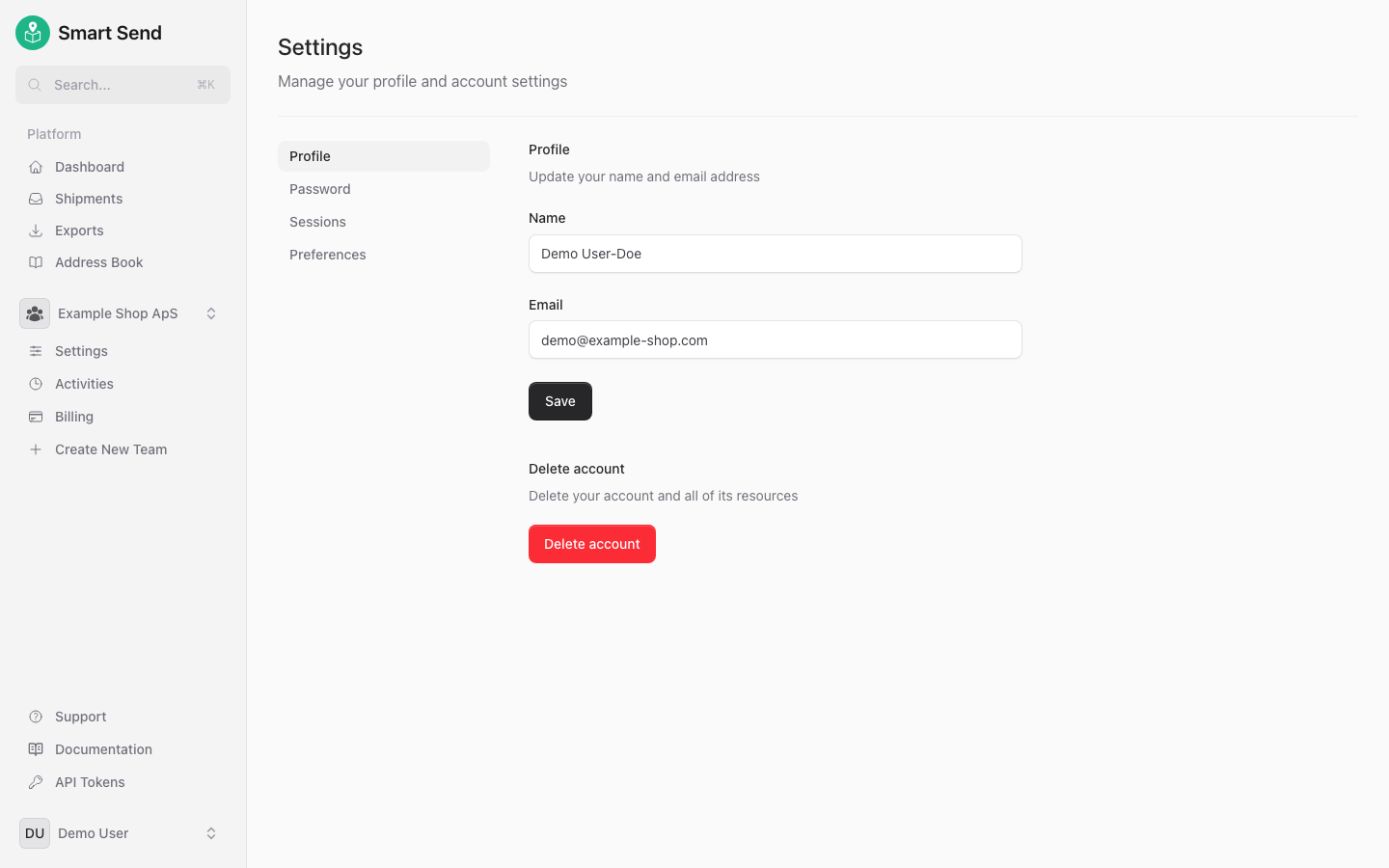
Change password
To change your password, start by logging into the Smart Send platform .This way of changing password require that you know the current password - if you do not know that, instead use the recover password guide.
1
Navigate to Profile
Click your name in the bottom left corner and select Your Profile
2
Navigate to Password
Select Password in the submenu.
3
Enter current and new password
Enter your current password, then choose a new password, confirm it and click Save to update your password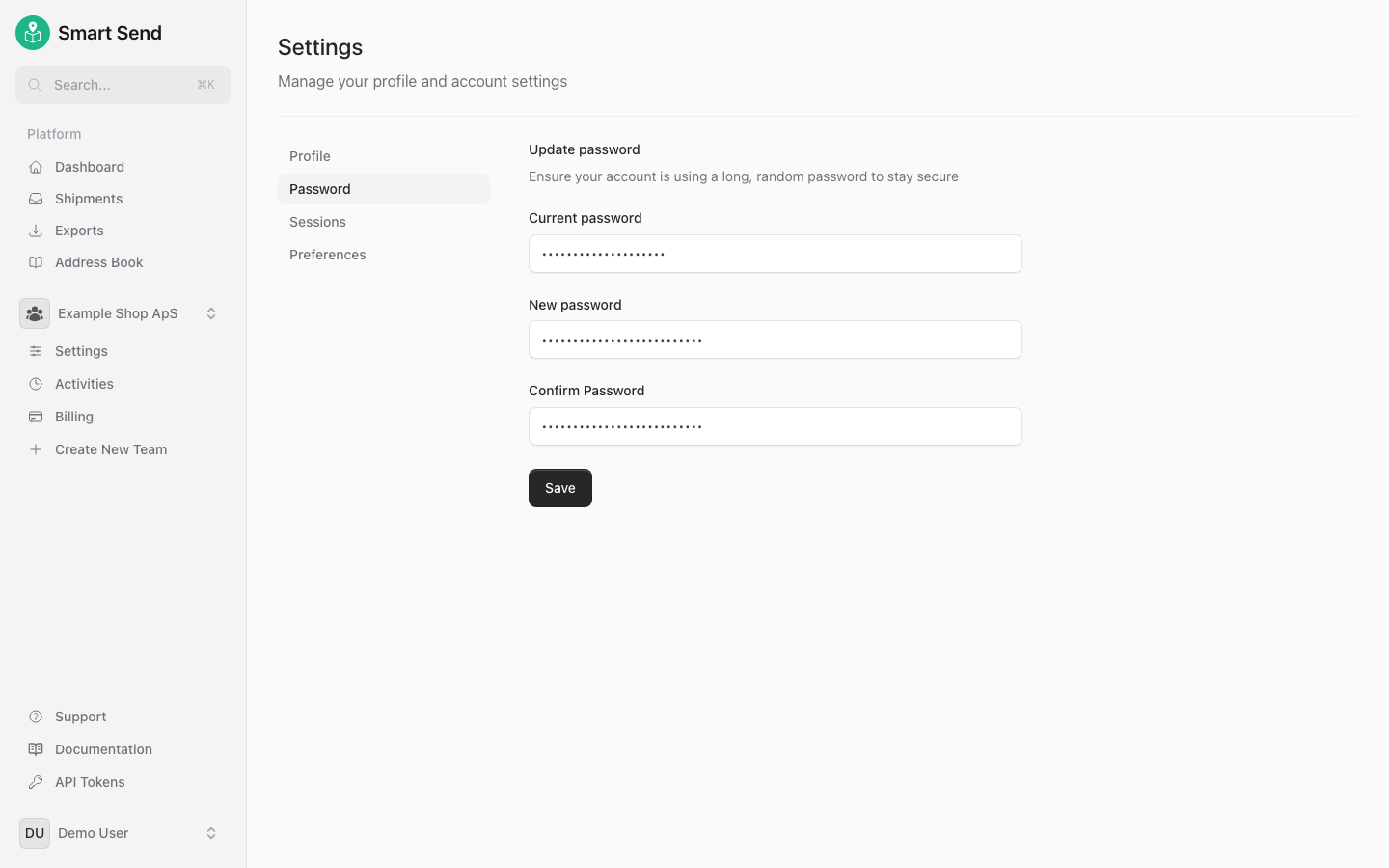
Sessions
View all active sessions for your account. To log out of other devices or browsers, start by logging into the Smart Send platform .1
Navigate to Profile
Click your name in the bottom left corner and select Your Profile
2
Navigate to Sessions
Select Sessions in the submenu to view all active sessions.
3
Log out other sessions (optional)
Click Log out other browser sessions to end all sessions except the current one.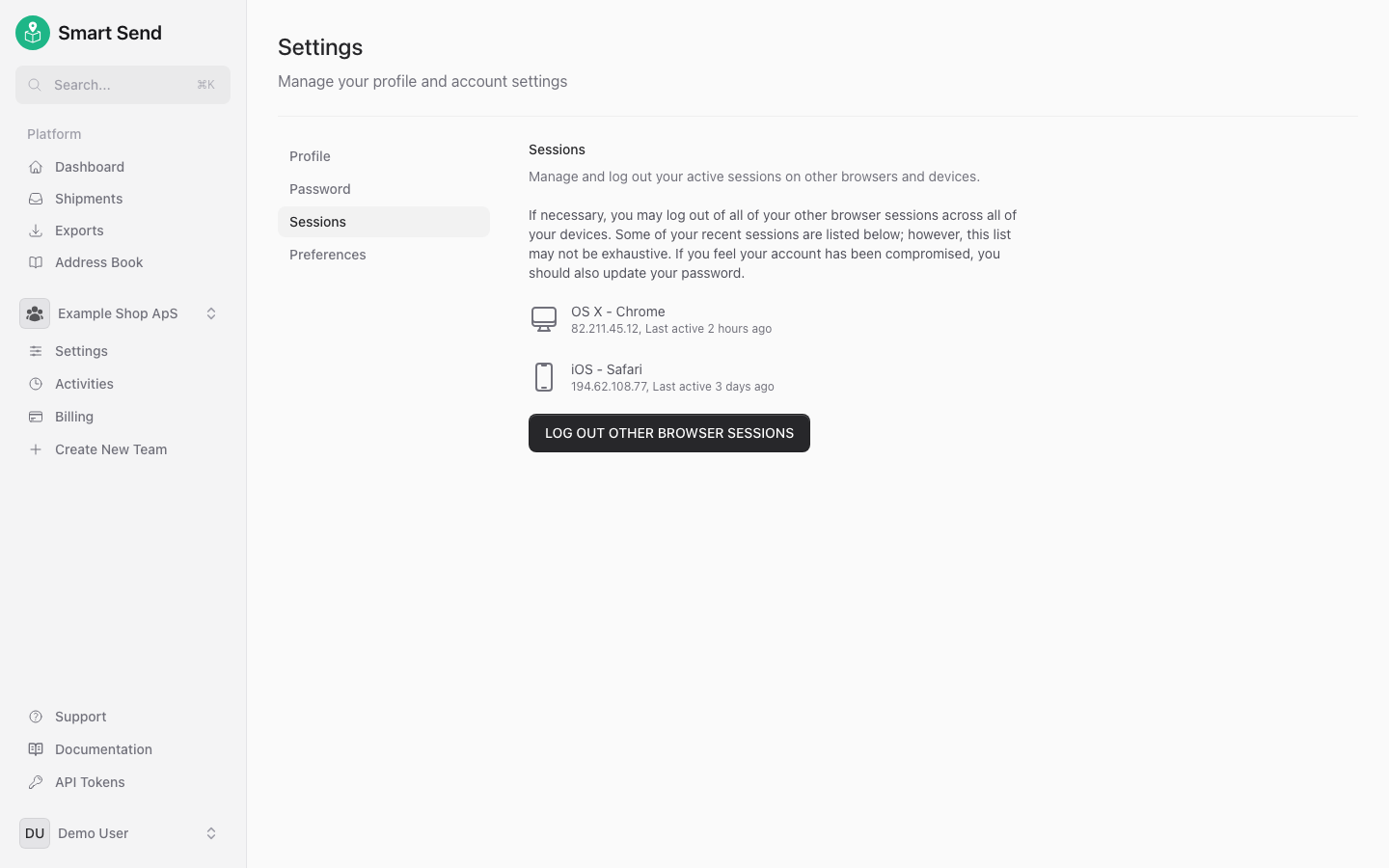
Preferences
Set your personal preferences to customize your experience. To configure preferences, start by logging into the Smart Send platform .1
Navigate to Profile
Click your name in the bottom left corner and select Your Profile
2
Navigate to Preferences
Select Preferences in the submenu.
3
Configure preferences
Adjust the settings to match your workflow and click Save to apply your preferences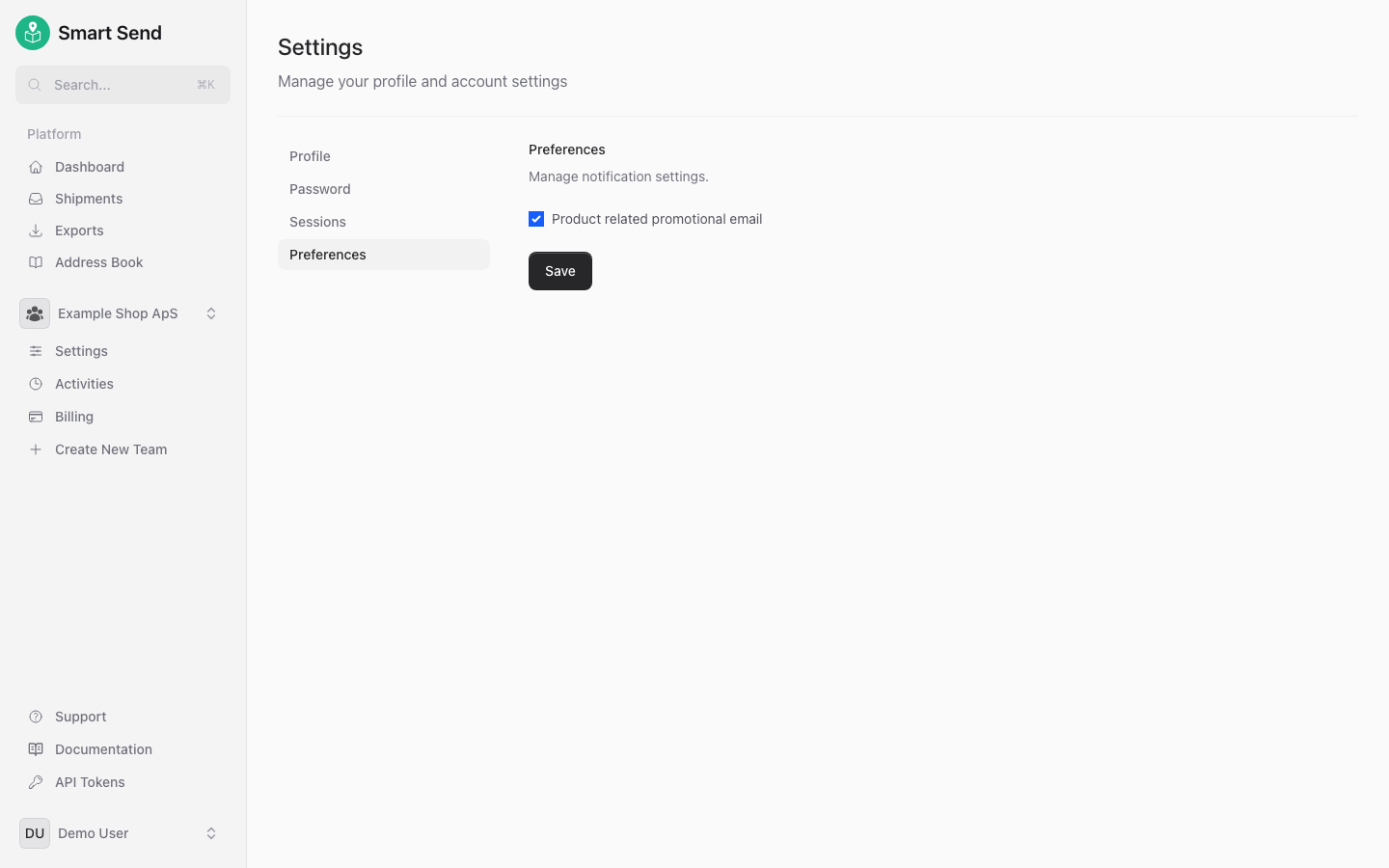
Personal preferences only affect your user account. Most configuration is managed at the team level. To update team-wide settings, go to the team settings page.
Delete account
Before you can delete your account, you must first cancel subscriptions for all teams you are a member of. To delete your account, start by logging into the Smart Send platform .1
Navigate to Profile
Click your name in the bottom left corner and select Your Profile
2
Find the Delete Account section
Scroll down to the Delete Account section at the bottom of the page and click Delete Account.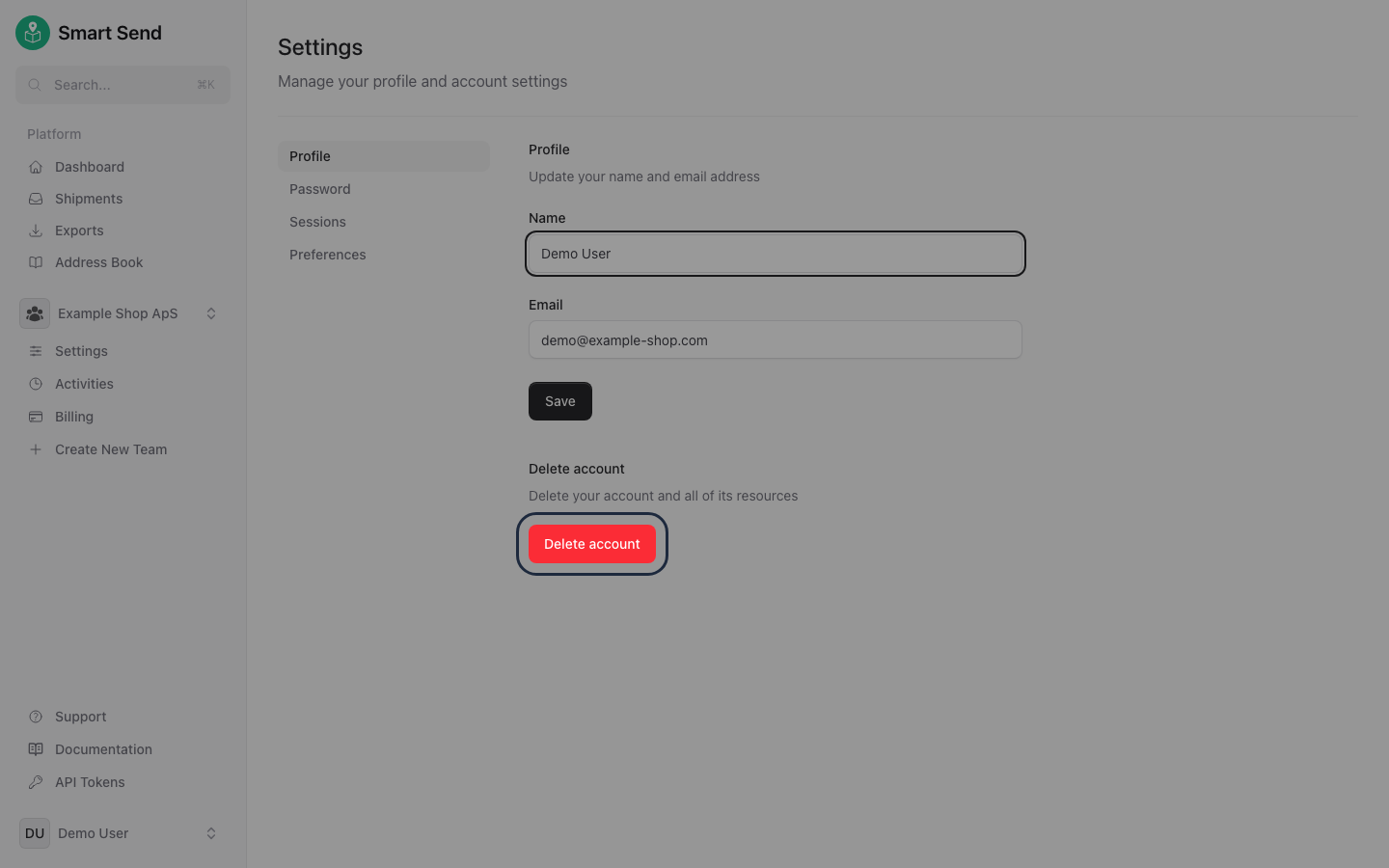
3
Confirm deletion
Enter the current user password and confirm the deletion by clicking Delete Account in the confirmation modal.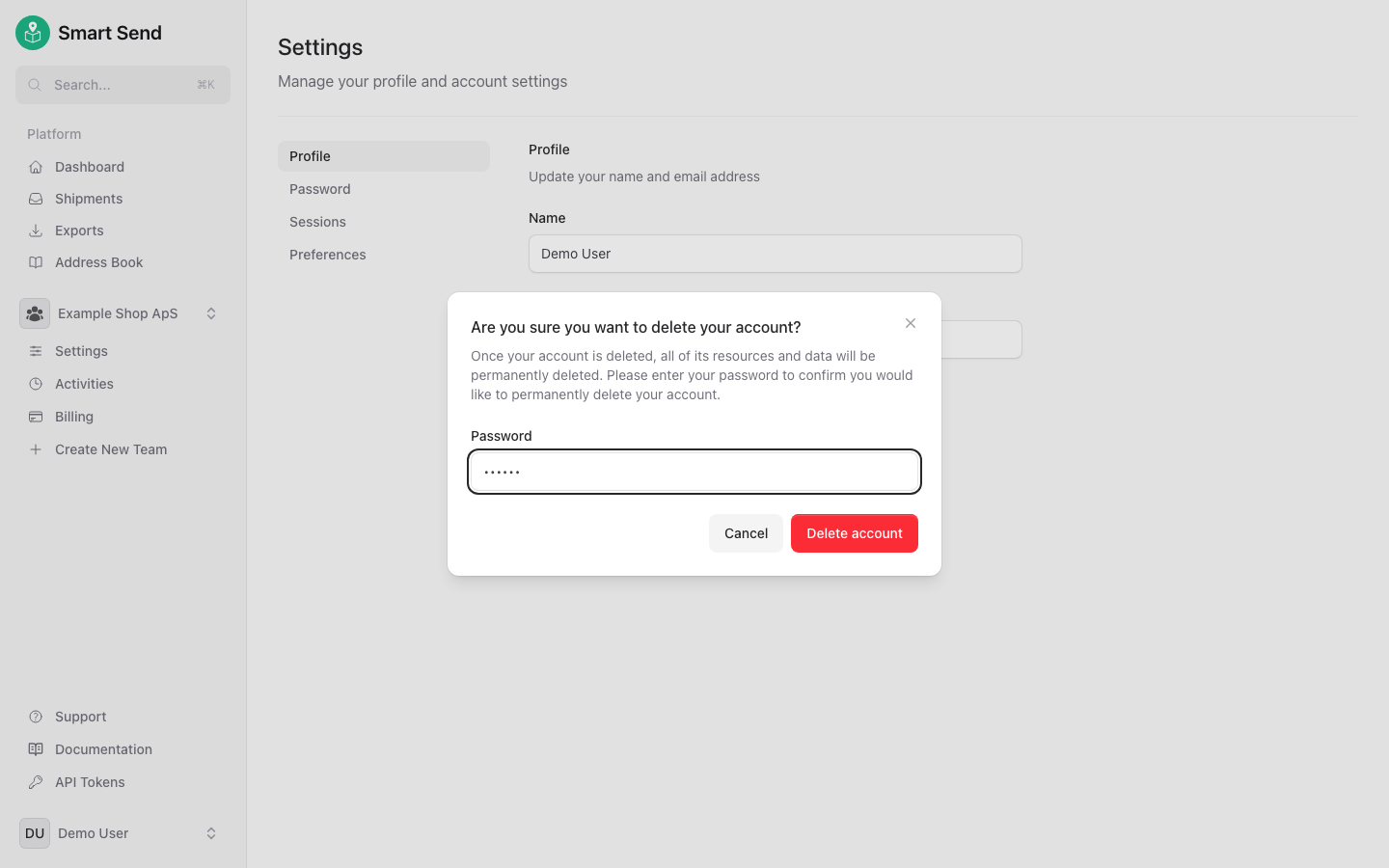
Recover password
If you have forgotten your password, you can reset it using the password recovery flow explained below.If you know the existing password but just wanna change it, then instead use the Change password guide.
1
Go to the forgot password page
Navigate to the forgot password page that is always available from the login page.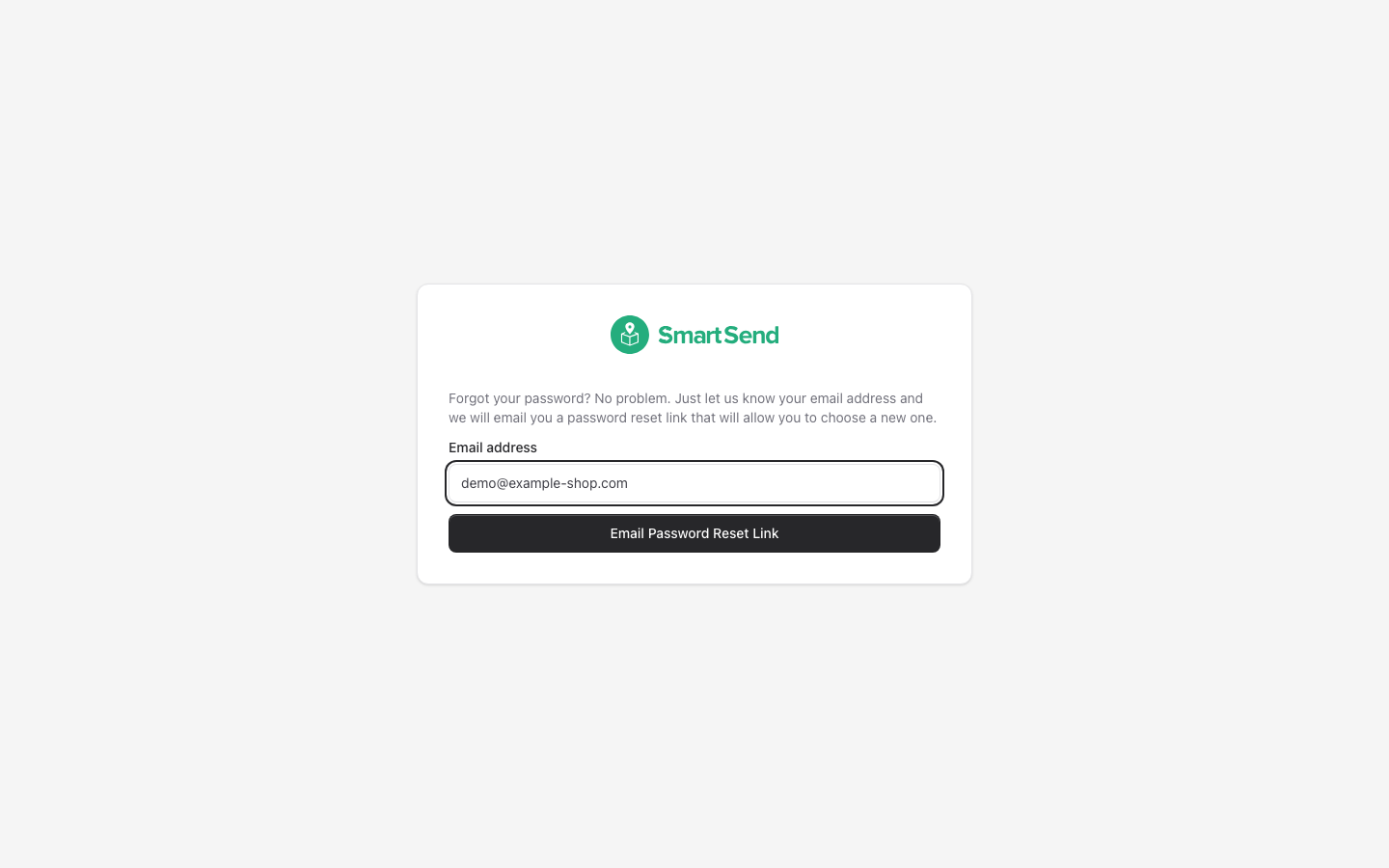
2
Request a password reset link
Enter your email address and click Email Password Reset Link.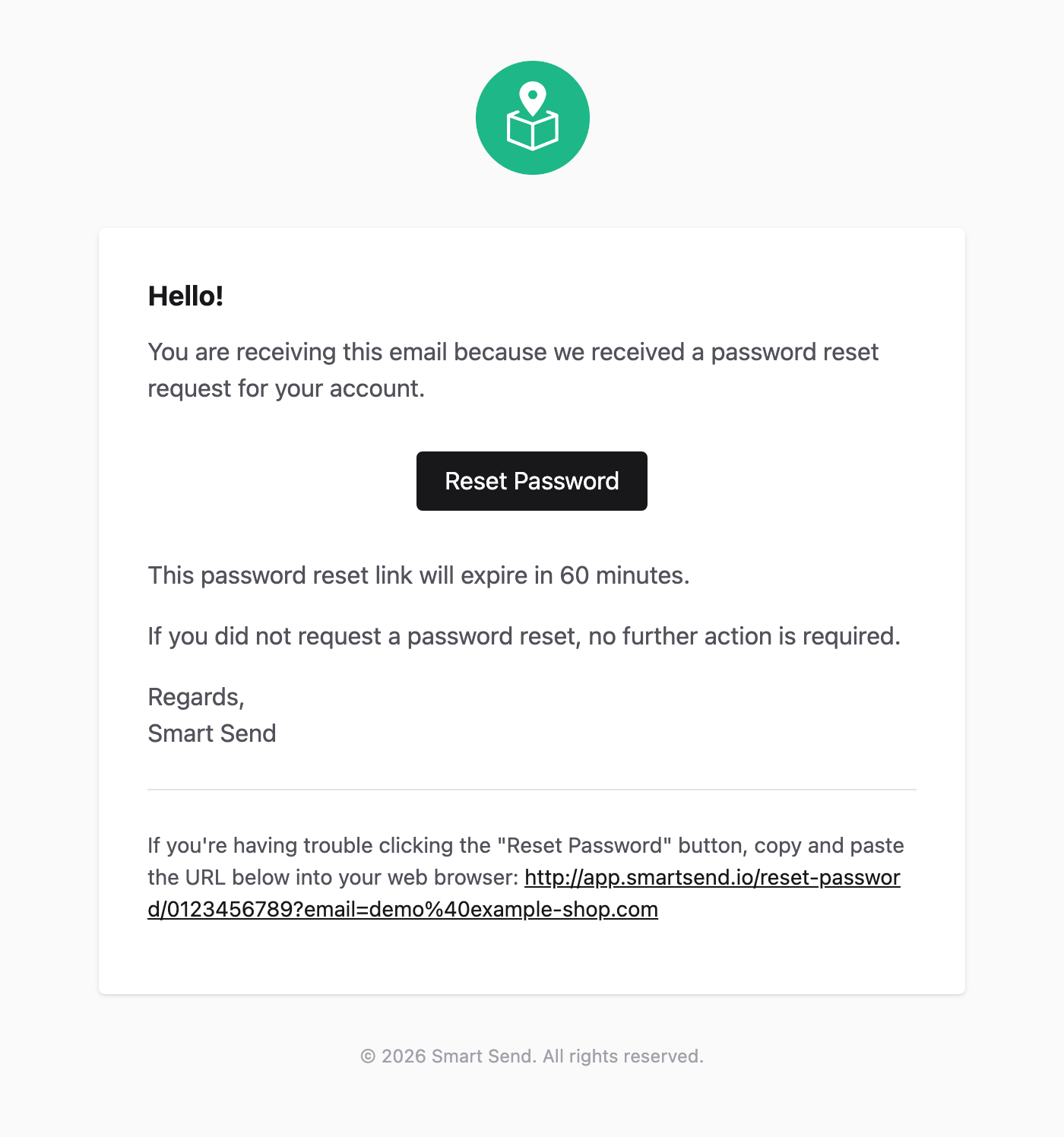
3
Reset your password
Click the password reset link in the email you receive, then enter and confirm your new password.