

Connect agreement
To connect your Smart Send account with GLS, you need an active GLS shipping agreement. GLS has launched a new IT system called Click&Ship which is meant to replace their older system YourGLS. We currently integrate with YourGLS and all GLS customers can get a YourGLS account for free. This is the account you will use to connect GLS to Smart Send. To connect GLS, start by logging into the Smart Send platform .1
Navigate to Carrier Accounts
Go to Carrier Accounts
2
Connect GLS
Next to GLS click the Connect button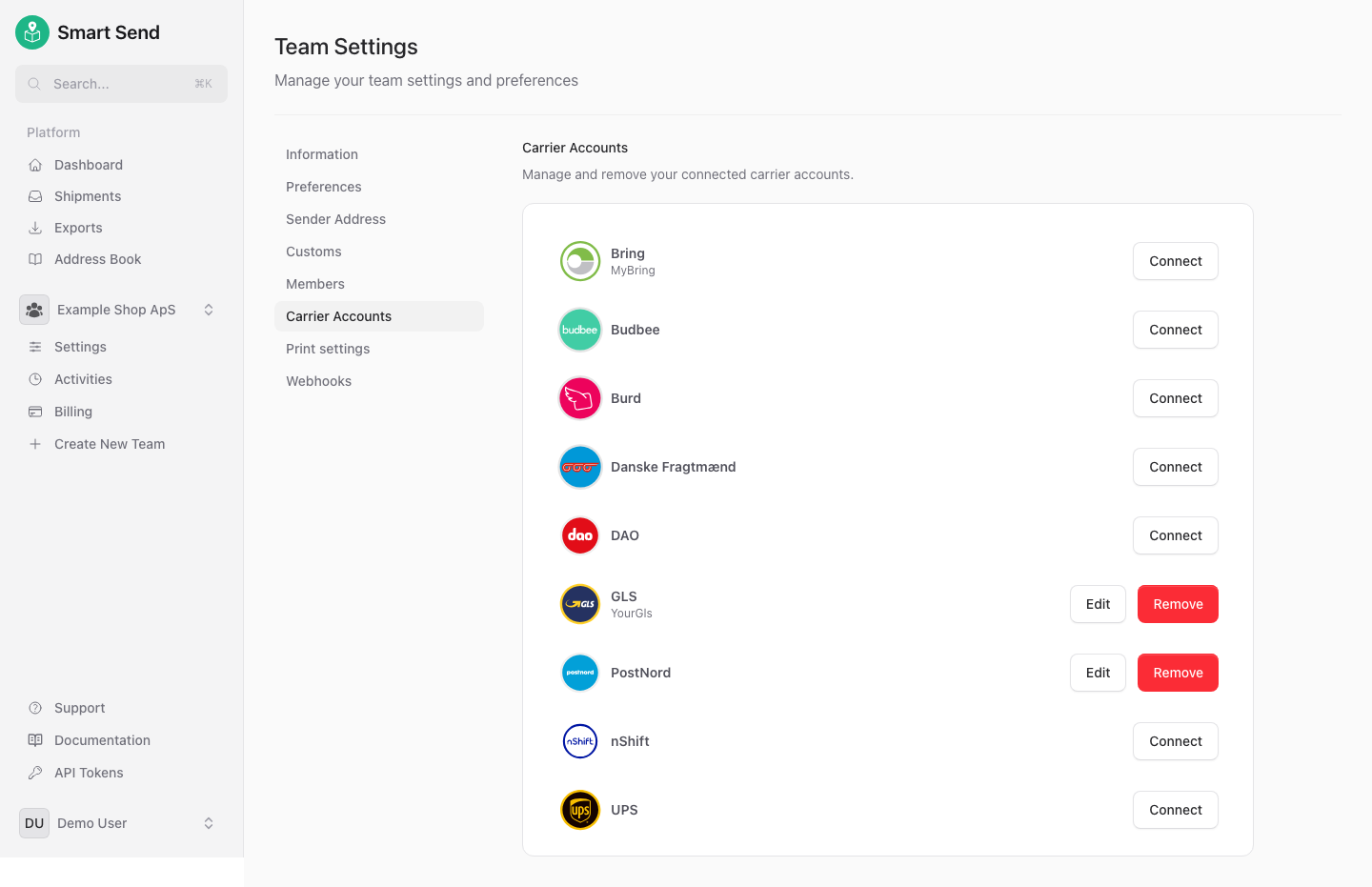
3
Enter YourGLS details
Enter the following YourGLS details: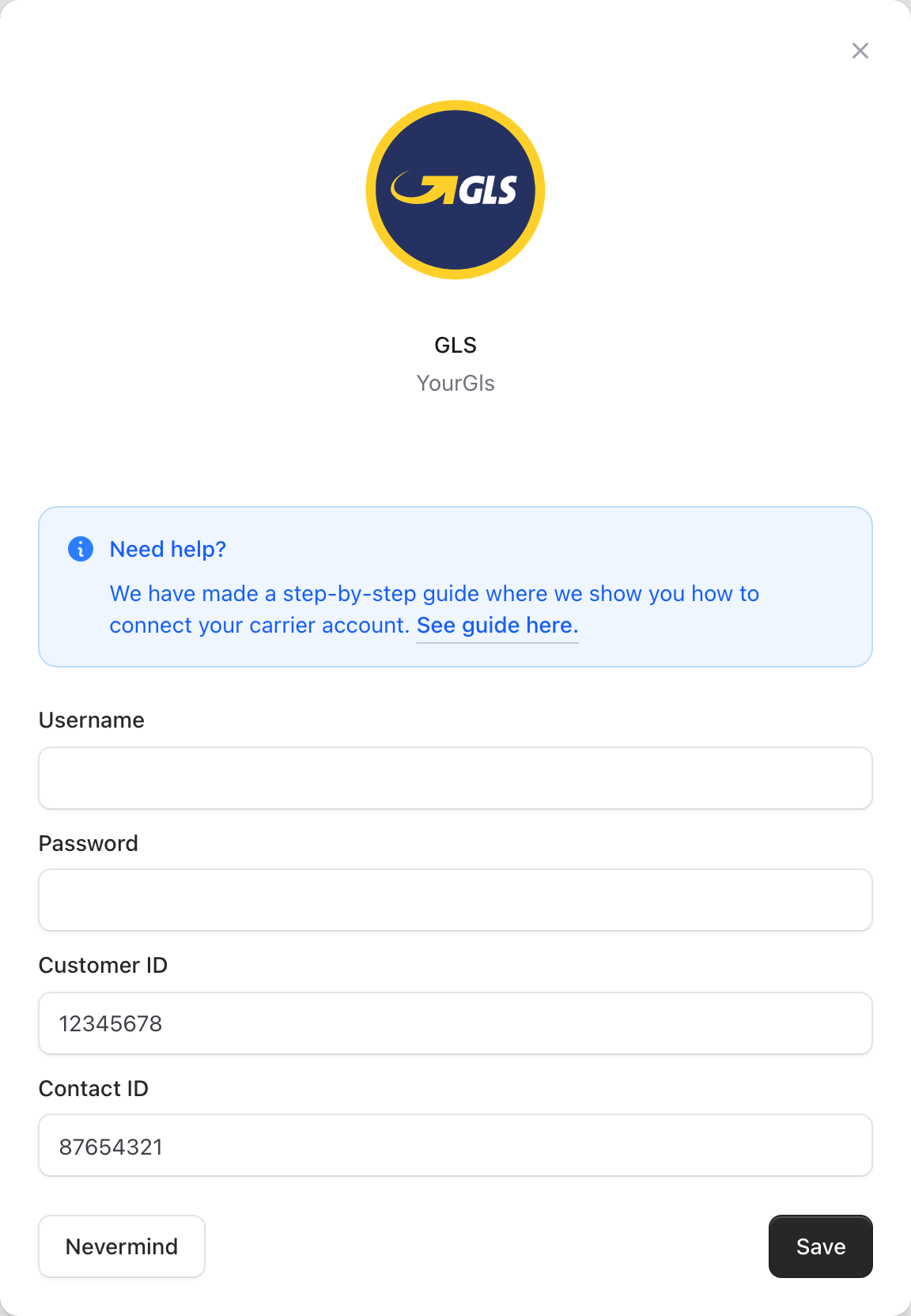
- YourGLS username
- YourGLS password
- CustomerId (usually the same as YourGLS username)
- ContactId (see instructions below to find this)
4
Save the settings
Save the settings
Finding CustomerId and ContactId
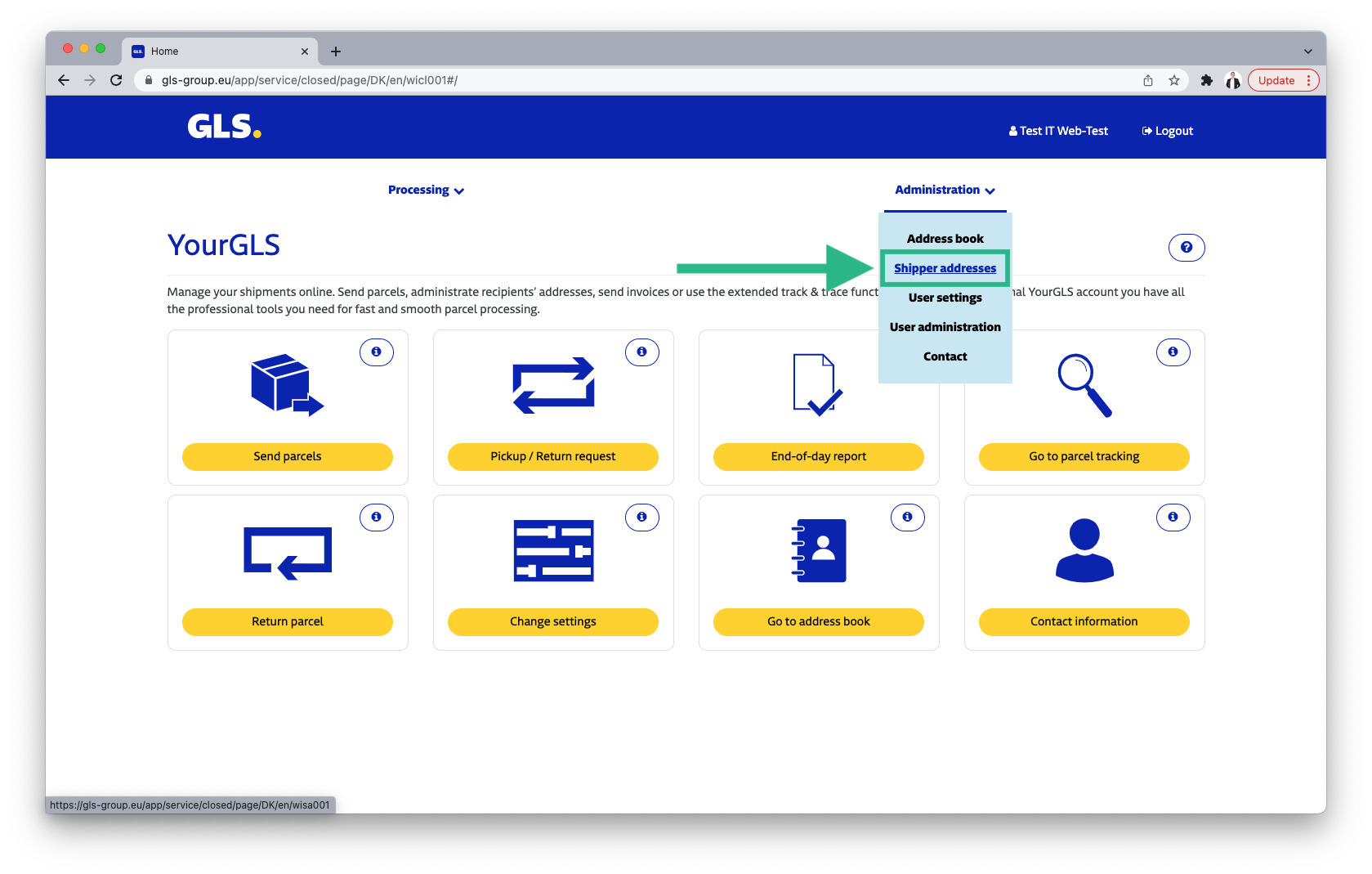
To find the CustomerId and ContactId, do the following:- Login to YourGLS here or by selecting YourGLS in the top right corner from the GLS website (after selecting country if asked)
- Select Shipper addresses from the dropdown menu Administration at the top right of the page
- The CustomerId and ContactId will be displayed as gray text as the Shipper number and the fields are split by a space
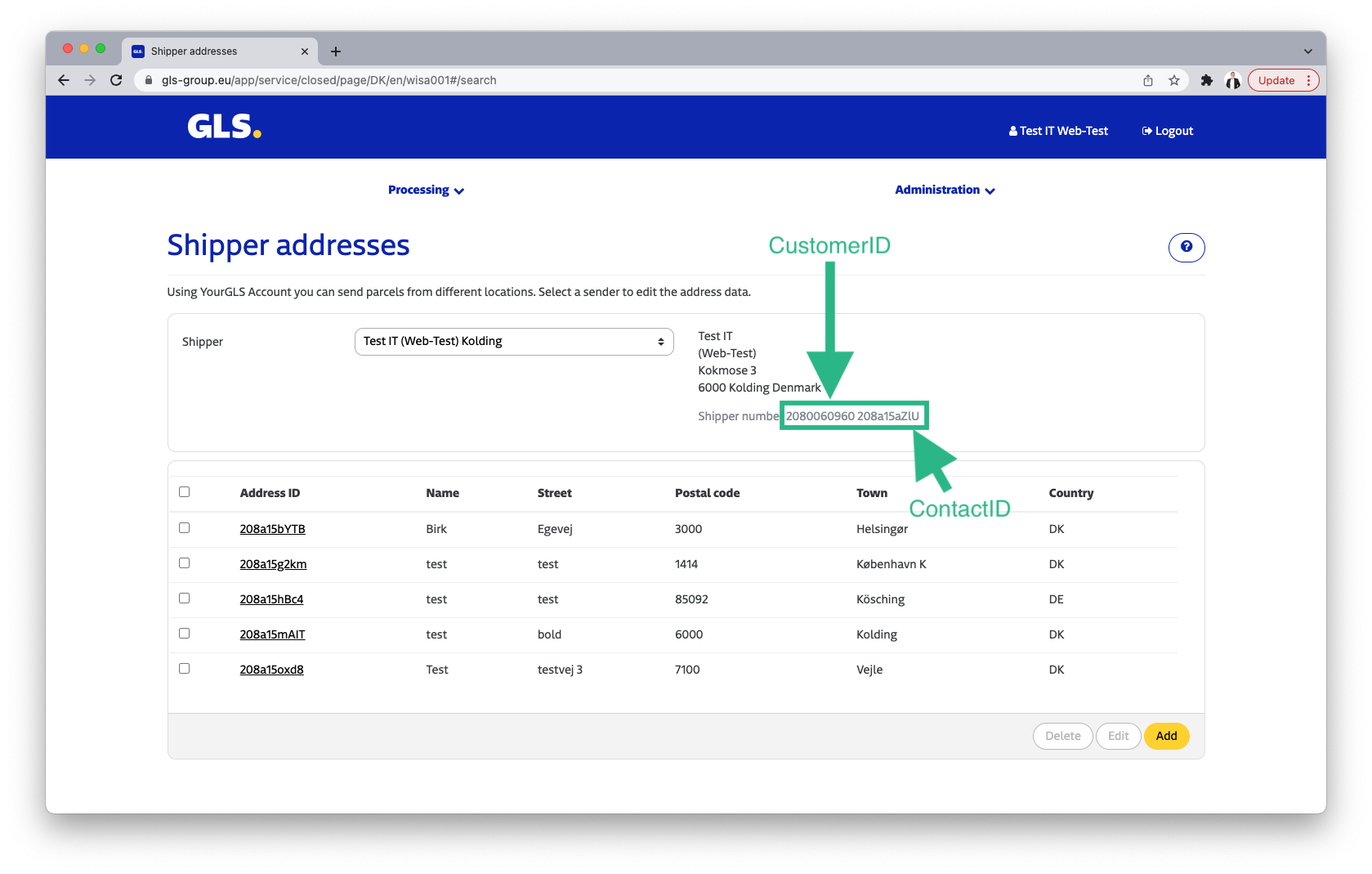
The connection is instant and you should be able to book GLS shipments immediately after saving the connection.
Get agreement
If you do not have an agreement with GLS yet, then contact them for prices and terms.Contact GLS
Contact GLS or signup online