

Recommended setup
A dedicated label printer is a relatively small investment that quickly pays for itself in saved time and materials. If you ship more than a few parcels per week, we strongly recommend getting one. Clicking the print button and confirming the browser’s print dialog is not a big task in itself, but when you process many orders per day, avoiding that step entirely with automatic printing using the print client is a real timesaver.Printer types
Read more on the different printer types below: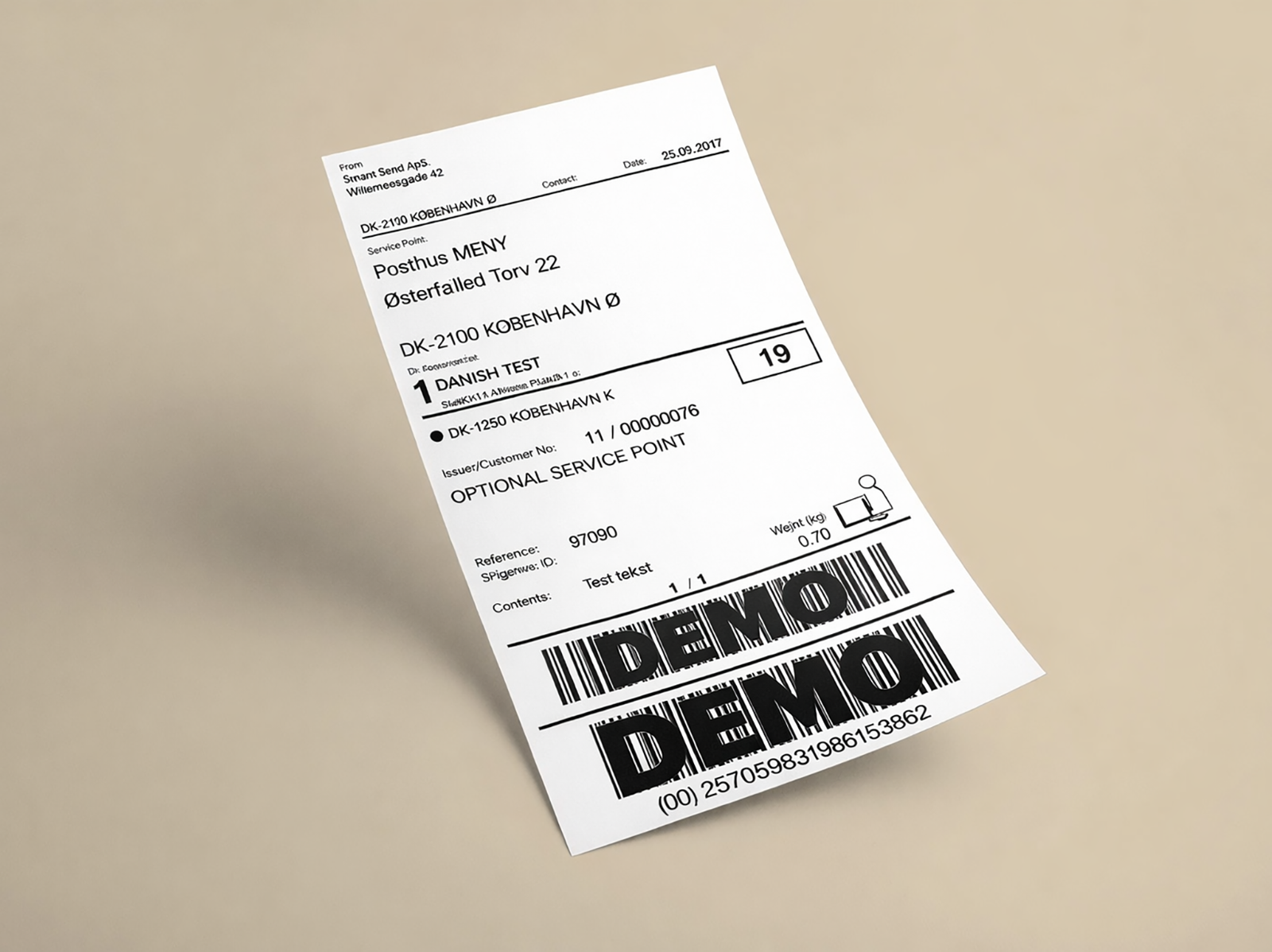
Label printer
A dedicated label printer prints directly onto adhesive labels that you peel off and stick to your parcel. This is the fastest and most convenient option for daily shipping.
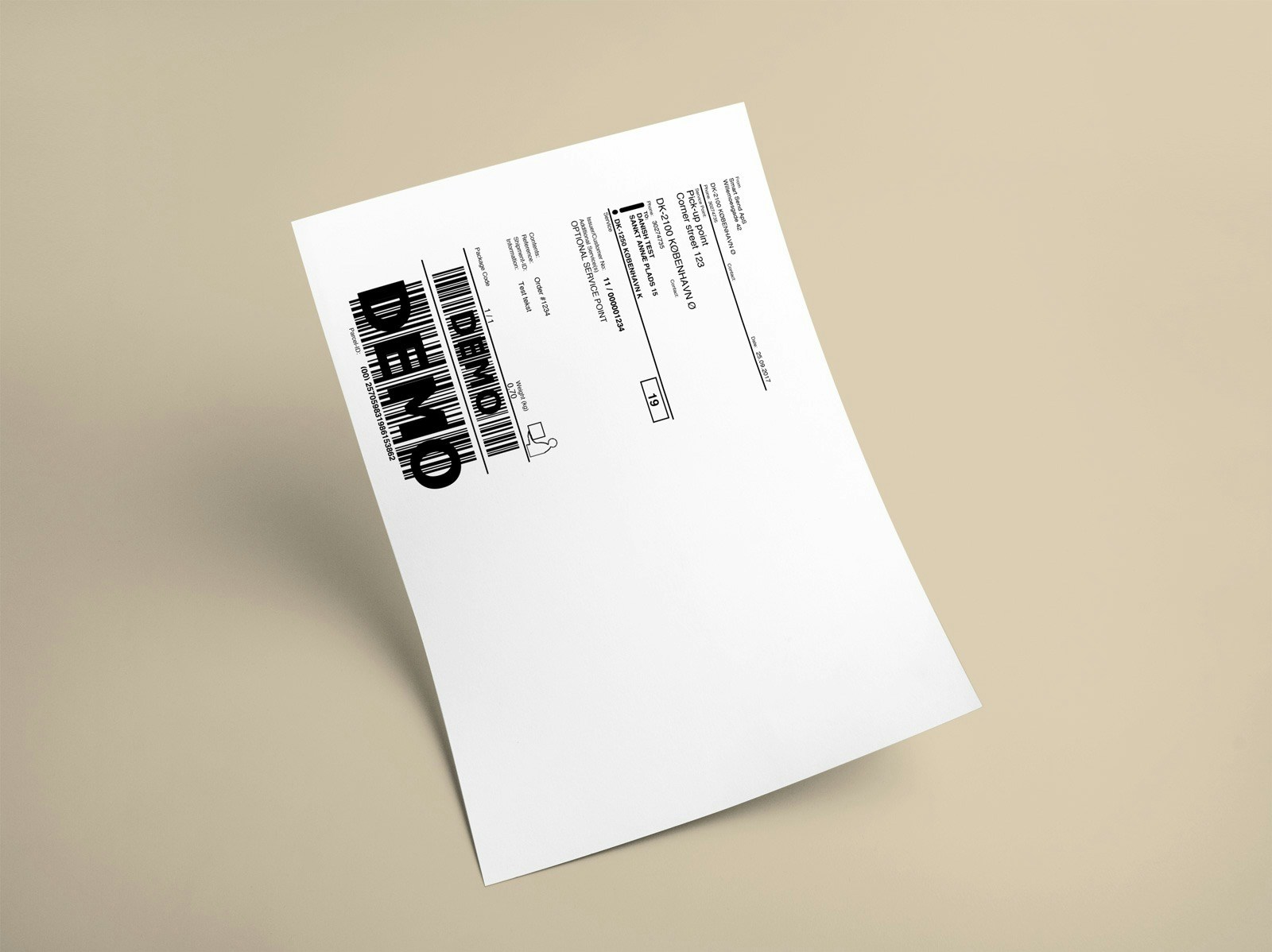
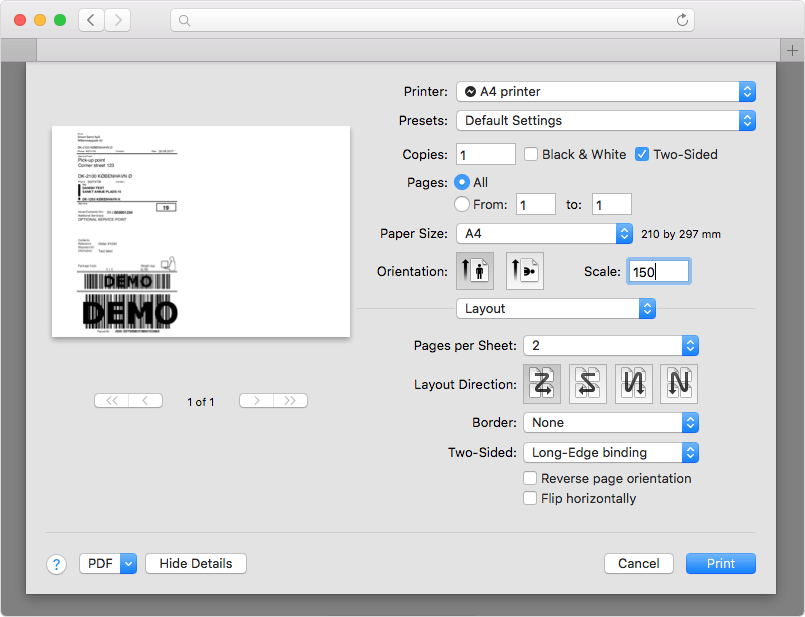
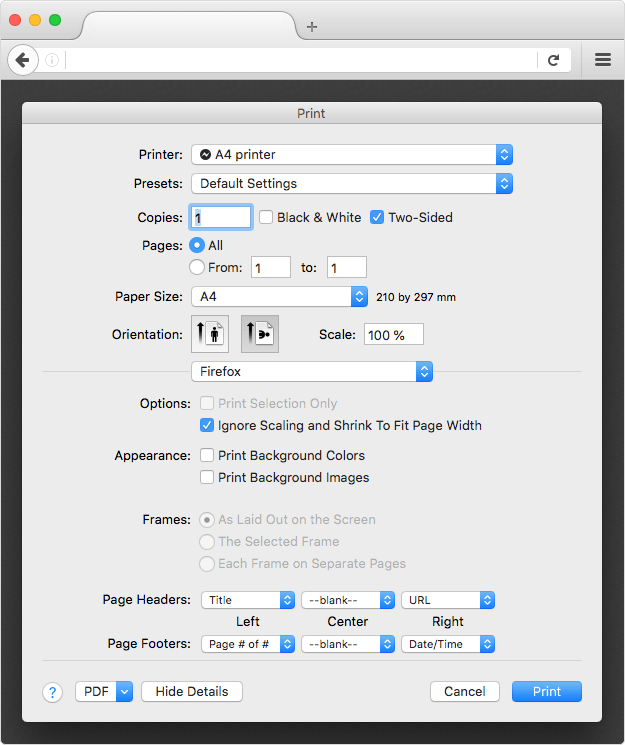
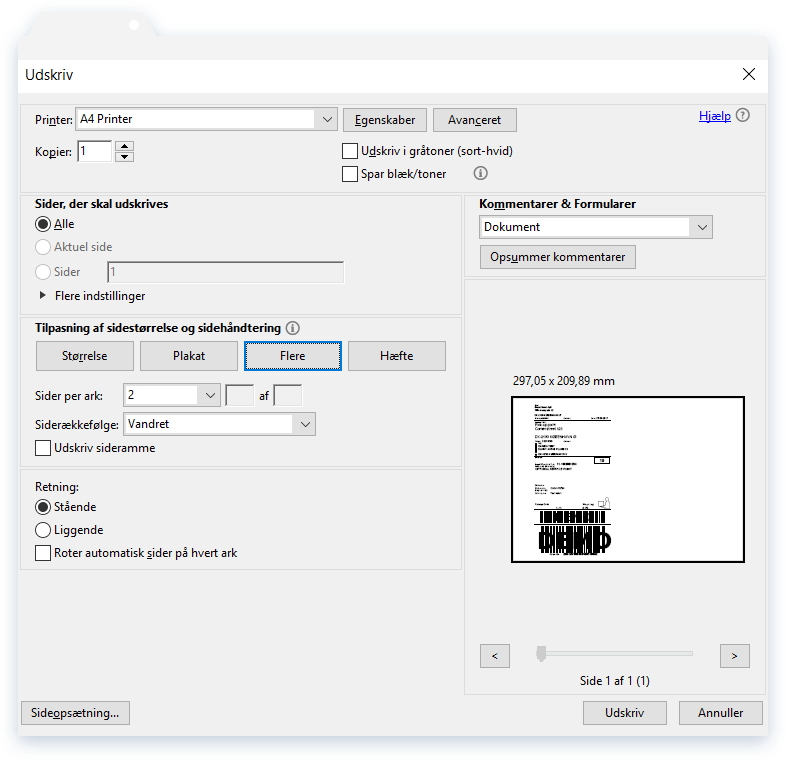
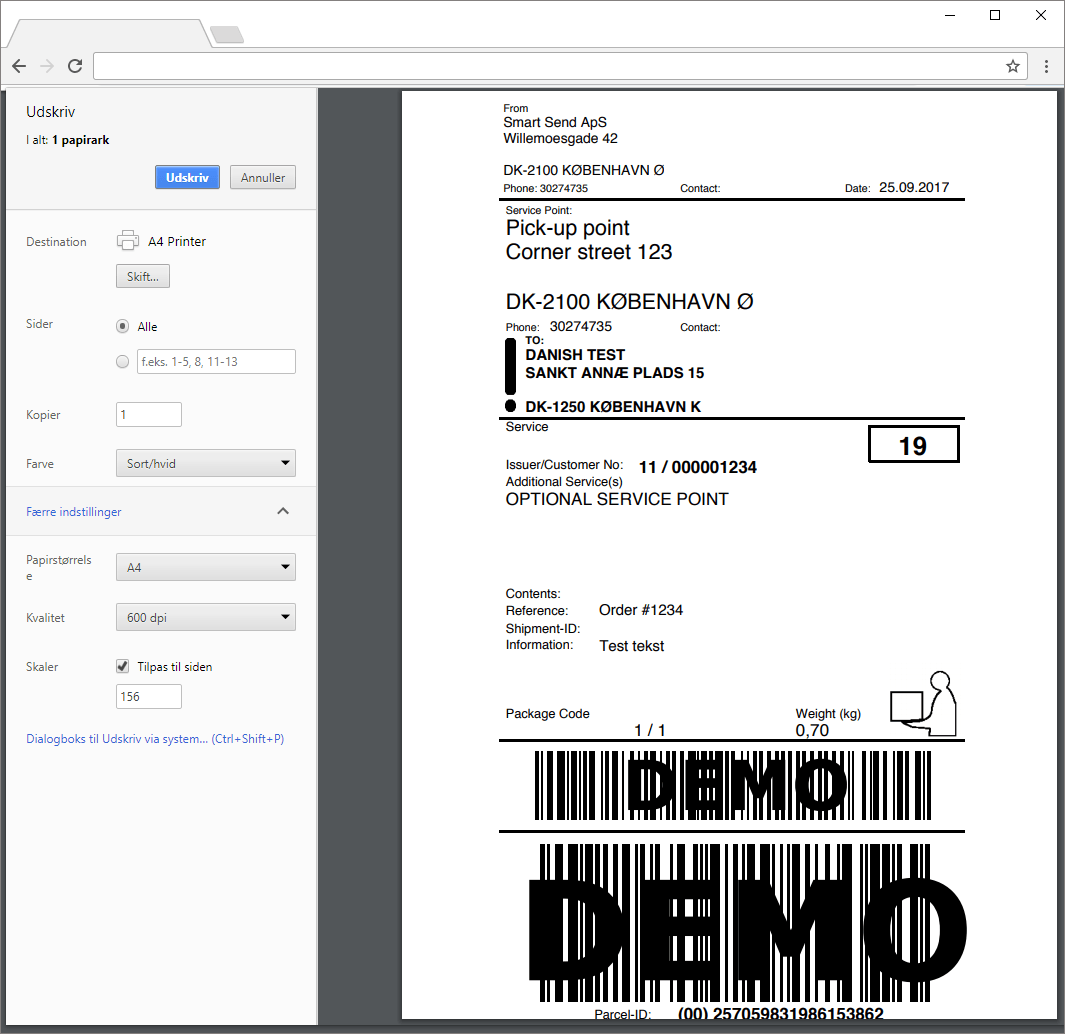
A4 printer
A standard A4 printer prints the label on regular paper. You then fold the paper and attach it to your parcel using tape or an adhesive document pouch.
Buying printer and shipping labels
Smart Send works with any printer and shipping labels. To make it easy, we have listed our suggestions below. For the reasoning behind label materials, quality grades, and warehouse labels, see Labels.Label printers
There are many label printers available on the market. We recommend a thermal label printer with at least 203 DPI resolution. Here are our suggestions:Label sizes by carrier
Choose the right label size based on your carriers:Use the coupon code SmartSend to get 10% discount on labels from billige-fragtlabels.dk.
Print client setup
The Smart Send print client is a desktop application that connects to your printer and automatically prints shipping labels and documents as they are generated. The print client must be running on a computer connected to the internet and the printer, and can be installed on multiple computers at the same time.The print client requires a paid plan. See our pricing page for details.
1
Download the print client
Go to Settings → Print settings, download and install the print client for your operating system (Mac or Windows).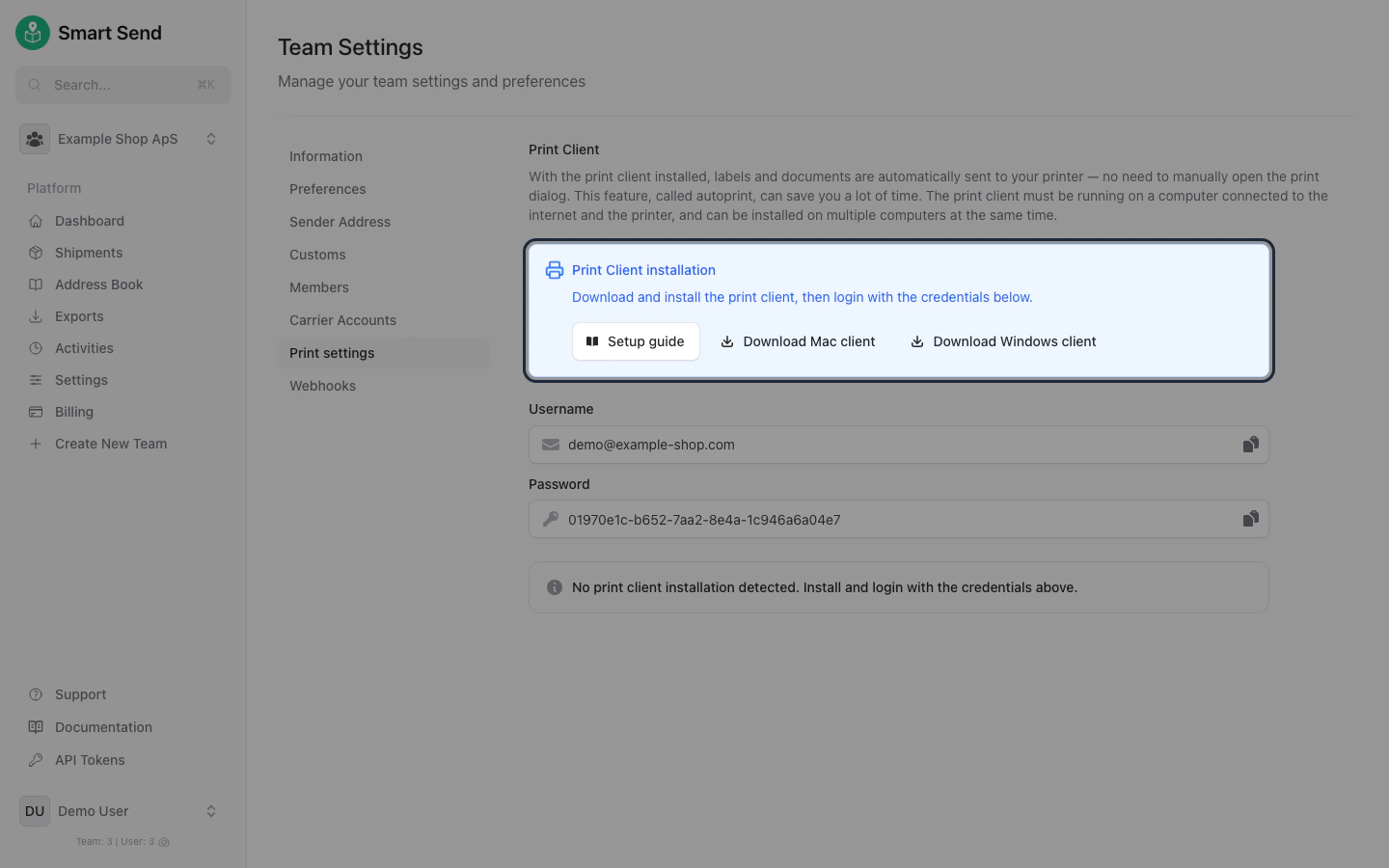
2
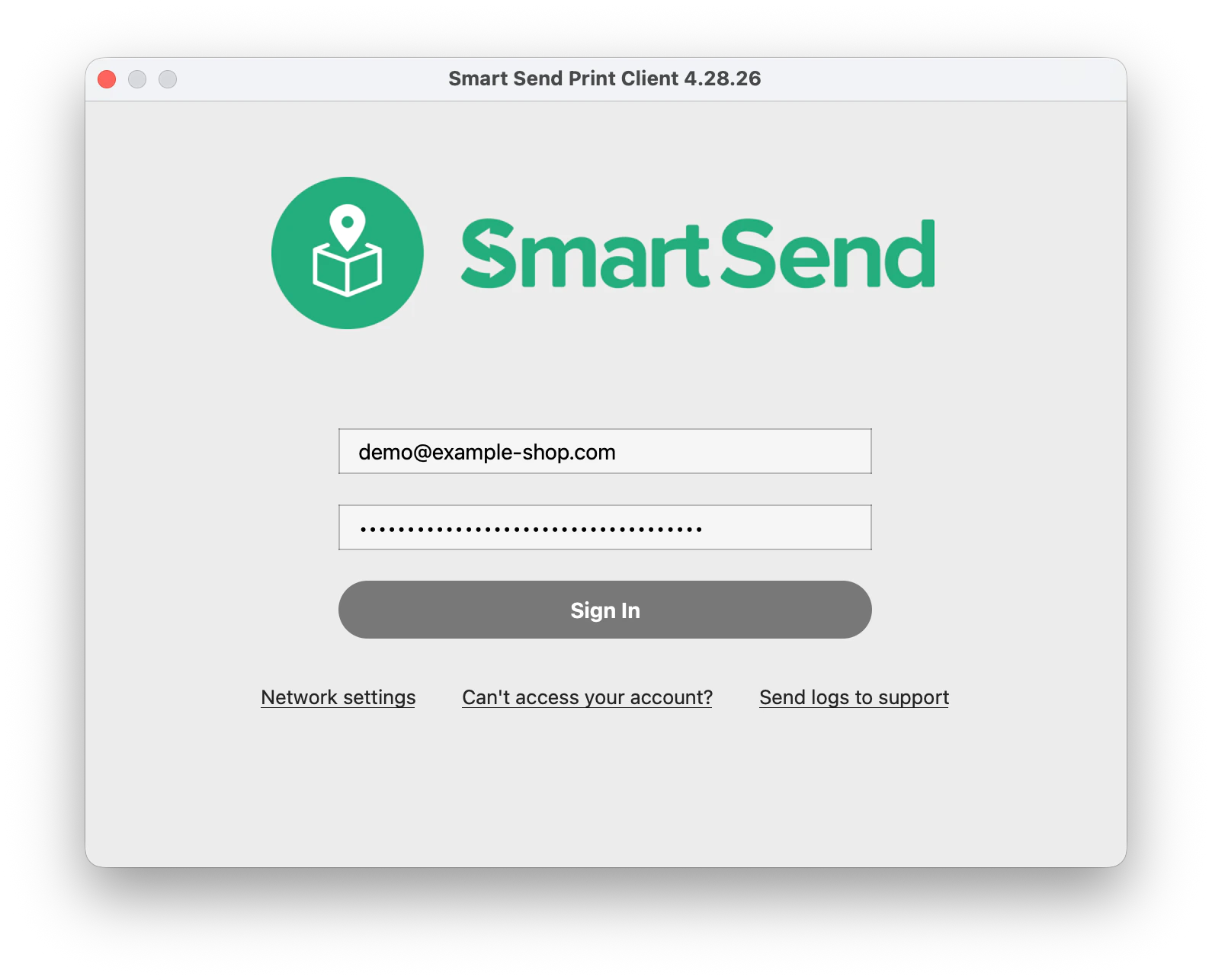
Log in to the print client
Copy the username and password shown on the Print settings page and paste them into the print client login form and then press Sign in.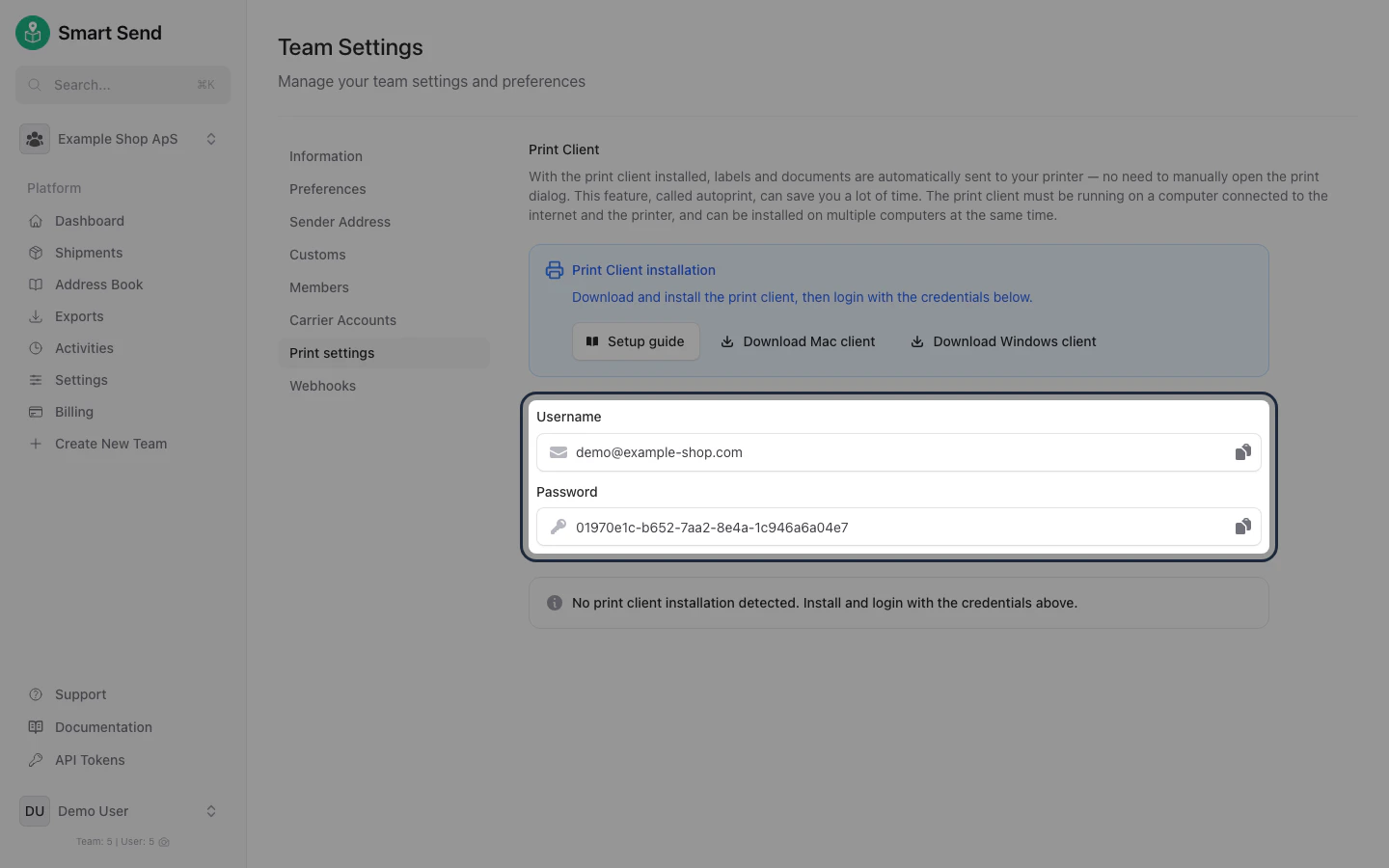
3
Configure your printers
Once connected, select your default label printer and default document printer. You can use the Print test button to verify each printer works correctly.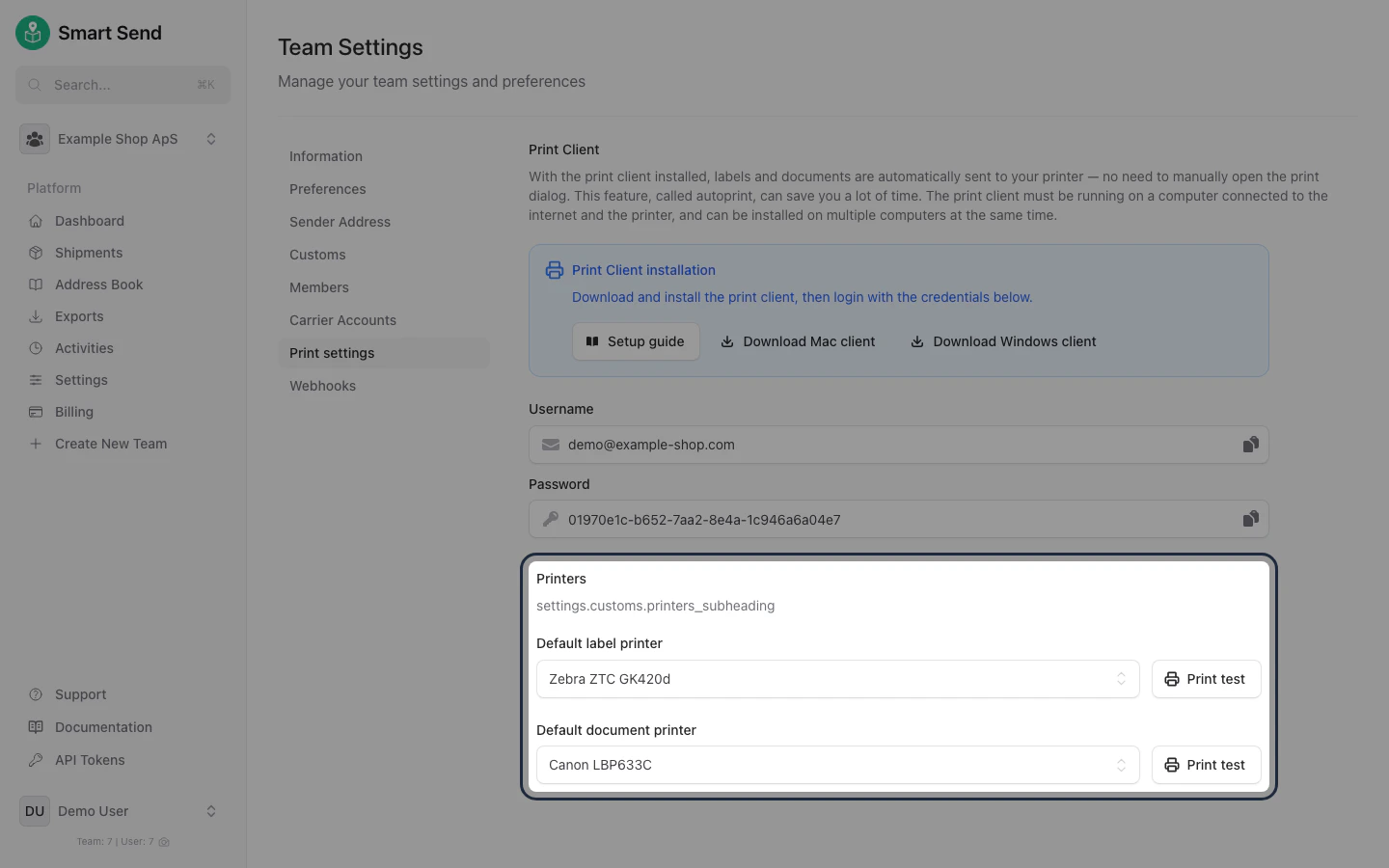
Printing manually
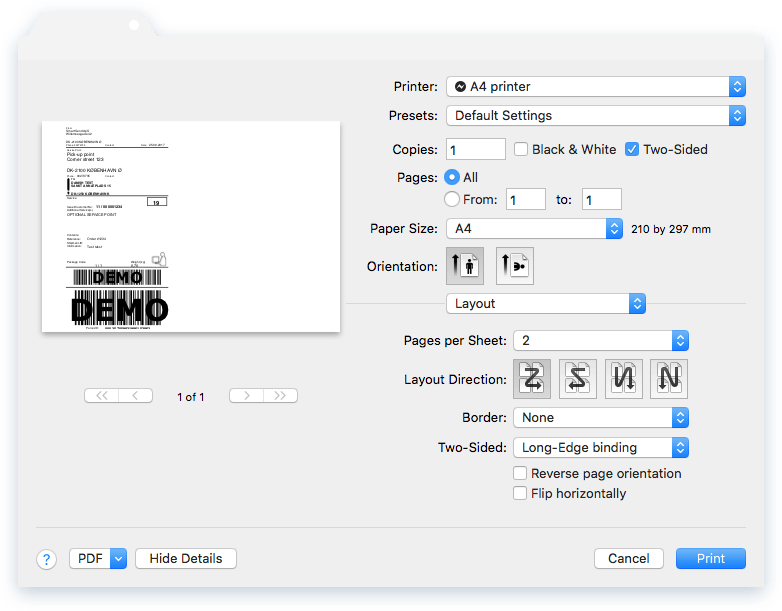
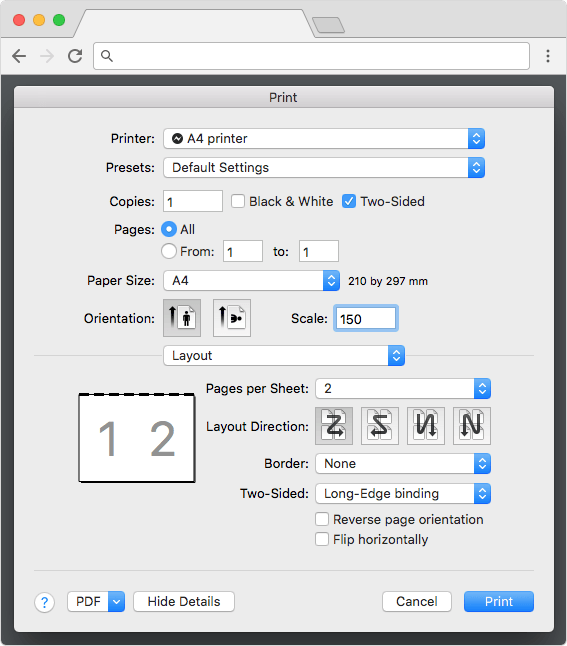
If you are not using the print client, you can print shipping labels manually from your browser or a PDF viewer. The setup depends on your printer and the application you are printing from.Label printers
When printing on a label printer, then remember to configure the correct paper size in the printer setting (most likely you use labels of sie 102x192mm or 100x150mm). If you are using a Zebra label printer, see the Zebra printer setup guide for instructions on configuring the paper size on Mac and Windows.A4 printers
- Mac
- Windows
- Preview
- Google Chrome
- Safari
- Mozilla Firefox
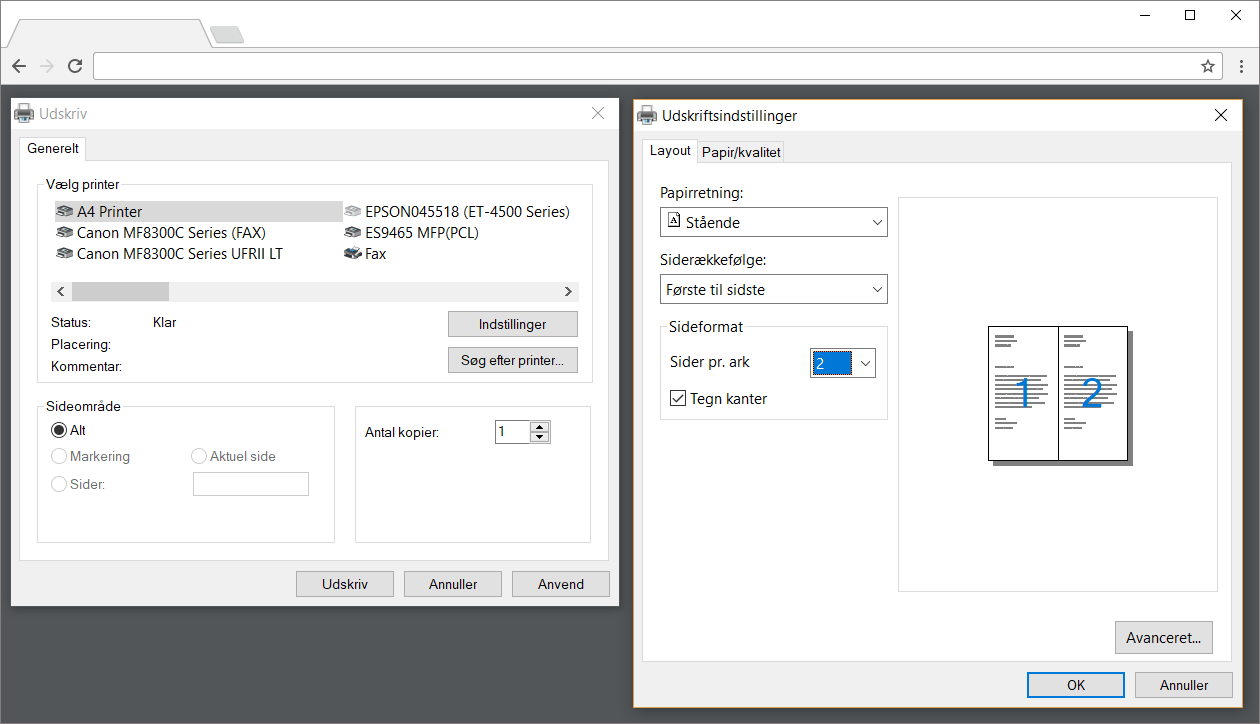
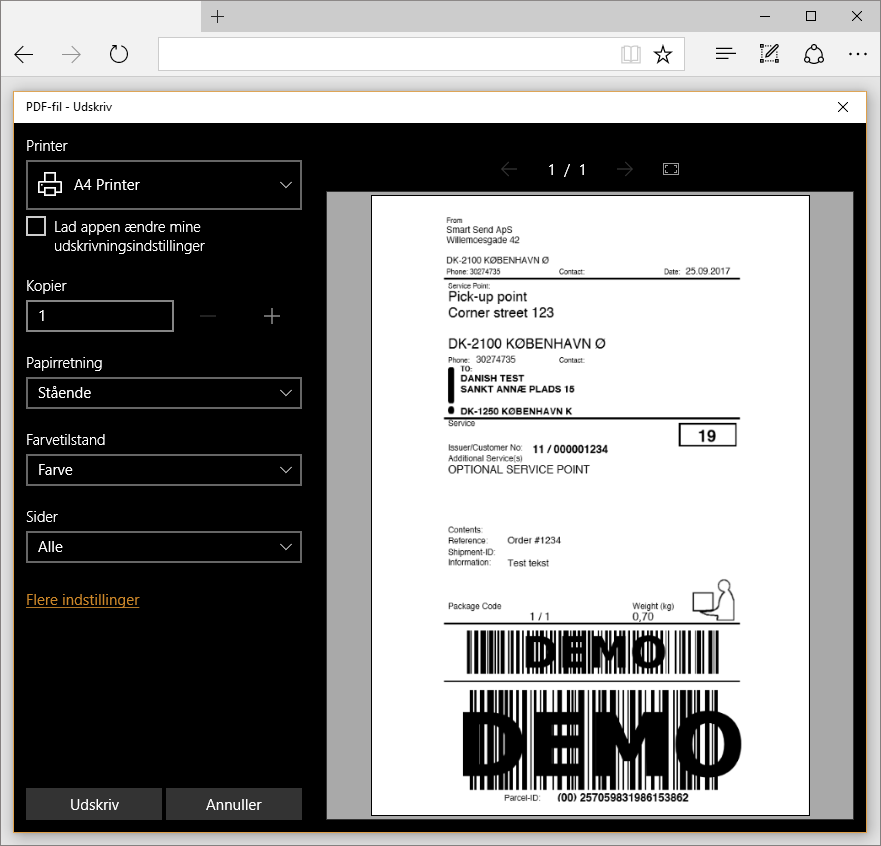
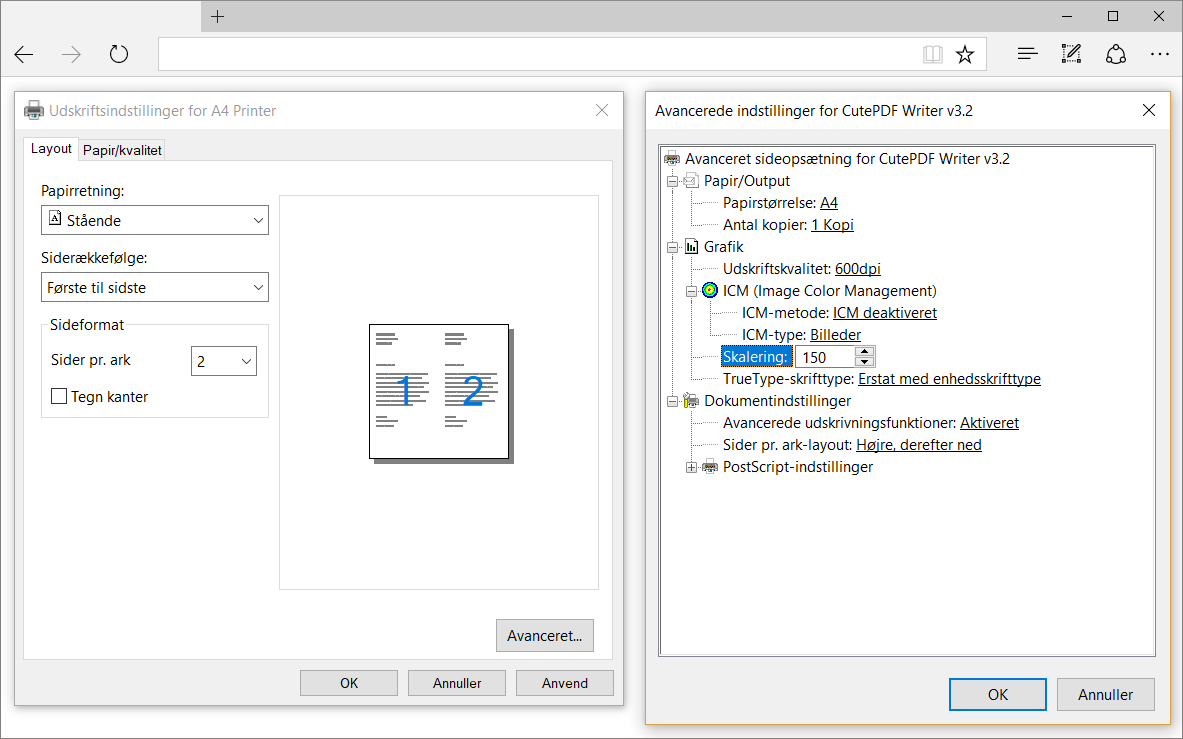
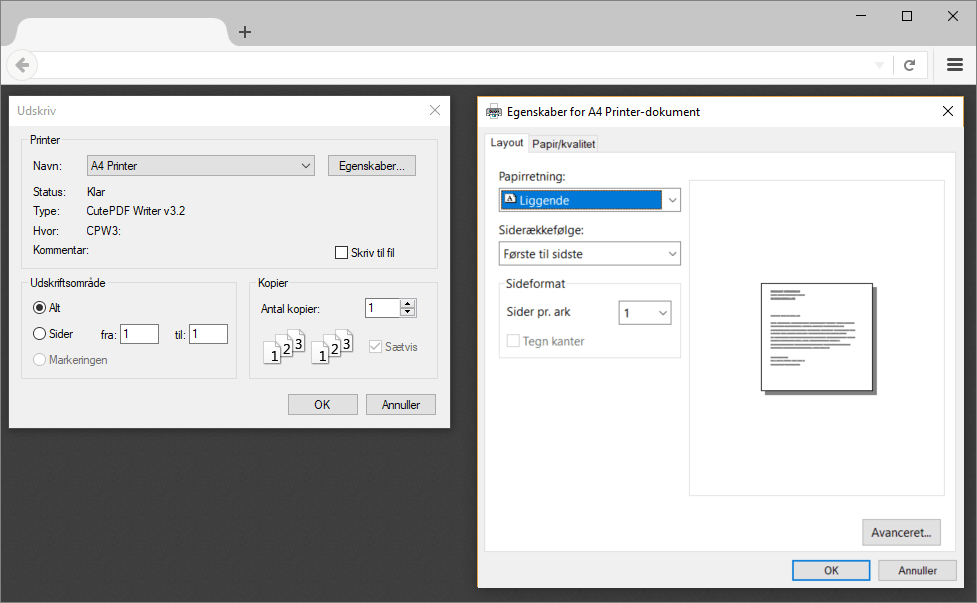
Test labels
Download sample labels below to test your printer setup:
PostNord
PostNord label (102x192mm)
GLS
GLS label (102x192mm)
DAO
DAO label (102x192mm)
Bring
Bring label (102x192mm)