

Set up a shipping method first
You need a connected Smart Send account and a shipping method with a service that supports customer-selected pickup points.See the shipping-method setup guide
Learn how to add a shipping method through the Smart Send plugin and enable pickup points for it.
Choose how pickup points are shown
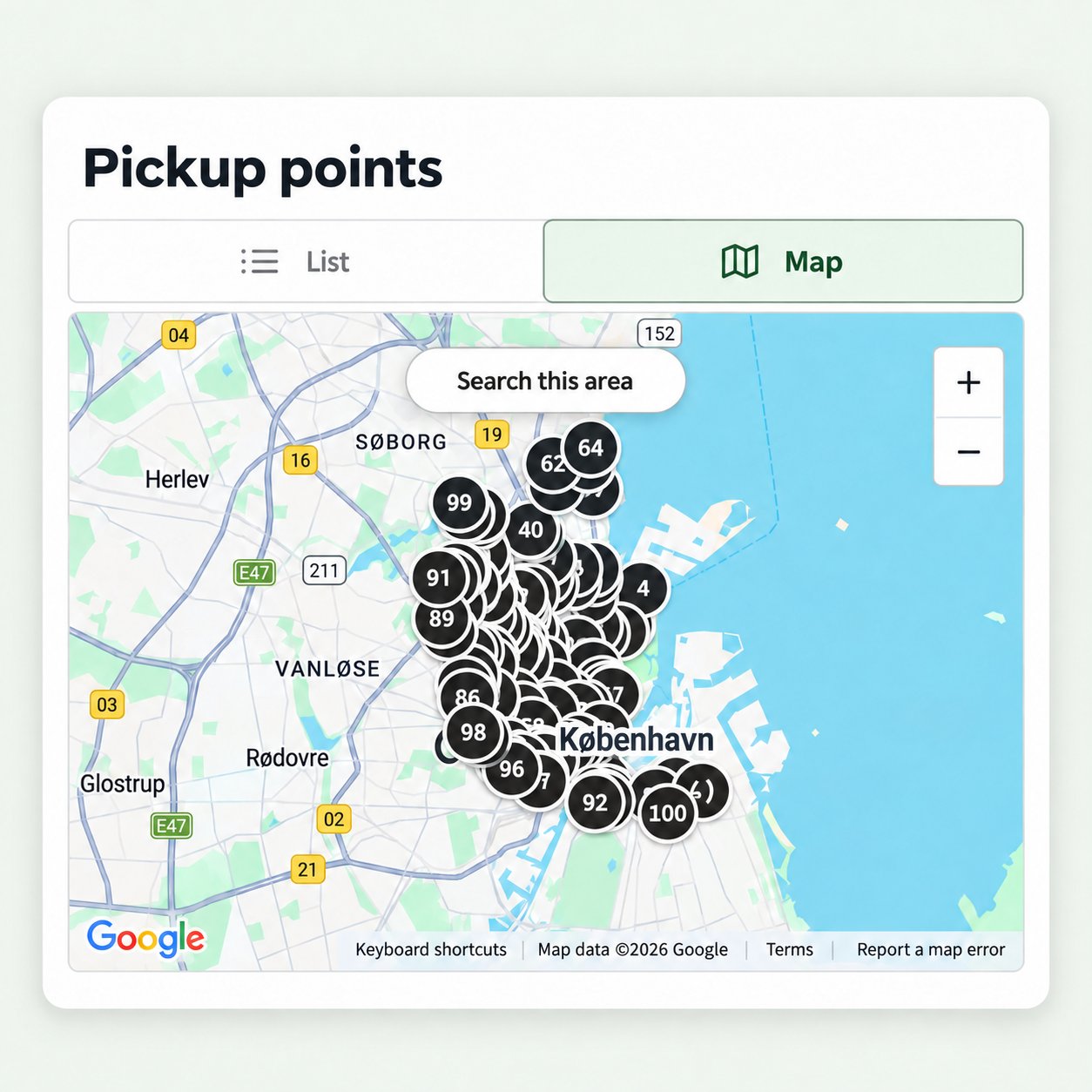
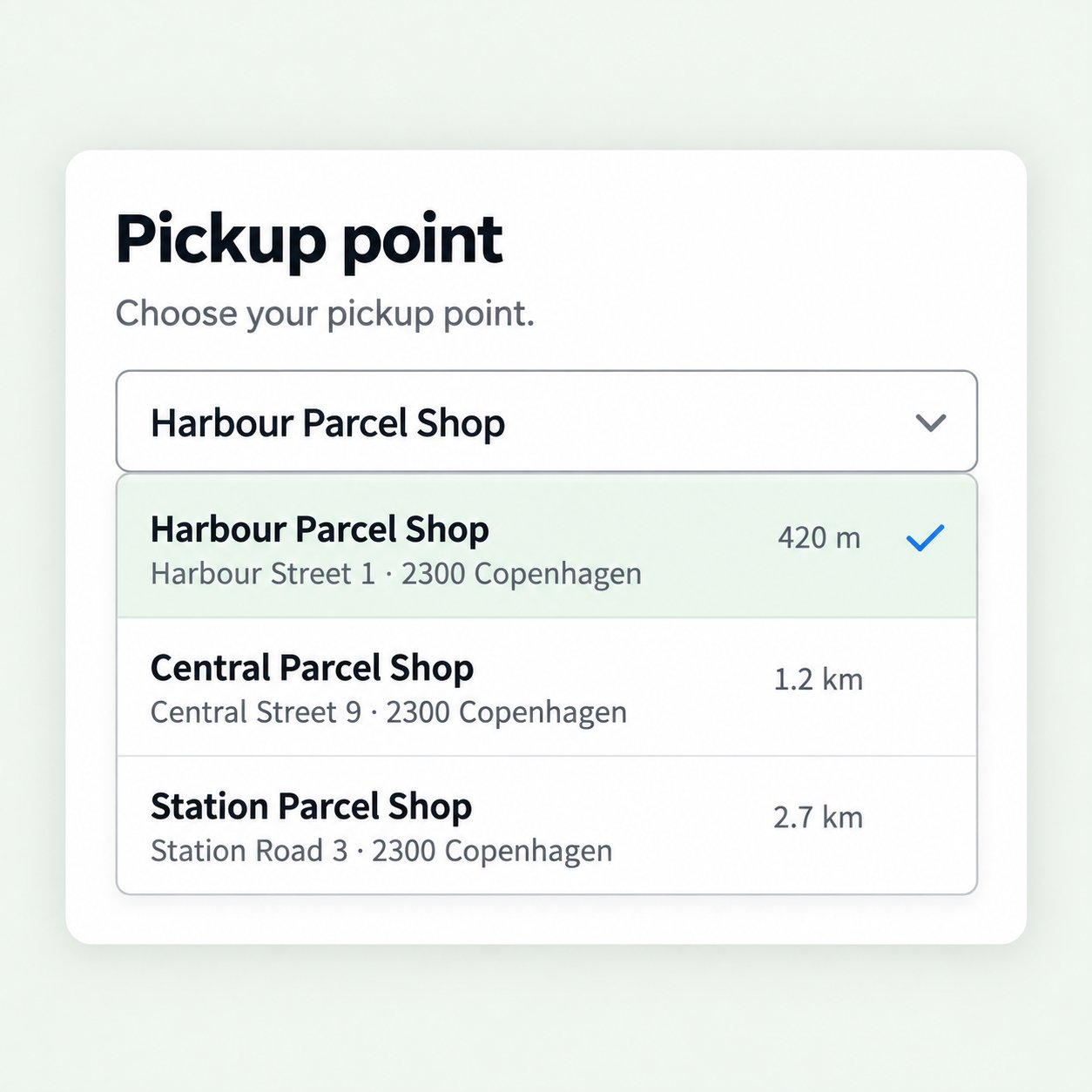
The plugin can show pickup points in different ways on the checkout page. Read about the options below.- List (default)
- List and map
- Drop-down
Customers see nearby pickup points in a list with names, addresses, distances and opening hours when available. They can search by postcode and browse more points, but cannot switch to a map.We recommend the list for most shops. It makes points easy to compare without loading map JavaScript. Choose List (recommended) under Pickup point selector.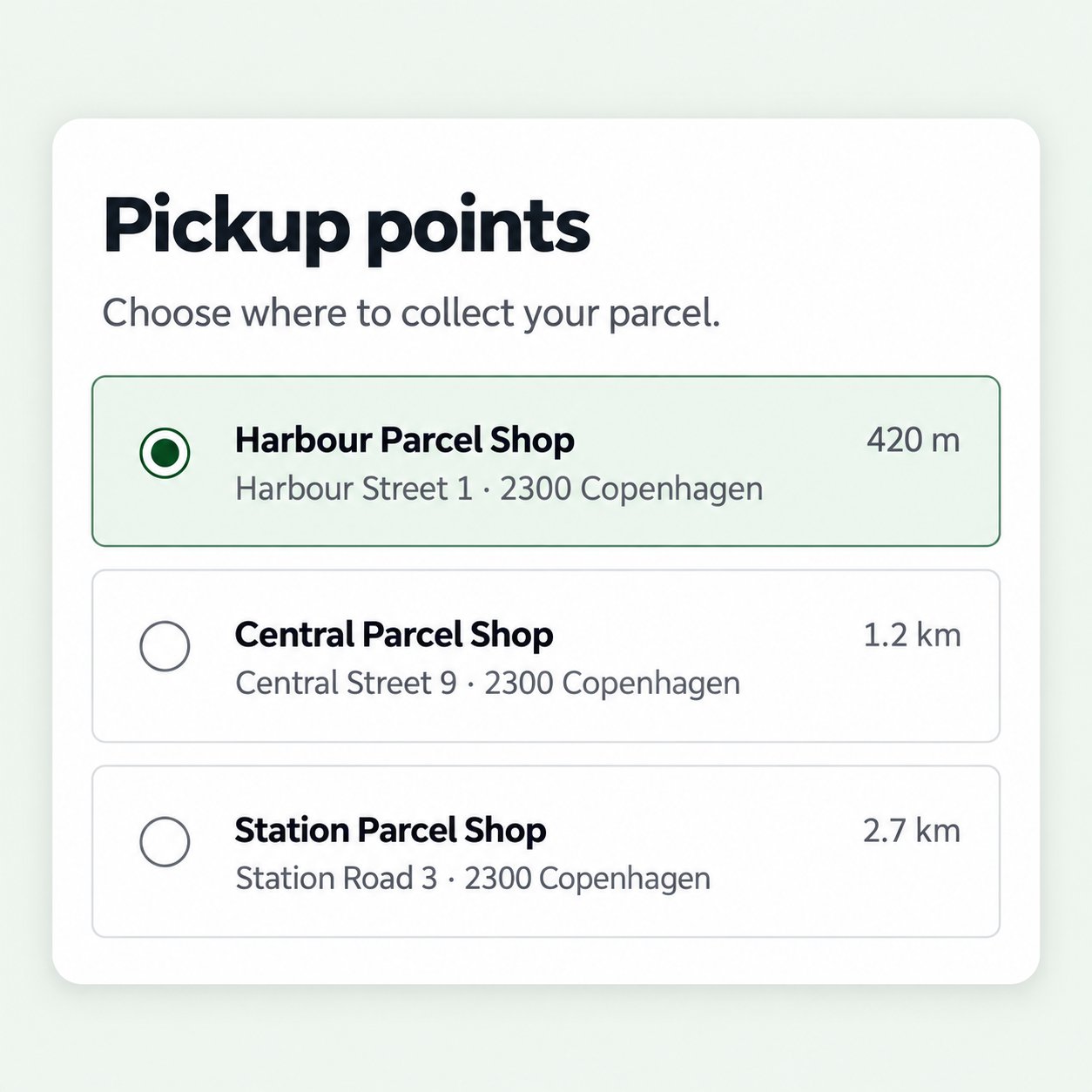
Configure pickup points
Add a shipping method as usual and choose a pickup-point service that supports customer selection, such as Select pickup point. Smart Send then automatically displays pickup points at checkout once the customer enters their shipping address and selects that method.Pickup-point display settings
Go to WooCommerce → Settings → Shipping → Smart Send and find Pickup Points. These settings apply to all Smart Send shipping methods in your shop.
Click Save changes and check the presentation in your checkout.
How customers choose at checkout
The plugin first finds the nearest pickup points using the shipping address entered by the customer. Most customers simply choose one of these points. Customers who prefer another point can search by postcode in the list. If you offer the map, they can also navigate to their preferred area, press Search this area and select a point directly from the map. The drop-down only shows nearby points and has no search.Google Maps API key
This section applies when Pickup point selector is set to List / Map. The map works without a key, using OpenStreetMap. We recommend creating a Google Maps API key and entering it in Google Maps API key, so your shop’s maps are served under your own Google Cloud account.Create and restrict the key
Three things have to be in place before a key draws a map: the right API, billing, and the restrictions below. Start at the Google Cloud Console .1
Create or select a project
A project is the container that owns the key and its billing. Use one project for your shop.
2
Enable the Maps JavaScript API
Go to APIs & Services → Library, search for Maps JavaScript API and enable it. It is the only API the checkout map uses. A key without it fails with
ApiNotActivatedMapError.3
Enable billing on the project
Go to Billing and link a billing account to the project. Google requires one even for usage inside the free allowance. Without billing the map stays grey and the browser console shows
BillingNotEnabledMapError.Check the current allowance and prices in Google’s usage and billing documentation . Usage is billed to your Google Cloud account.
4
Create the key
Go to APIs & Services → Credentials, choose Create credentials → API key and copy the key. See Google’s own instructions if the console looks different from this.
5
Restrict it to your domains
You must restrict the key to your shop’s website address before using it. Open the key and set Application restrictions to Websites. Add your shop’s domains as HTTP referrers, for example
https://example.com/* and https://www.example.com/*. Add your staging domain too if you test there. A domain that is missing fails with RefererNotAllowedMapError.6
Restrict it to one API
Set API restrictions to Restrict key and select Maps JavaScript API only. A key limited to the wrong API fails with
ApiTargetBlockedMapError.7
Save the key in WooCommerce
Paste the key into Google Maps API key under WooCommerce → Settings → Shipping → Smart Send and click Save changes. Then open your own checkout, choose a pickup point method and press Map.
The customer’s browser contacts Google when the map opens, and the shop’s domain and the map requests go with it. Make sure your cookie and consent policy covers it. The same applies to OpenStreetMap when no key is set.
If the map does not appear
Open your checkout, press Map and look at the browser console. Google names the reason, and Google’s error message reference lists them all.BillingNotEnabledMapError- the project has no billing account.ApiNotActivatedMapError- the Maps JavaScript API is not enabled for the project.RefererNotAllowedMapError- the shop’s domain is not in the key’s website restrictions. Checkwwwand non-wwwseparately.ApiTargetBlockedMapError- the key’s API restrictions exclude the Maps JavaScript API.InvalidKeyMapError- the key is mistyped or belongs to a deleted project.