Booking from the order page
Start with one order in one parcel. Review the delivery address and product weights before booking. If the order needs several packages or a manual packed weight, use Colli shipments below. Return shipping has its own booking procedure.Book a shipping label
1
Open the order
Go to WooCommerce → Orders, open the order, and find Smart Send. Check the recipient’s address in the WooCommerce order.
2
Review the shipment
Check Shipping method and, for a pickup-point service, Pickup point. Use Edit to change the service or look up a different pickup point if needed. Check that Parcels shows one parcel with a usable weight. Leave Also create return label unchecked for an outbound label only.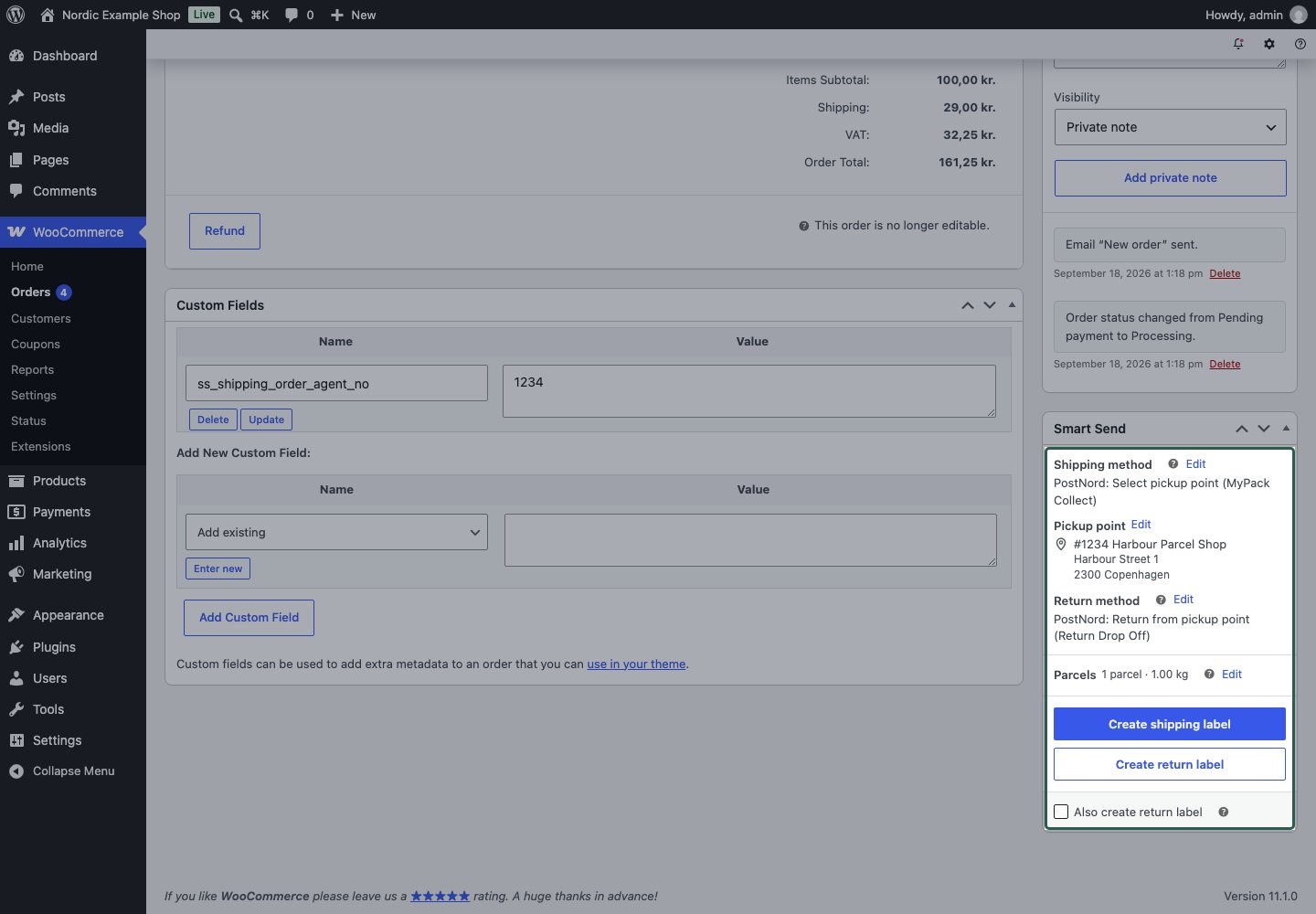
3
Create the label
Click Create shipping label and wait for the result. If a validation error appears, correct the indicated address, service, pickup point or parcel field before retrying.
4
Download and print
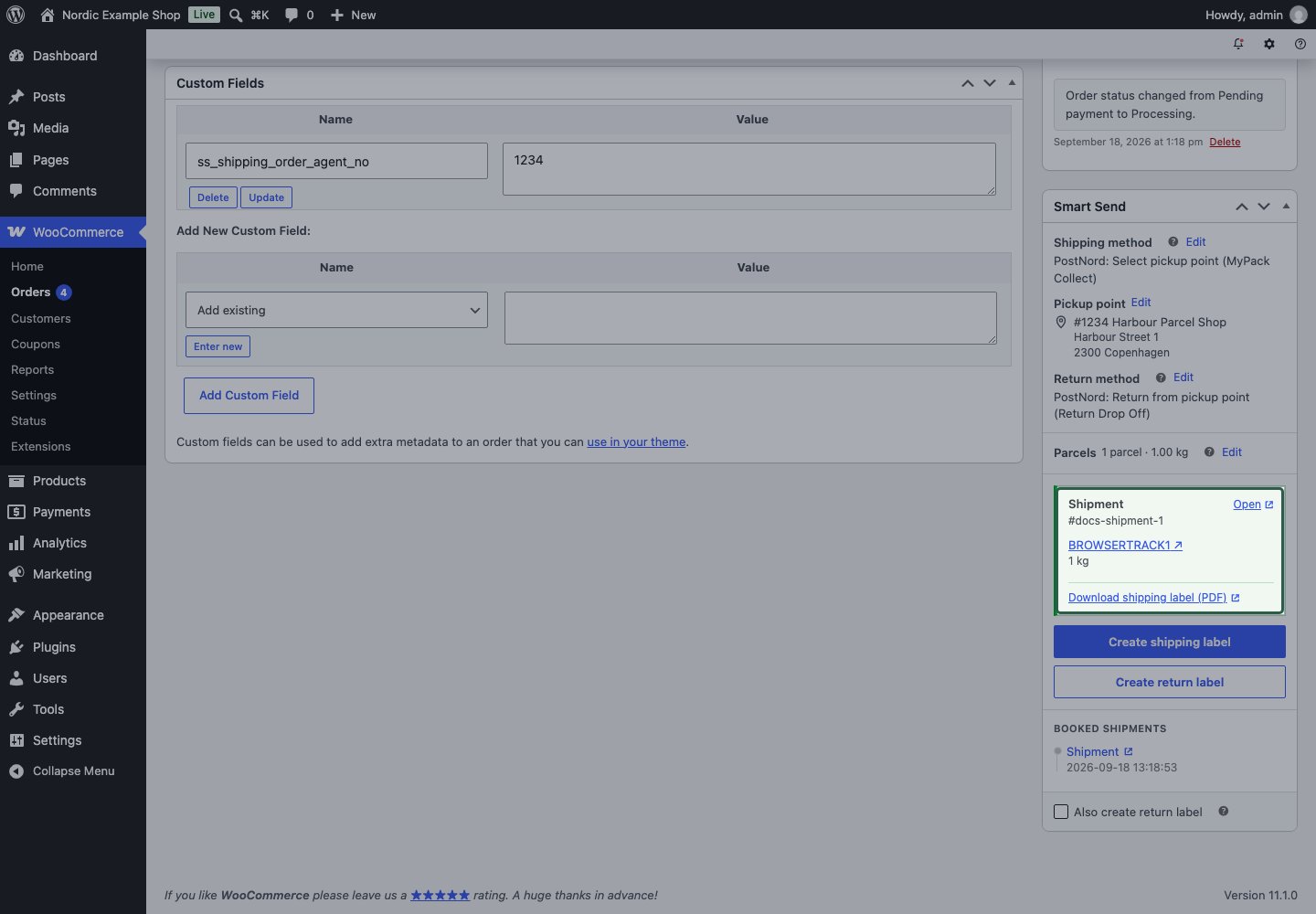
A successful result shows Shipment, its shipment reference, and the documents returned by the carrier. Click Download shipping label (PDF) to open or download the label, then print it. Open opens the shipment in Smart Send.
Download an existing label
Booking history and tracking
Under Booked shipments in the Smart Send panel, select an outbound or return entry to open it in Smart Send. Several entries can exist if you booked more than once. You can also find them in Smart Send shipments .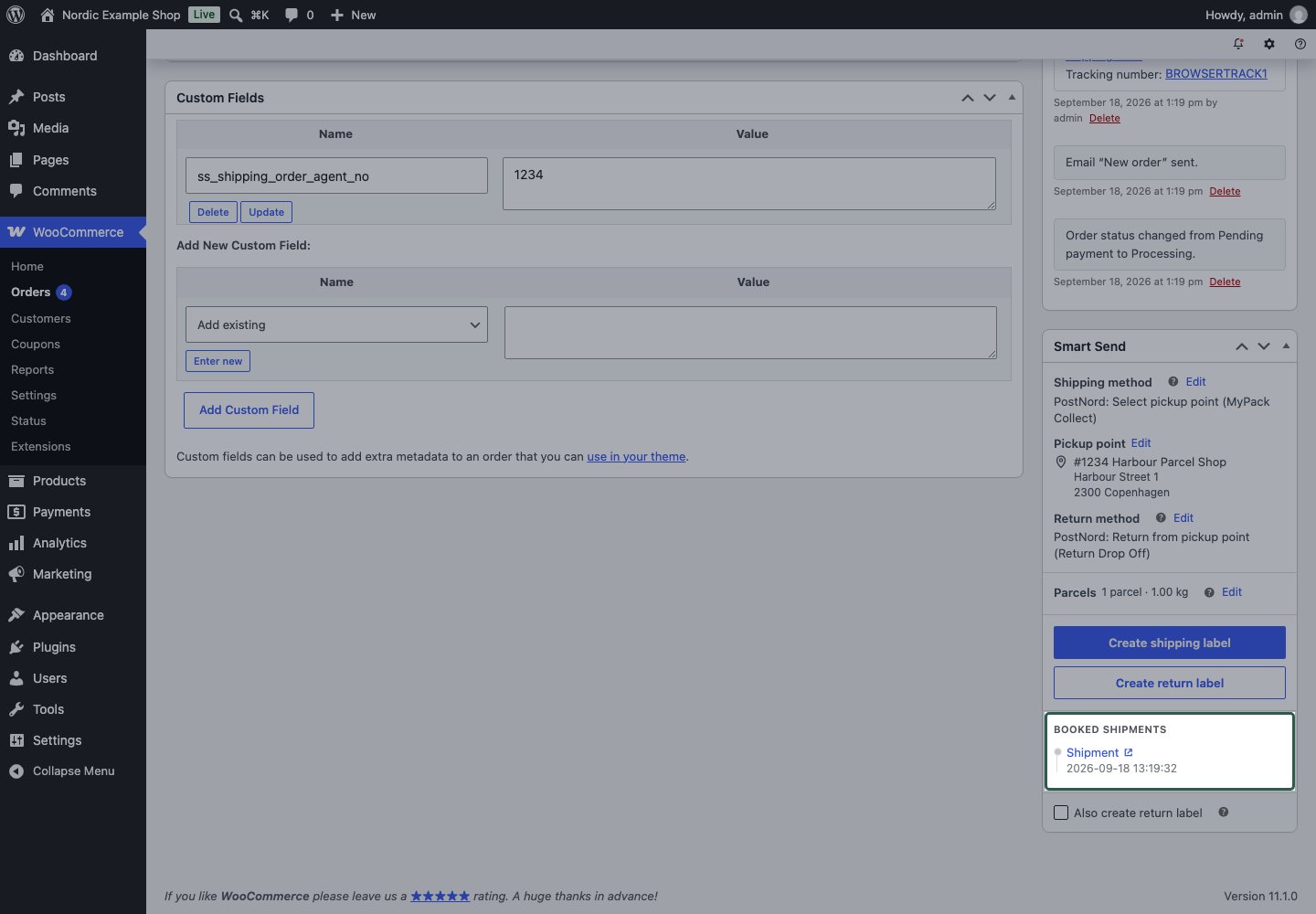
Order notes after reloading
The immediate result in the Smart Send panel appears as soon as the booking finishes. WooCommerce’s Order notes area shows the new private booking note after a full page reload. Save any unrelated unsaved order edits before reloading.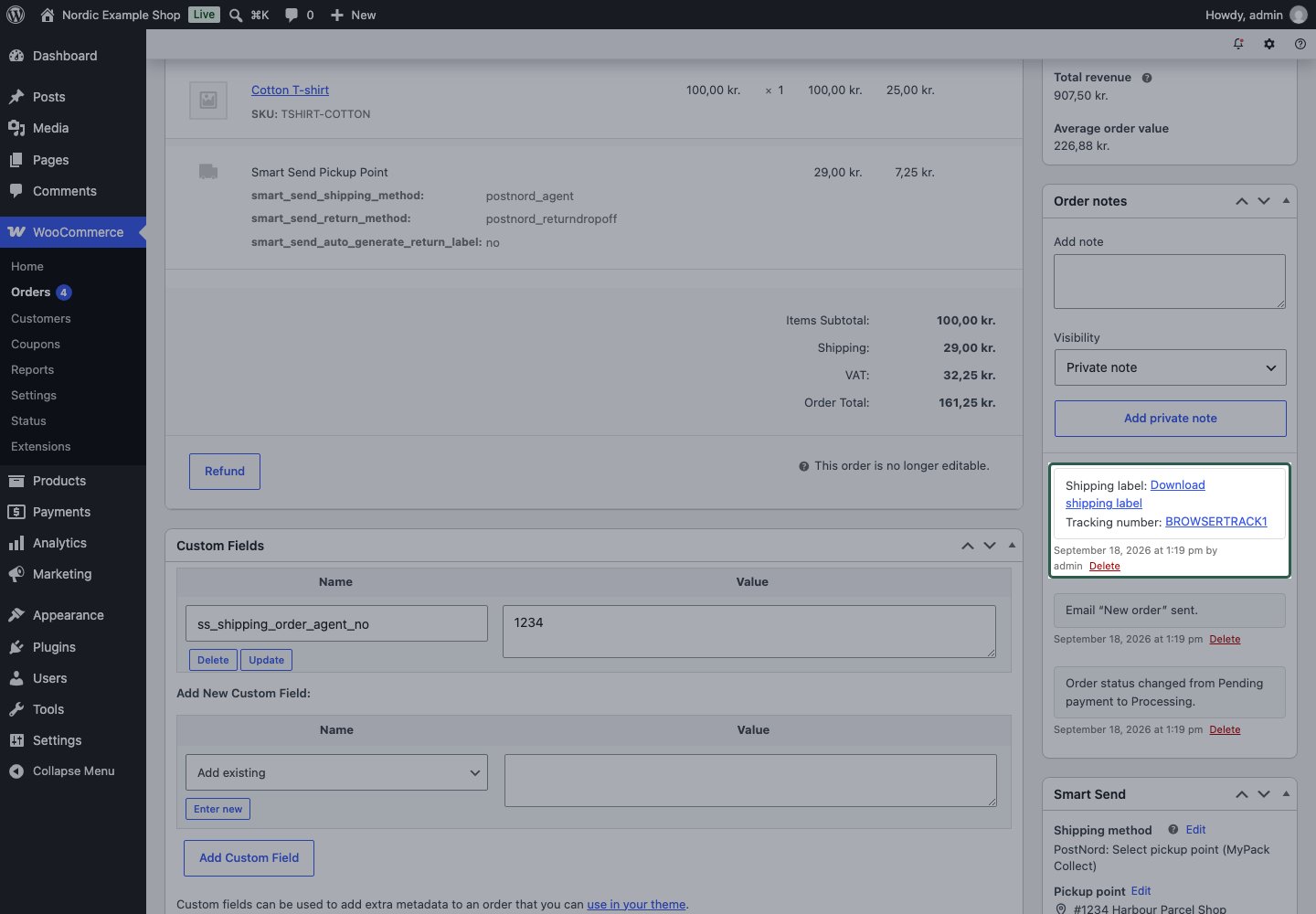
Optional WooCommerce Shipment Tracking integration
When the separate WooCommerce Shipment Tracking extension is active and exposes its tracking API, Smart Send passes each outbound parcel’s tracking number, carrier name and tracking URL to it after booking. Return bookings are not passed to this extension by default. The extension controls how those tracking entries appear in customer accounts and supported order emails. Its documented tracking API describes that handoff. Check the extension’s settings and your email templates before relying on a particular customer-facing display. Smart Send saves tracking before applying Set order status after label print. A configured status change may trigger WooCommerce emails; booking a label alone is not a promise that a customer email was sent. Verify the actual email and account view with your shop’s configuration.If tracking information is missing
- No new order note: reload the full order page after the booking completes.
- No tracking information: check the successful booking result and shipment in Smart Send; only tracking returned by the carrier can be shown.
- A tracking link has no carrier events yet: distinguish label creation from the carrier’s first scan.
- No tracking in customer email/account: confirm the optional extension is active, the tracking entry exists, and the relevant email or template includes it.
Choose a different service for this booking
Click Edit beside Shipping method and select the required carrier service. This overrides the service for the current booking; it does not change the customer’s shipping charge or permanently replace the order’s shipping method.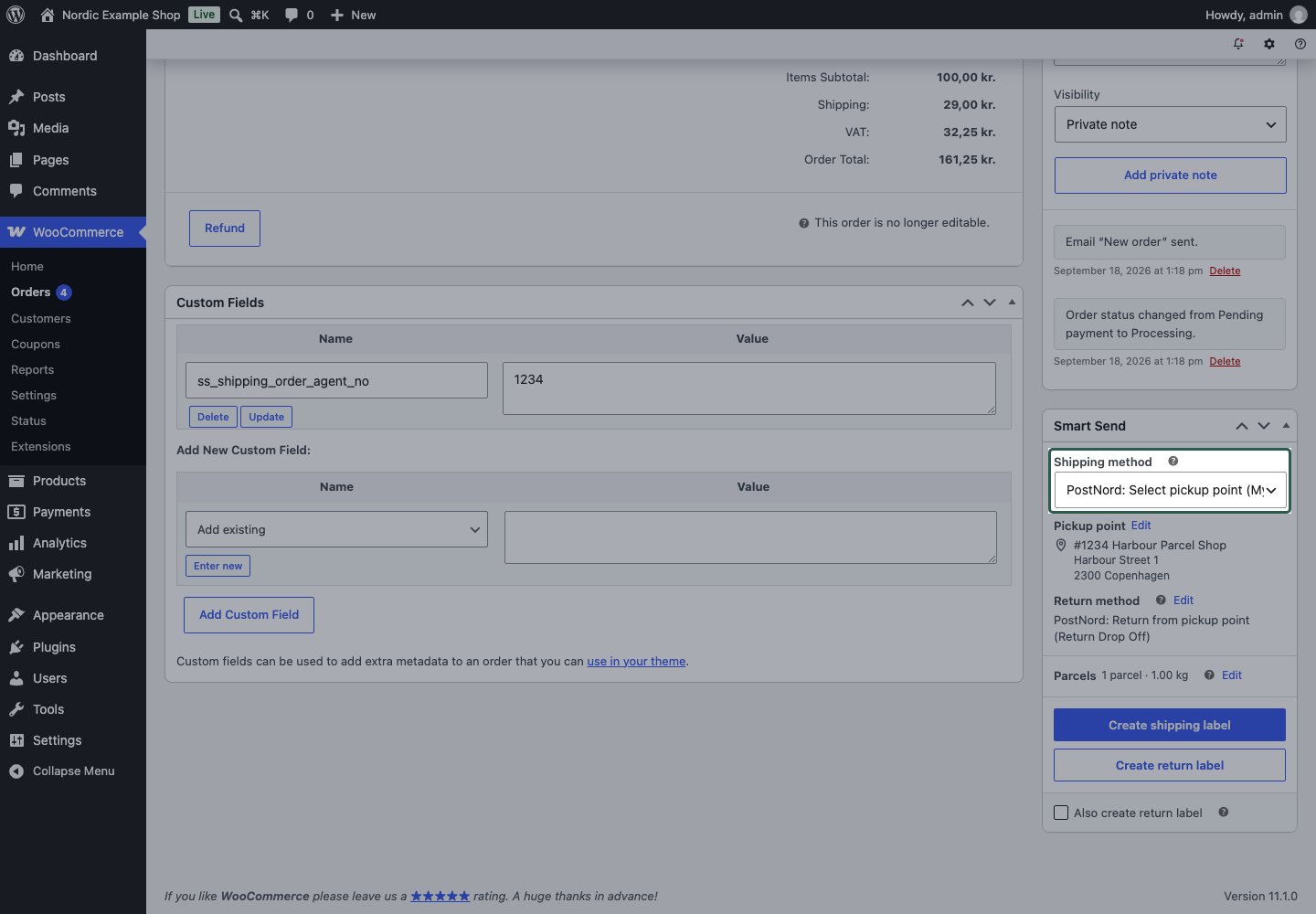
Change the pickup point
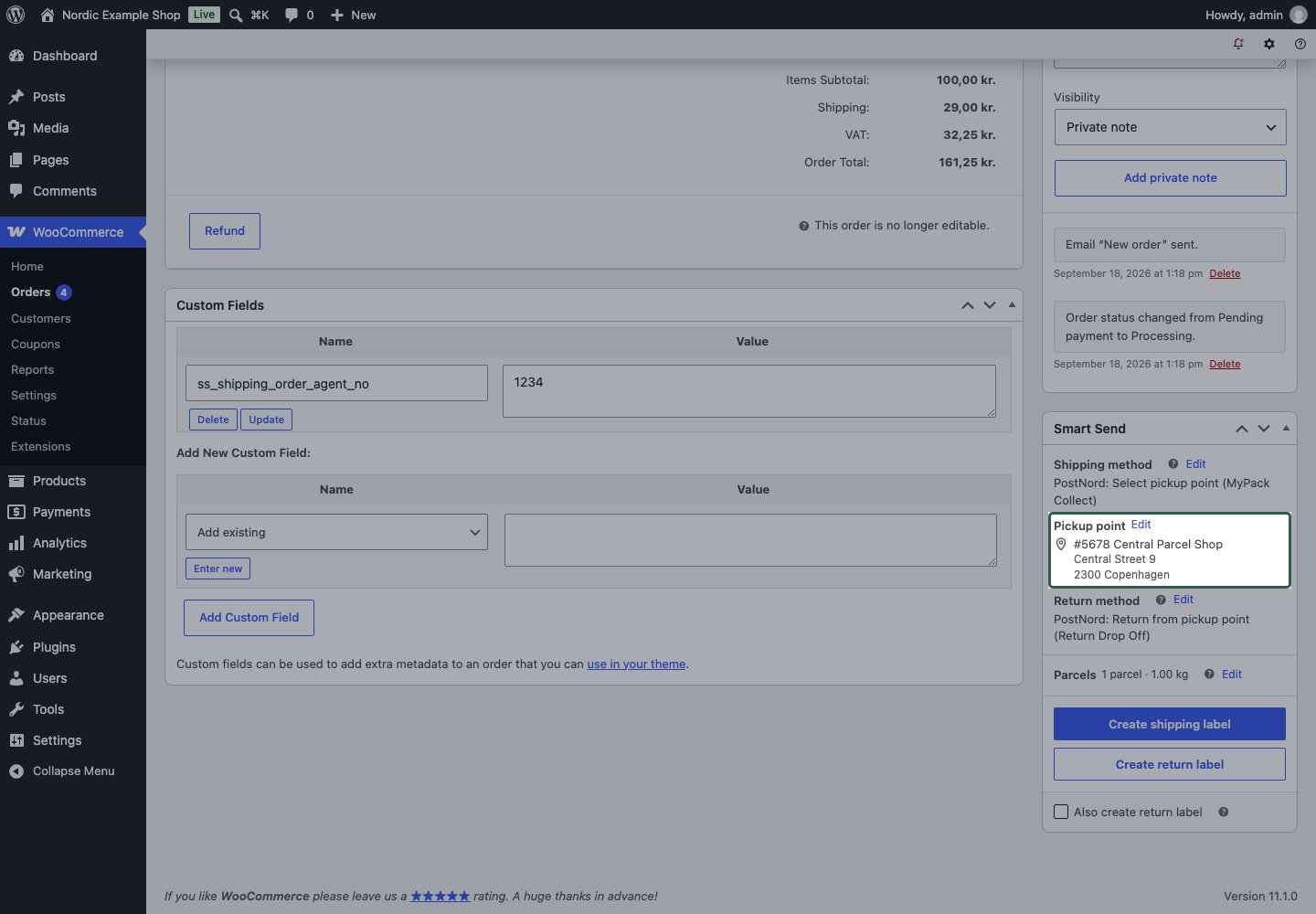
For a customer-selected pickup service, click Edit beside Pickup point, enter the pickup-point number, and click Look up. Review the returned name and address before booking. The point must belong to the selected carrier and the order’s destination country.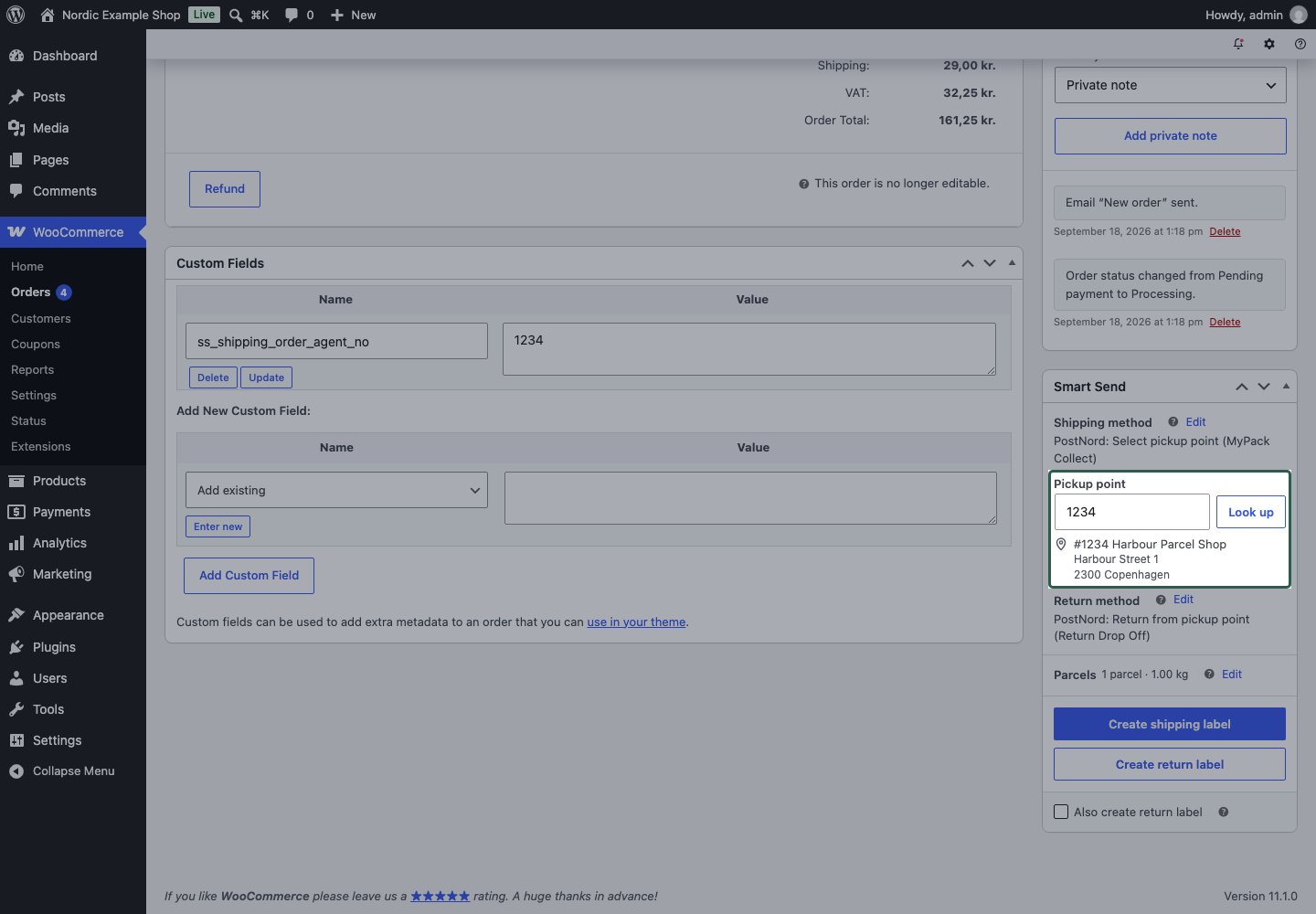
Book again
If a shipment has already been booked in the same direction, the panel asks for confirmation. Yes, create another creates an additional shipment. It does not cancel the earlier shipment. Use an existing document link when you only need another printout.Booking settings
In WooCommerce → Settings → Shipping → Smart Send:
If you see a warning that a local copy could not be saved, use the original link and investigate the WordPress upload problem. Do not book again just to obtain the PDF. See plugin settings and frequently asked questions.
Bulk printing is coming. This guide covers booking and printing from an individual order.
Customs information
Smart Send reads customs information from your products when preparing a shipment. Enter accurate origin, goods description and tariff classification before booking on a route that requires a customs declaration. You need permission to edit products. For route requirements and the rest of the declaration, see international shipping and understanding customs.Add product customs information
1
Open the product's Shipping tab
Go to Products, edit the product, and open Product data → Shipping. Smart Send’s customs fields are in this tab.
2
Set the country of origin
In Country of origin, select the country where the goods were produced. This can differ from the country your shop ships from.
3
Describe and classify the goods
Enter a clear Customs description, such as Cotton T-shirt. Enter the product’s HS code in Harmonized Tariff Schedule. Determine the correct tariff code for your actual goods and destination; do not copy the example solely because your product has a similar name.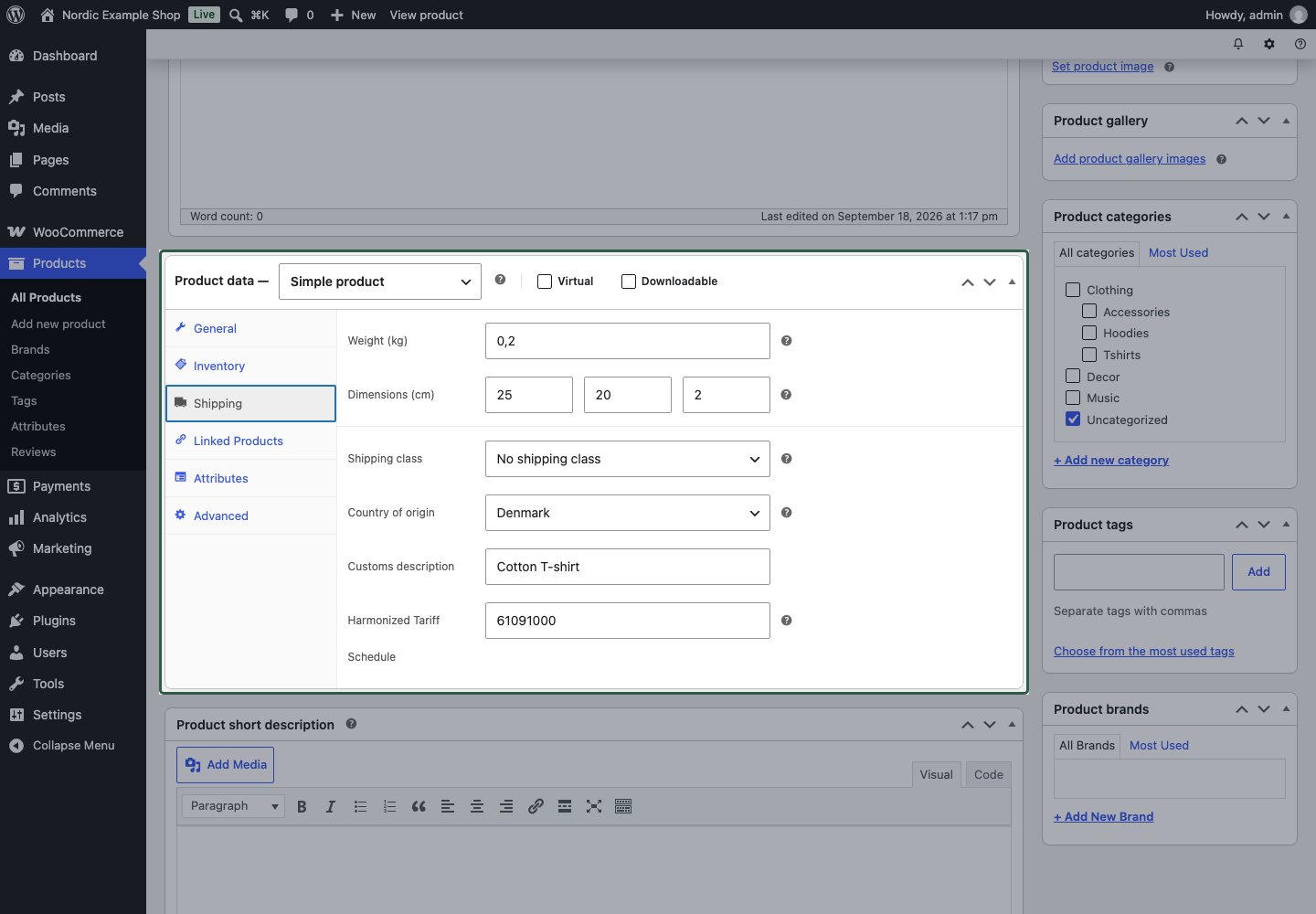
4
Save and check
Click Update, reopen Shipping, and verify the saved values. Repeat for the other products you ship internationally.
Example
The screenshot uses a synthetic cotton T-shirt produced in Denmark, the description Cotton T-shirt, and 61091000 as its example code. These values illustrate where to enter data; they do not determine the classification or origin of your product.Product variations
For a variation, Smart Send uses a customs value stored on the variation when one exists. If it is empty, Smart Send falls back to that field on the parent product. Fill in the parent product’s Shipping fields for values shared by its variations. The plugin does not add a separate set of customs controls to each variation’s editor.When you book
The plugin supplies the product’s customs description, HS code and country of origin with the order’s item information. Origin and HS code alone do not guarantee a complete declaration: the route and carrier can also require other shipment, value or sender information. If a booking reports missing or invalid customs data, correct the product fields and any other information named in the error before retrying. A deleted catalog product cannot supply its customs metadata. Also review gift-card valuation limitations if the order was paid with a gift card. After saving the product information, return to booking from the order page.Colli shipments
Use this advanced workflow when one order needs several physical packages, or when you need to enter a packed weight and dimensions. Each package is one colli in the shipment. Check the order quantities, product weights and carrier limits before editing. The editor allocates the entire order; it does not select only part of the order for shipment.Open the colli editor
In WooCommerce → Orders, open the order and find Smart Send → Parcels. The summary shows the number of parcels and total weight. Click Edit to open the controls. The interface calls the individual colli Box 1, Box 2, and so on.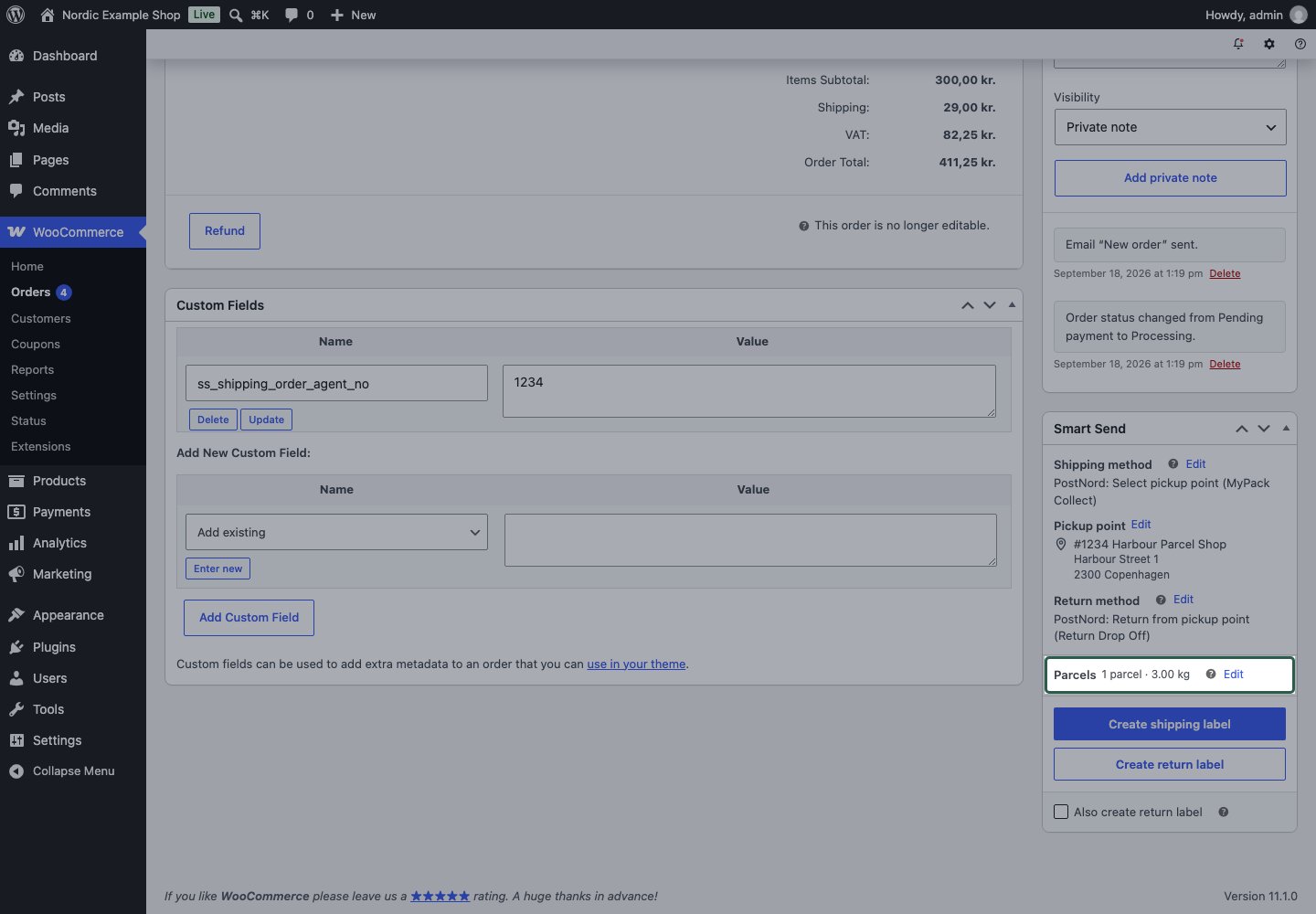
Allocate items to colli
Example: ship three units of one product as two units in the first colli and one in the second.1
Start with the order items
Open Parcels → Edit. For a new allocation, all three units are in Box 1.
2
Move one unit to the next colli
Click the down arrow beside the product once. It moves one unit to Box 2, creating that box when needed. The first box now contains two units; the second contains one.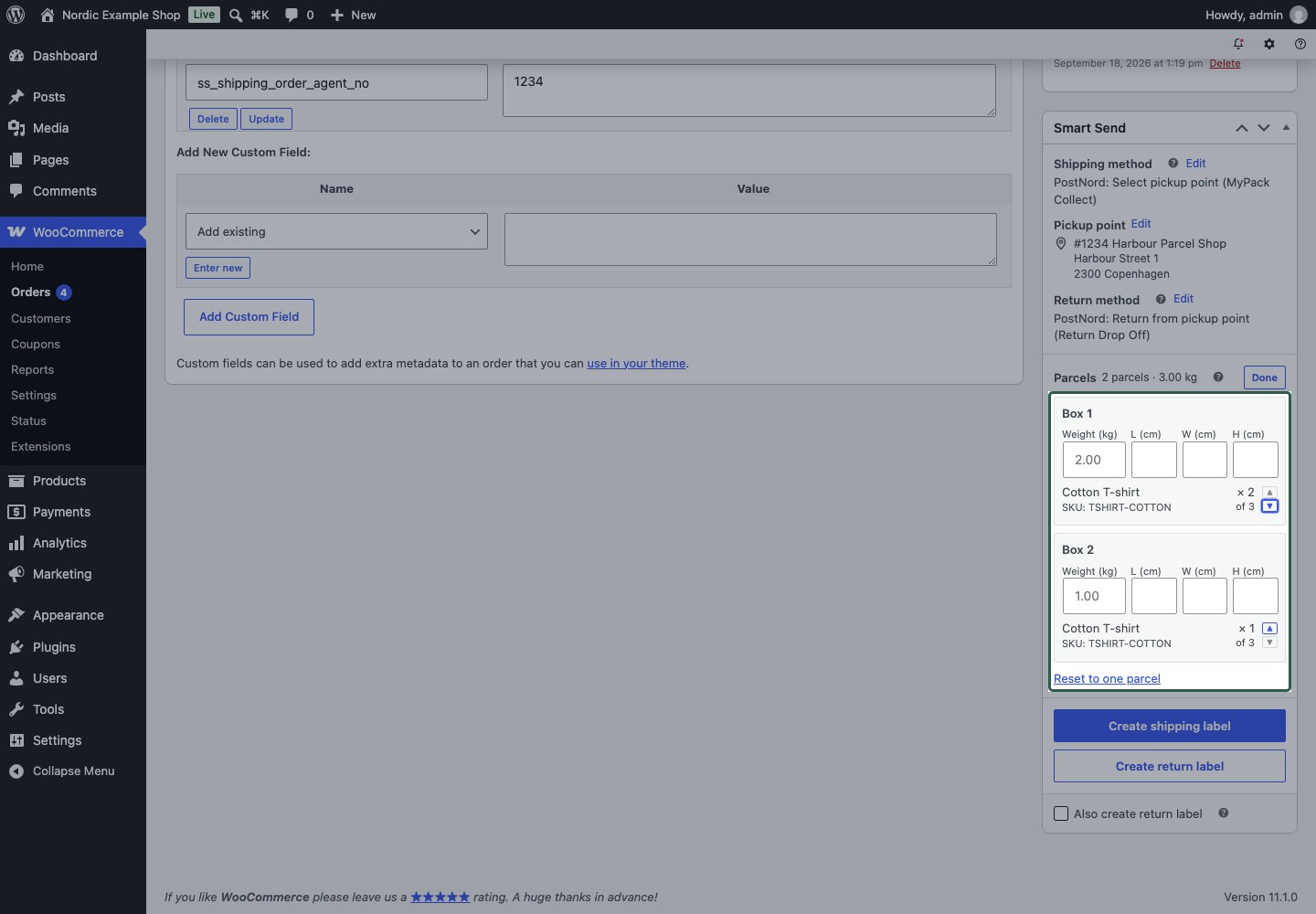
3
Check every quantity
Each arrow moves one unit. Use the up arrow to move one back. A box is removed when its last unit moves out, and the remaining boxes are renumbered. Every order unit must appear in exactly one box.
4
Review and book
Check the weights and measurements below. Click Done to collapse the editor, review the summary, then use the appropriate label button to book. Done alone does not book or persist the allocation.
Weights and dimensions
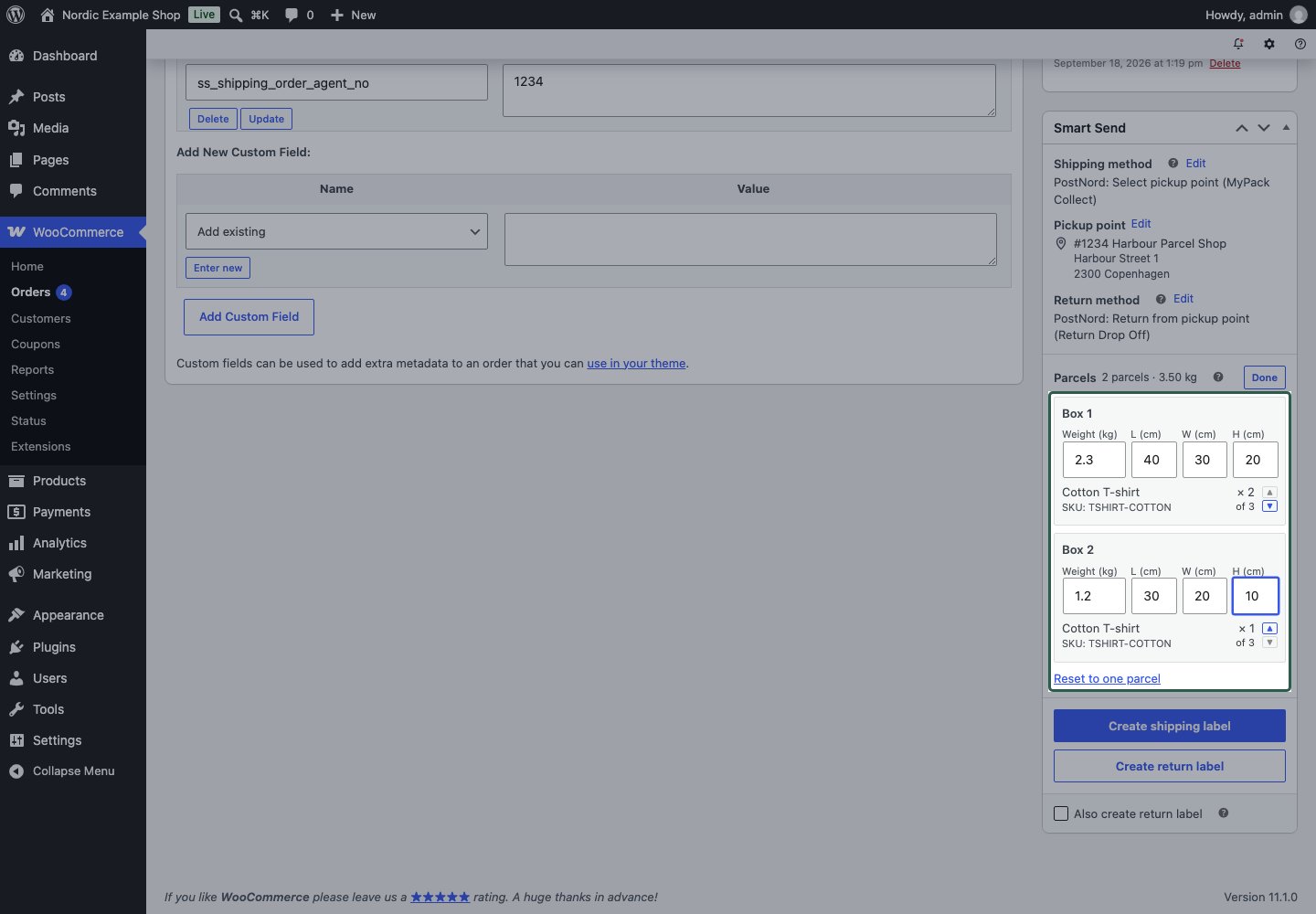
Leave Weight (kg) empty to use the sum of the allocated products’ weights. The placeholder shows that calculated weight. This automatic calculation does not add packaging unless a developer has configured that behavior. Enter a weight to use the colli’s measured total, including its packaging. Enter the external length, width and height in L (cm), W (cm) and H (cm) when needed for the service. The editor uses kg and cm, regardless of the store’s product measurement units.
With these manual weights, the summary shows a total of 3.5 kg.
What is saved
A failed booking does not save the submitted allocation or pickup change. In a combined outbound-and-return booking, a successful outbound leg can already have saved them even if the return fails. Both legs use the current entered measurements. See return booking recovery.
Fix allocation or weight errors
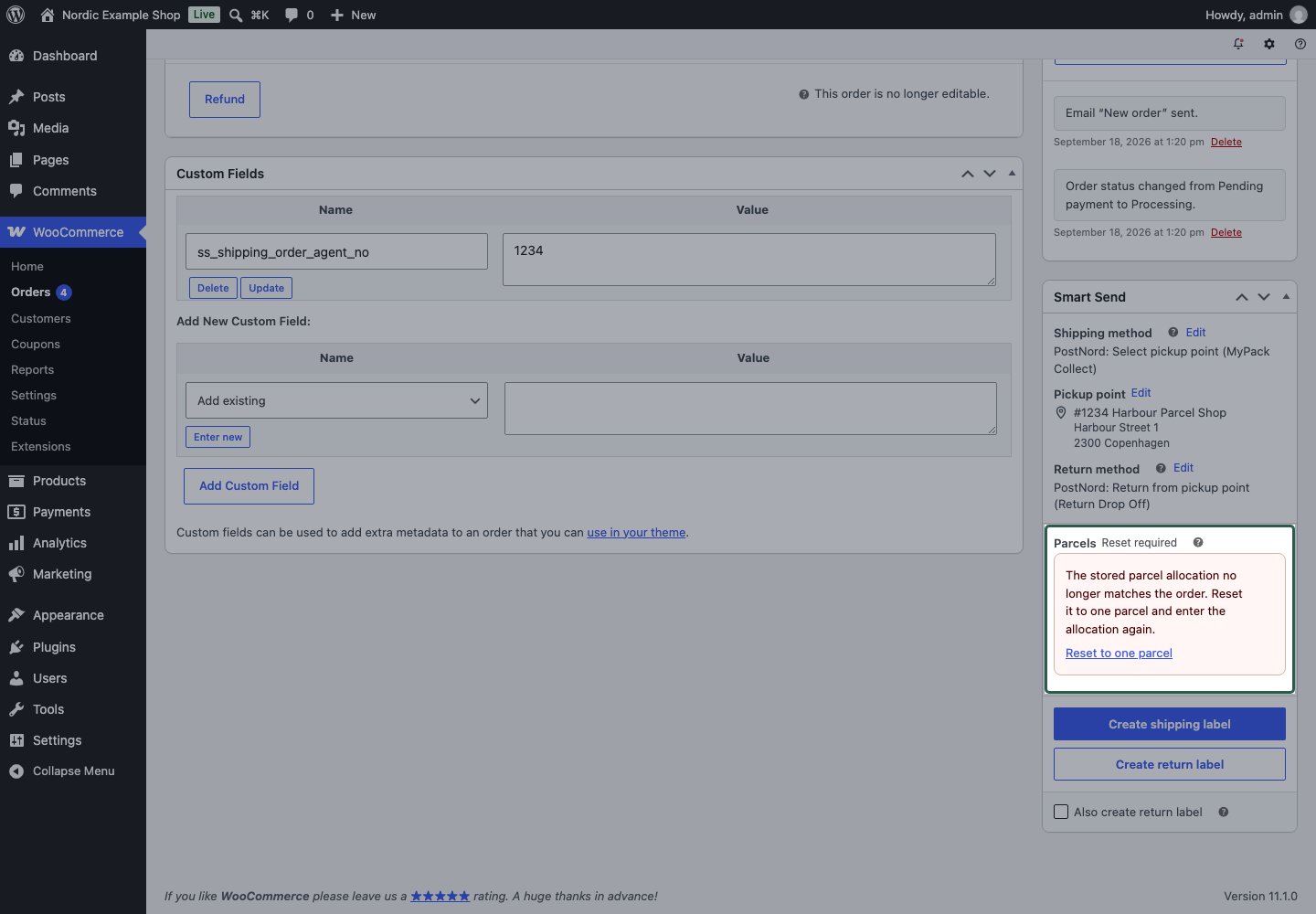
Reset required means the saved allocation no longer matches the current order, for example after its quantities changed. Click Reset to one parcel, then allocate the current items again. Reset also clears the editor’s entered weights and dimensions, so review those before booking.